Products, invoices and subscriptions
How to sell from your Salesforce catalog through Stripe: products and their prices, payment links, invoices, and recurring subscriptions.
Overview
Your catalog stays in Salesforce. You send a Product to Stripe from its record page, give it prices there, and make payment links from those prices. Invoices and subscriptions start from an Opportunity, through Flow actions, or from a payment form or link.
Every payment Stripe collects lands on an Opportunity:
- An invoice payment lands on the Opportunity it billed.
- A subscription's first payment lands on the Opportunity the subscription started from.
- Each renewal gets a new Closed Won Opportunity of its own.
This page needs the webhook events for invoices and subscriptions in place; see Setup.
Sending a product to Stripe
Add Flourish Payments: Stripe Product to your Product record page in the Lightning App Builder.
On a product that isn't in Stripe yet, click Send to Stripe. The product's name, description and active setting are sent, and the button becomes Update in Stripe. Click it again whenever you change those on the record.
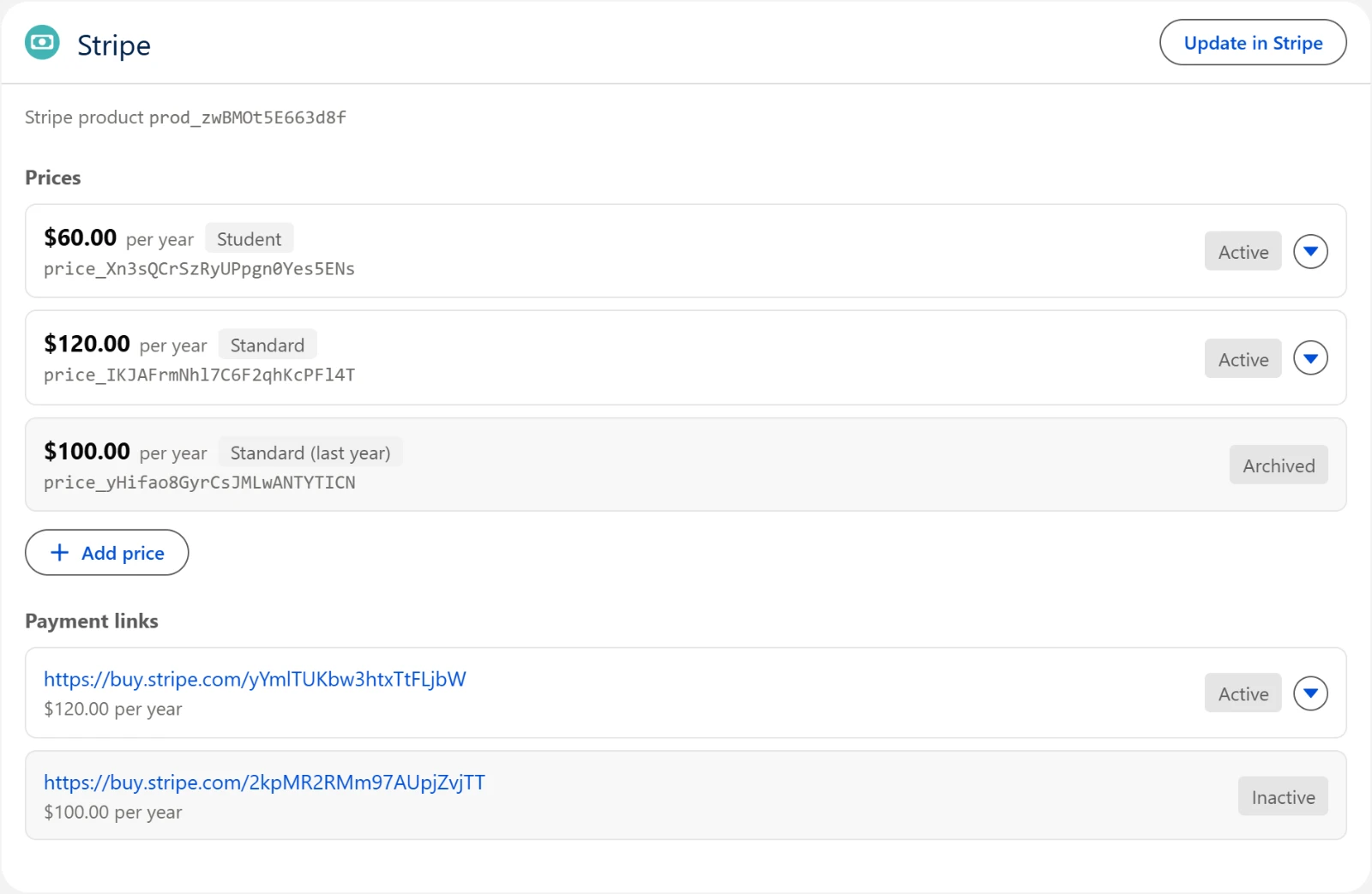
Prices
Click Add price and fill in:
| Field | What it takes |
|---|---|
| Amount | The price in dollars. |
| Billing | One time, Weekly, Monthly, Every 3 months or Yearly. Anything but One time makes a recurring price for subscriptions. |
| Nickname | Optional. A name you'll recognize, for example "Monthly membership". |
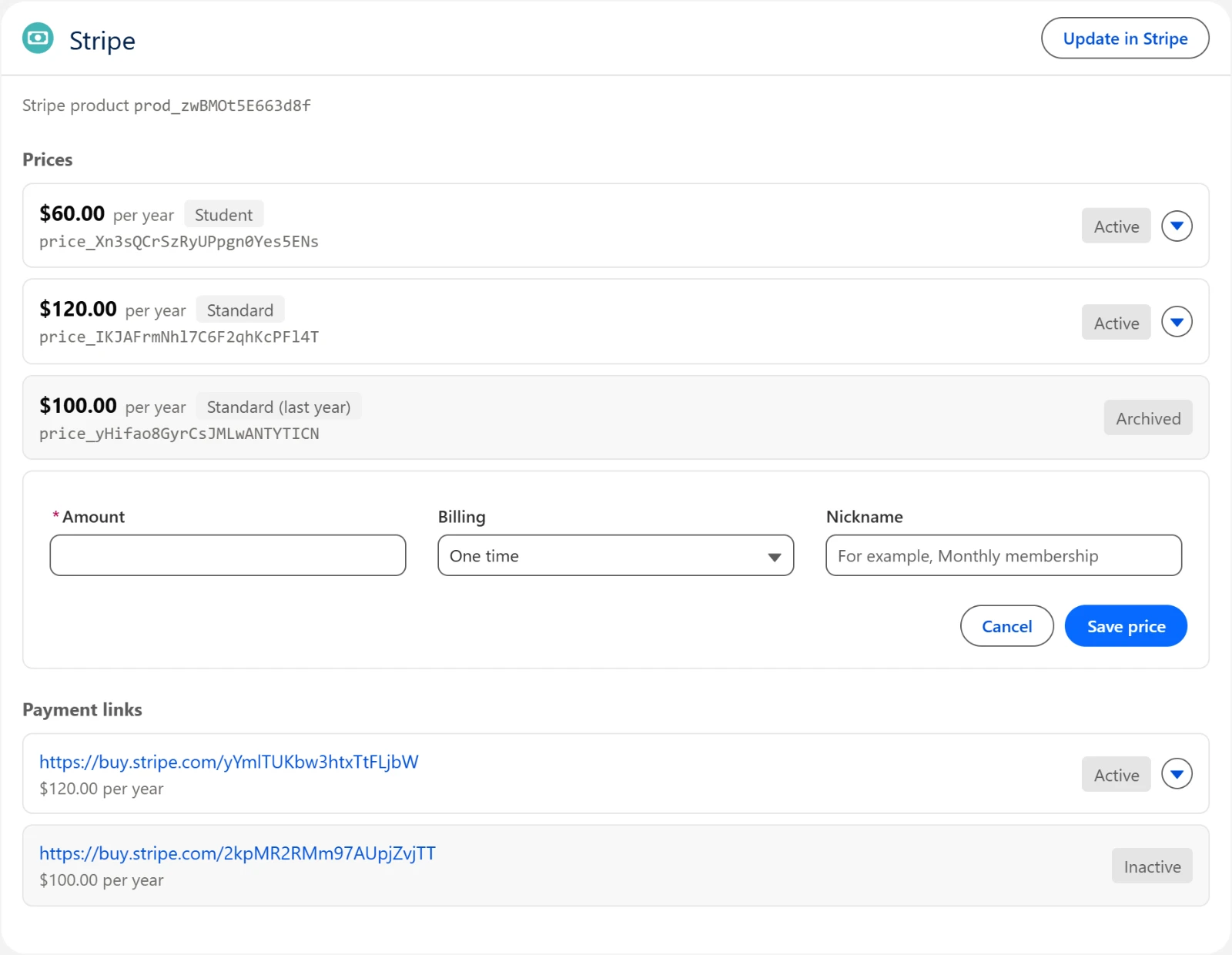
Click Save price. Adding a price to a product that isn't in Stripe yet sends the product first.
Stripe doesn't let a price change once it exists. To change an amount, add a new price and archive the old one: open the old price's actions menu and choose Archive price. Its payment links stop working, and subscriptions already on it carry on at the old amount. An archived price stays on the card, marked Archived.
Payment links
Open a price's actions menu and choose Create payment link. The link appears under Payment links, where Copy link copies it and Deactivate link turns it off. Anyone who opens a deactivated link can't pay. A deactivated link stays on the card, marked Inactive.
A payment link is a page Stripe hosts, so you can share it by email, text or social media without a payment form on your website. When someone pays through one:
- The payer: their Contact is found by email, or created with the name they gave Stripe.
- The record: a new Opportunity is created, named for the product, and turns Closed Won once the payment clears. Its Payment Custom Data holds the link, the price and the product.
- Recurring prices: the Opportunity also holds the subscription, and renewals follow as described under Subscriptions.
Only links made from this card are recorded. A link made directly in the Stripe dashboard isn't.
Invoices
Send an invoice from a Flow with the Send Stripe Invoice action.
What's on it. Each of the Opportunity's products becomes a line, with its quantity and price. An Opportunity with no products gets one line for its Amount.
Who it goes to. The Opportunity's Contact. On NPSP, if the Opportunity has no Contact, the primary contact; otherwise, the primary contact role. The payer is matched to their Stripe customer, or one is created.
How it reaches them.
- Emailed (the default): with Email the Invoice on, Stripe emails the invoice and sends reminders until it's paid.
- Not emailed: with it off, nothing is sent, and the action returns the Invoice URL for you to share.
The payer has 30 days to pay unless you set Days Until Due.
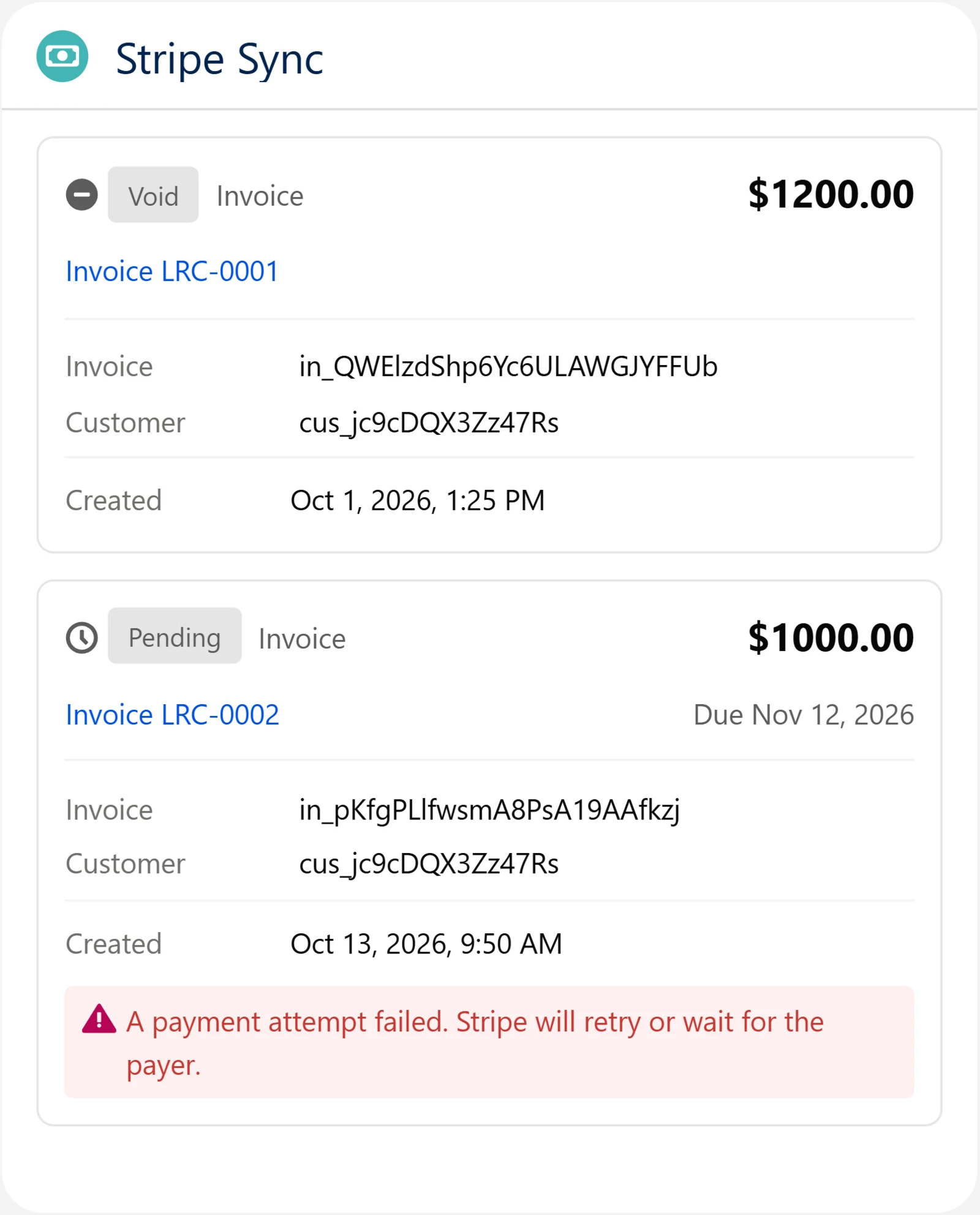
What you see on the record. The invoice appears in the Stripe Sync Viewer as Pending, with its number and a link to it. After that:
| What happens in Stripe | On the Opportunity |
|---|---|
| The invoice is paid | Completed, and the Opportunity turns Closed Won |
| A payment attempt fails | Still Pending, with a note that the attempt failed. Stripe tries again or waits for the payer. |
| You void the invoice | Void. The stage doesn't change. |
| You mark it uncollectible | Uncollectible. The stage doesn't change. |
Subscriptions
A subscription charges the payer on a schedule until it's canceled. There are three ways to start one:
| Started from | How |
|---|---|
| A Flow | The Start Stripe Subscription action, on an Opportunity. |
| Your website | A payment form set up for subscriptions. See Payment widget. |
| A payment link | A link made from a recurring price. |
Starting one from a Flow
The action needs an Opportunity, whose Contact pays, and a price. The price can be:
- A Stripe price ID;
- a Product you've sent to Stripe, which uses its newest recurring price;
- a Product with an Amount and Billing Interval, for a price that isn't in the catalog.
How the payer pays:
- By card: the payer's card is charged each period. That's the card saved at the Opportunity's checkout, if there was one, or otherwise the default card on their Stripe customer.
- By invoice: with Bill by Emailed Invoice on, Stripe emails an invoice each period instead.
Give a future Start Date and nothing is charged until then.
An Opportunity can have one live subscription at a time; the action refuses to start a second.
Where the payments land
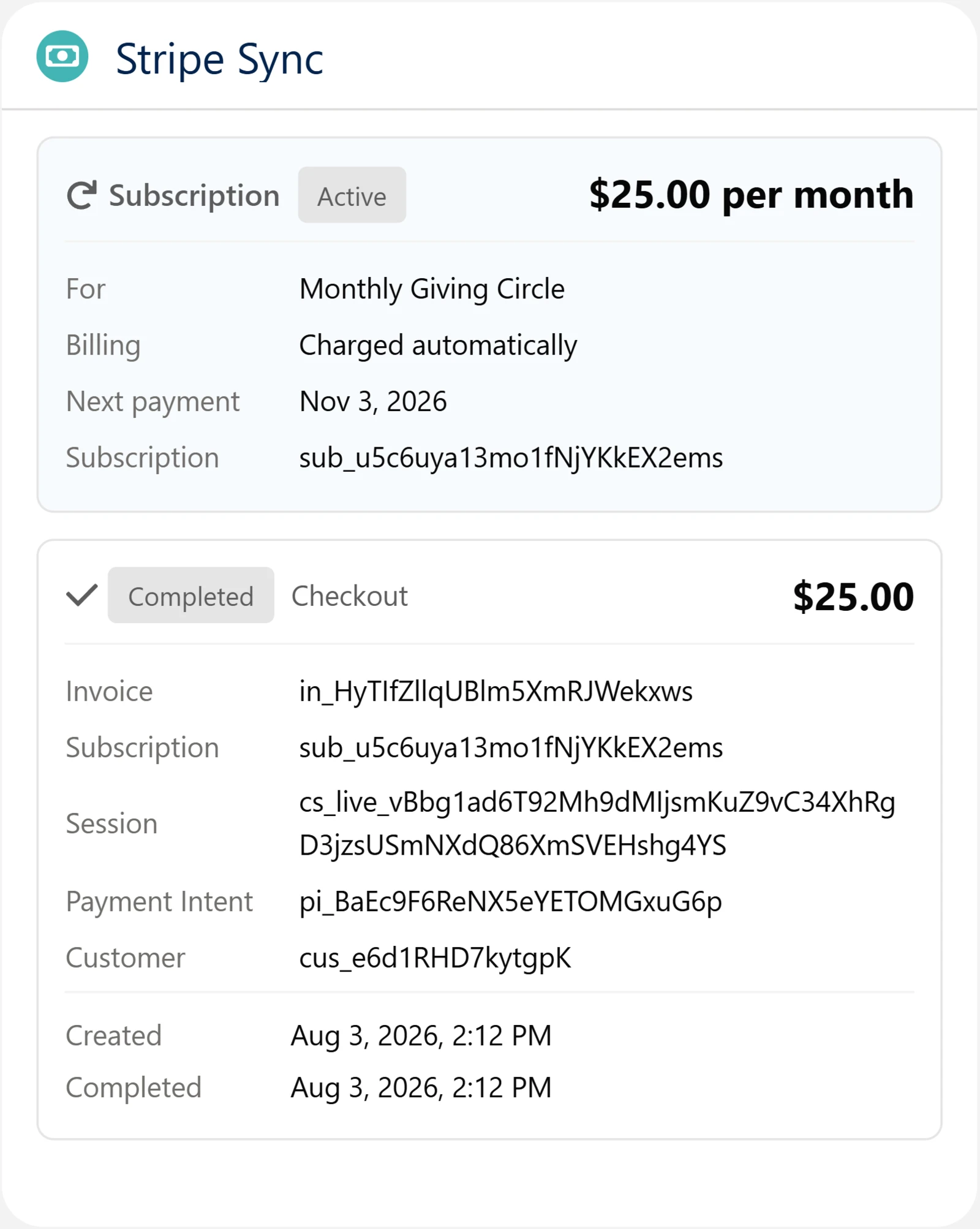
- The starting Opportunity holds the subscription. The Stripe Sync Viewer shows it at the top: status, price, billing, next payment date, and any cancellation.
- The first payment lands on that same Opportunity, which turns Closed Won. A subscription with a future start date has nothing to record until its first real charge.
- Each renewal becomes a new Closed Won Opportunity:
- same Contact and Account, named for the product;
- its Subscription Opportunity field points back to the starting Opportunity;
- add the Subscription Payments related list to the Opportunity layout to see them all from the start.
- A failed renewal payment is noted on the subscription, and Stripe retries it on its own schedule.
On NPSP, a renewal's Opportunity is created already Closed Won, so NPSP marks its payment paid. Nonprofit Cloud creates its Payment as paid. One case is left to you: when the first payment lands on an existing Opportunity that has its own payment records, the Opportunity turns Closed Won but those payment records aren't marked paid.
Canceling
Use the Cancel Stripe Subscription action:
- Which Opportunity: the starting Opportunity, or any of its renewal payments.
- When it ends: by default after the period already paid for. With Cancel Immediately on, it ends now.
The subscription on the record shows the cancellation, and then Canceled once it ends. A canceled subscription stays canceled; nothing restarts it.