Administering Rapport
How to switch mailboxes on, set the rules for what gets captured, and decide how email is matched to records.
Overview
Everything an administrator does happens on the Rapport tab. Open it and you will see an Administration section in the panel on the left, holding three screens:
| Screen | What you do there |
|---|---|
| General | Provisioning, capture direction, how far back to reach, and how email is matched to records |
| Filters | Org-wide capture rules: hard blocks, block lists, your internal domains, and the recipient limit |
| Users | Who Rapport is switched on for |
The Administration section only appears if you hold the Flourish Rapport: Admin permission set. Everyone else sees the Email Sync section alone.
Nothing saves as you type. General and Filters both edit a draft. While your draft differs from what is stored, a banner tells you that you have unsaved changes, and nothing is written until you press Save. Discard changes puts it back, and Refresh reloads from the org.
If saving fails with an error about Customize Application, that is a Salesforce permission rather than a Rapport one. See Setup.
Users
The Users screen lists everyone holding a Rapport permission set, and is where you switch Rapport on for them.
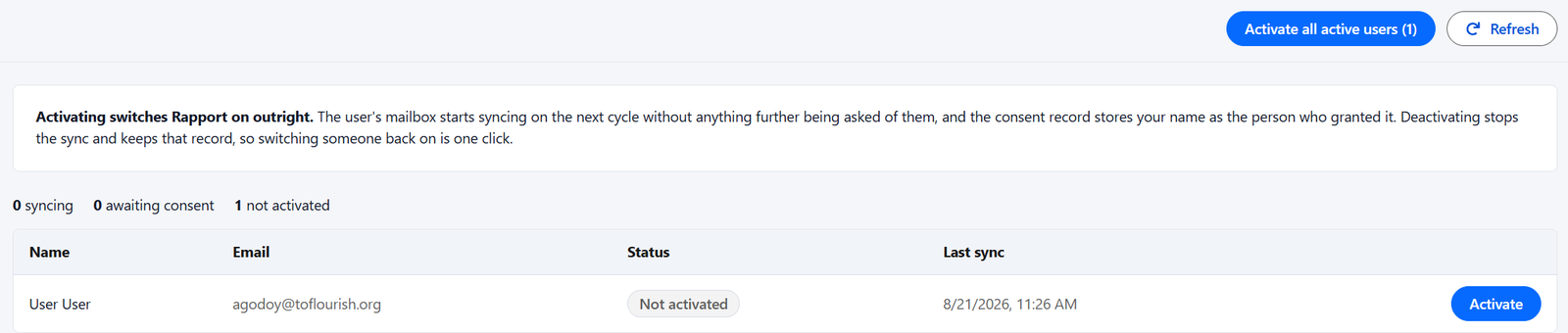
Three counts sit above the table, giving you the state of the org at a glance: how many are syncing, how many are awaiting consent, and how many are not activated.
Each row shows one person and their status:
| Status | Meaning |
|---|---|
| Syncing | Rapport is on and their mail is being captured |
| Awaiting consent | You have switched them on and they have not confirmed yet |
| Not activated | Rapport is off for them |
Last sync shows when their mailbox last synced, or Never if it has not yet.
Switching people on
Activate on a row switches that person on. Activate all active users does the same for everyone not yet activated, and the button carries the count so you can see what it is about to do.
Activating switches Rapport on outright. The person's mailbox starts syncing on the next cycle without anything further being asked of them, and the consent record stores your name as the person who granted it. That record is why activation is worth treating as a deliberate act rather than a bulk tidy-up: it is the answer to who decided that a given mailbox should be captured.
Deactivate stops the sync and keeps that record, so switching someone back on later is one click. Email already captured stays in Salesforce either way.
If nobody appears, nobody has been assigned a Rapport permission set yet. Assign one and they will show up here. The list shows the first 200 people, and Activate all active users acts on those; a warning appears above the table when there are more.
Filters
The Filters screen under Administration sets capture rules for the whole org. These are separate from the personal filters each person manages for their own mailbox, and they are what those personal filters layer on top of.
Rules are evaluated in this order:
hard block -> whitelist -> block list -> capture
Hard blocks
Never captured, and no user can override them from their own Filters screen. This is the right home for board members and anyone whose correspondence must stay out of Salesforce entirely. It takes email addresses and domains separately.
Everything else on this screen is a default that someone can override with their own always-sync list. Hard blocks are the only rule that cannot be.
Block list
Skipped by default across the org, but a person can still whitelist one of these for their own mailbox. This is the everyday list: newsletters, mailing lists, noisy senders.
Internal domains
Your own mail domains. This does two jobs, and getting it wrong fails silently, so check it carefully:
- It drives the internal-only rule below.
- It stops Rapport ever creating a record for one of your own addresses, so your own no-reply and billing senders never become Leads.
Nothing errors if this is wrong. Internal mail simply syncs when it should not, and your own automated senders start turning into records.
Thresholds
Skip email where every participant is internal keeps internal chatter out. A thread with one outside participant is still captured; this only skips mail where everyone on it is inside your organization.
Recipient limit skips mail with more than the given number of unique participants, which is what keeps newsletters and mass mailings out.
General
The General screen holds everything on the configuration record that is not a filter.
Provisioning
Who decides that a mailbox starts syncing. The two modes differ in who owns that decision:
Self-Serve lets anyone with the permission set connect their own mailbox from the Connect Mailbox screen. You can still activate people from the Users screen.
Admin-Managed means you activate a mailbox first and the person then confirms. Someone who has not been activated is told Rapport is not enabled for their mailbox yet, and is given no way to connect. If they later disconnect, their activation stays in place, so they can reconnect without asking you again.
Pick Admin-Managed when you want a deliberate list of who is captured. Pick Self-Serve when you want people to opt in as they go.
What gets captured
Capture sent mail and Capture received mail are the org defaults for direction. A person can override these for their own mailbox.
Backfill horizon (days) is how far back the first sync reaches when a mailbox is switched on. Start small, prove a clean run, then widen.
Record creation
Whether Rapport creates a record for a person it cannot match to an existing one.
This is off unless you turn it on, and it is the most destructive thing Rapport does. Unfiltered, it creates a record for every newsletter and automated sender that writes to you, so pair it with the block lists on the Filters screen before switching it on.
Create for participants in these roles scopes it. Sender only is the usual choice: an unknown person who writes to you is worth recording, an unknown person merely copied in usually is not. Rapport never creates a record for one of your own internal domains, whatever you set here.
Record types
Which record type Rapport stamps on the records it creates. Leave these on Org default unless you keep a record type aside for synced records.
Attachment
Maximum related records is how many records one email may be related to. The first is the one that shows on the standard activity timeline; the rest are held in additional fields, where they are queryable and reportable but do not appear on the timeline.
Resolution order
How Rapport turns an email address into a record. Each step is tried in turn and the first match wins, so put the most specific object first. Only Contact, User and Lead are offered, because those are the three that an email relation accepts.
Each step names an object and the email fields to match on. Both are dropdowns built from your own org, so you pick a field rather than typing an API name. That is deliberate: a mistyped field name matches nothing and never errors.
Attaches to
Once a person is matched, which of their lookups the email attaches to.
Order is the priority between kinds of target, and it applies across everyone on the email: every matched person's first field is considered before anyone's second. So if three people on one email each have a household and an affiliation, you get three households before any affiliation, rather than covering the first two people twice over and dropping the third.
Only the first target renders on the standard activity timeline.