Greenhouse
How to sign in to Greenhouse and use it to chat with your agents, run forums, and build new agents, on a computer or a phone.
Overview
Greenhouse is Flourish's app for the Agent Platform, at greenhouse.toflourish.org. In it you:
- chat with every agent you can reach, each conversation in a tab of its own;
- start forums, where several agents take up your question together;
- build and change agents in the builder, and try them as you go;
- ask the Architect to design and build agents for you in a conversation;
- see on a map how your agents and forums fit together.
On a computer it is a window with your chats down the side. On a phone it becomes an app with a tab bar, which you can add to your home screen.
Signing in
From the Flourish Dashboard
If your organization has Agent Platform switched on, the Greenhouse button in the Flourish Dashboard's top bar opens Greenhouse already signed in as you.
The first time on a device, Greenhouse asks you to choose a Passphrase, at least 8 characters, and confirm it. Your sign-in is kept on that device, encrypted with it. See Your passphrase.
With an API token
A browser that has never signed in opens on Welcome to Greenhouse, with two choices:
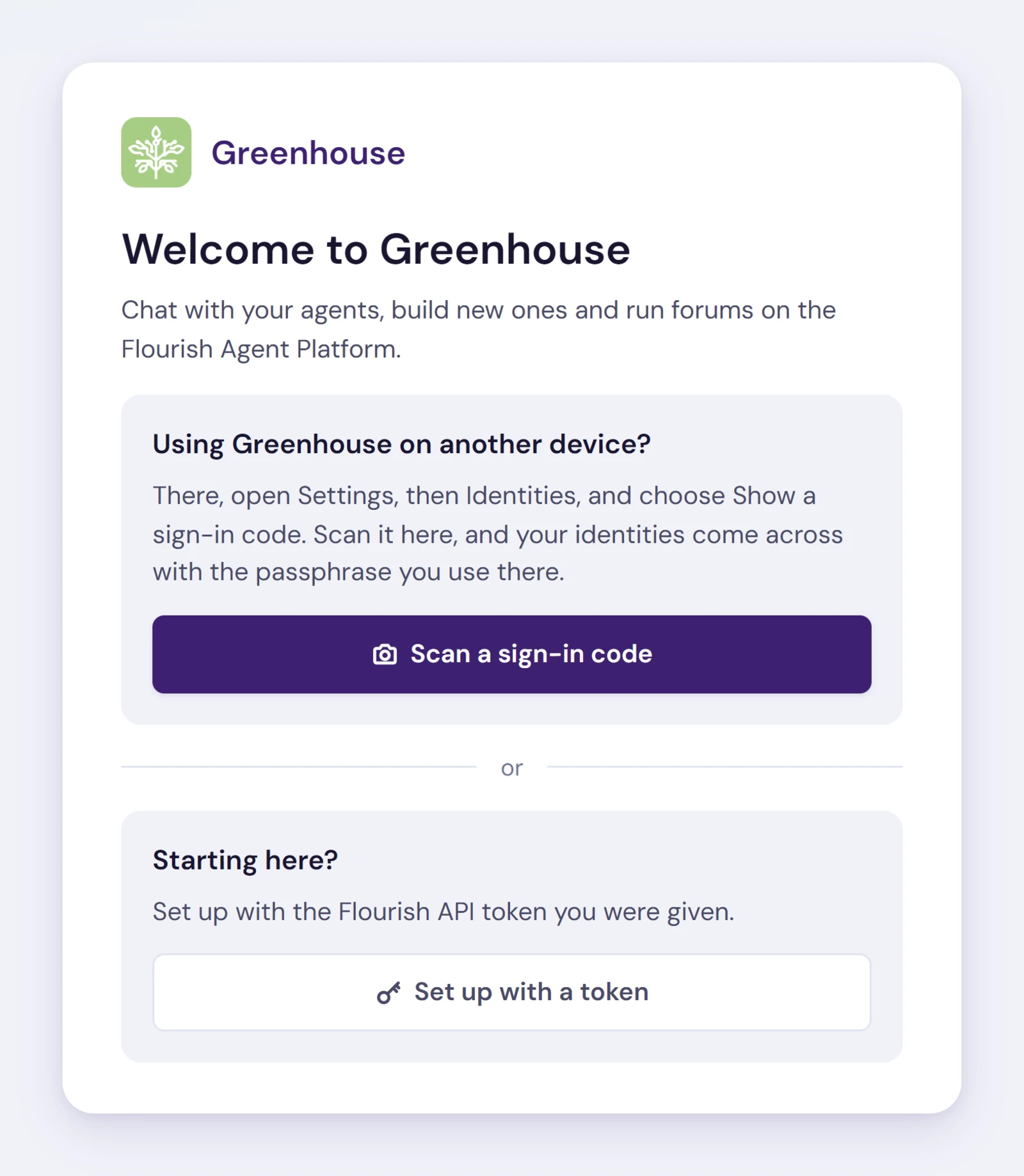
- Scan a sign-in code, to bring your sign-in over from a device where Greenhouse is already set up. See On another device.
- Set up with a token, to sign in with a Flourish API token you were given.
Set up with a token asks for:
| Field | What to enter |
|---|---|
| Type | User for a person, with that person's own token. Org for an organization, with the organization's token. |
| Label | How this identity is listed in Greenhouse, such as your name. |
| Flourish User | The user's name on Flourish. |
| Flourish Org | The organization. Leave it blank for a user who belongs to no organization. |
| Flourish API Token | The token itself. |
| Passphrase and Confirm passphrase | A passphrase of at least 8 characters for this device. |
Click Continue. Greenhouse checks the token with the Agent Platform before saving it, and says so if the user, organization and token do not match.
Your passphrase
Your sign-ins are encrypted on the device with your passphrase and kept there only. Greenhouse stays unlocked on that device until it goes unused for 12 hours, or you lock it with the lock button at the foot of the sidebar, which also closes every chat.
To unlock, enter the passphrase in Unlock Greenhouse.
There is no recovery. If you forget the passphrase, choose Forget vault to remove your sign-ins from the device, then sign in again: from the Flourish Dashboard, or with your token.
Each web address keeps its own sign-ins, so Greenhouse opened from a different address asks you to sign in there too.
Identities
Each sign-in Greenhouse holds is an identity: a person (User) or an organization (Org). Most people need only their own. Someone who works for more than one organization, or who builds agents for an organization as well as for themselves, can hold several.
- The first identity is you. It is the one at the foot of the sidebar, new chats run as it unless you choose otherwise, and your pins and settings are saved to it.
- Add more in Settings, Identities, Add an identity, with the same fields as above, and Save identity.
- Show in lists. With more than one identity, each has a Show in lists checkbox that shows or hides its agents and forums.
On another device
You can sign in on a phone or another computer without typing a token there.
- On the device that is signed in, open Settings, Identities, and choose Show a sign-in code.
- On the new device, choose Scan a sign-in code on the first screen (or Scan a code in Settings, on a device that already has identities), and scan it. A phone's camera app also works; it opens Greenhouse in the browser.
- Enter the passphrase you use on the first device. From then on it opens Greenhouse on the new device too.
The code works once, for a few minutes. If it lapses, choose Show a new code. When the code has been used, the first device says so. If your other device is not signed in by then, someone else used the code first, and the tokens of those identities should be replaced.
On an iPhone, scan from inside the installed app. Scanning with the Camera app signs in Safari, not Greenhouse on your Home Screen. Open Greenhouse from the Home Screen and use Scan a code there.
Finding your way around
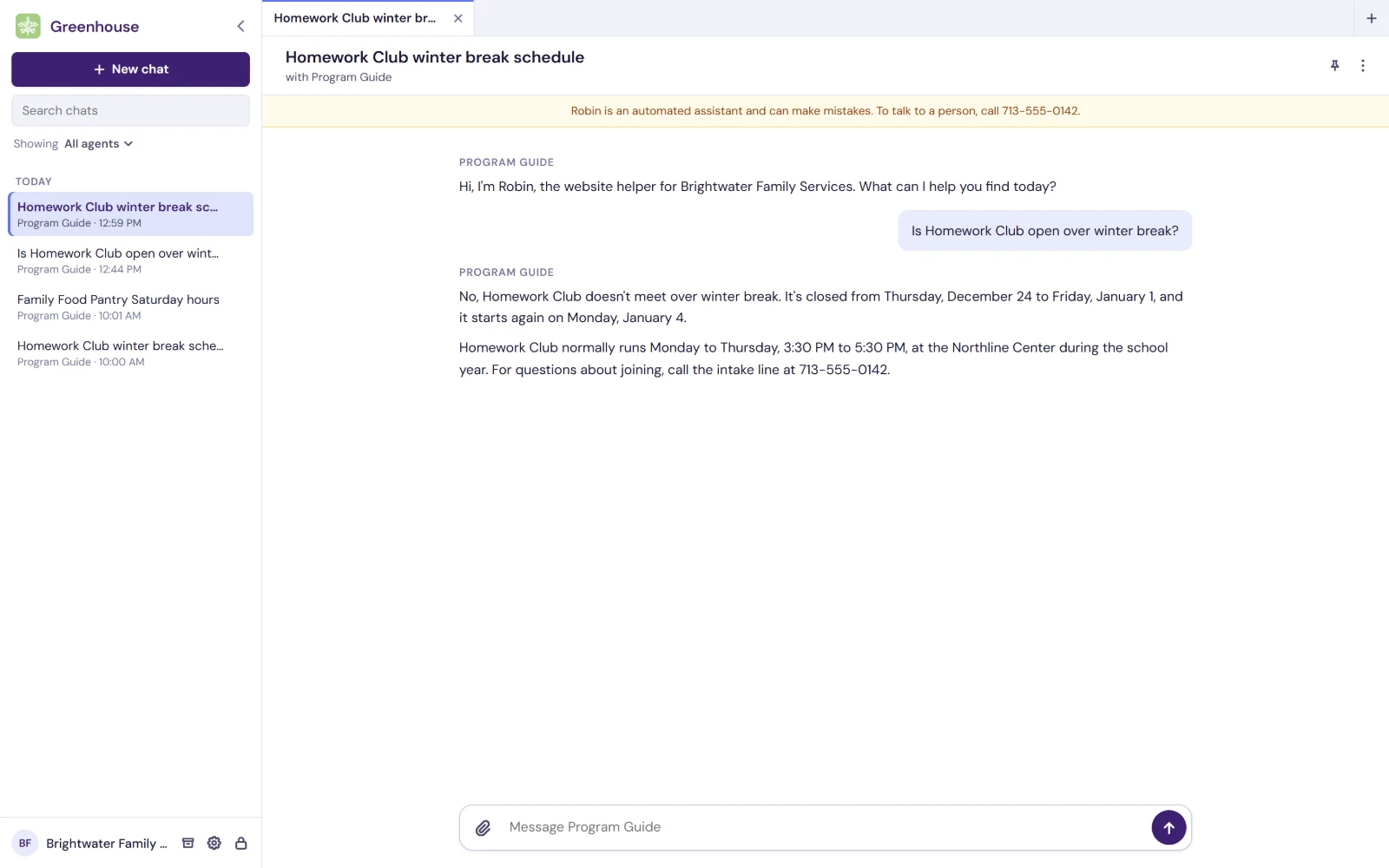
The sidebar
From the top:
- New chat, to start a conversation. See Starting a chat.
- Search chats.
- Showing, to filter the list to one agent. The menu lists the agents you have chatted with, most used first; Clear shows everything again.
- Your chats: Pinned first, in the order you pinned them, then Today, Yesterday, This week and Older. A dot on a chat means its agent is working, has answered, or is disconnected, and a Draft tag means you have typed something you have not sent.
Each chat's More menu (⋮) offers Pin or Unpin, Rename, Archive, and a color, which tints the chat and its tab. Archiving closes the chat and drops its pin; Archived chats, at the foot of the sidebar, lists them, and Unarchive brings one back.
At the foot are your identity, which opens your identities in Settings, Archived chats, Settings, and the lock. Ctrl+B hides and shows the sidebar.
Pins, the archive, colors and your settings are kept on the Agent Platform, so every device you sign in on shows the same.
Tabs
Every chat opens in a tab in the strip above it, and so do the builder and the map. Opening a chat that is already open brings its tab to the front. × closes a tab, and + at the end of the strip starts a new chat.
One more view can sit beside the tab in front: a test chat beside the builder, a draft beside its chat, or whatever an agent opens for you. A chat beside a tab stays with that tab when you switch.
Starting a chat
New chat asks Who do you want to talk to?, with a search box and three sections:
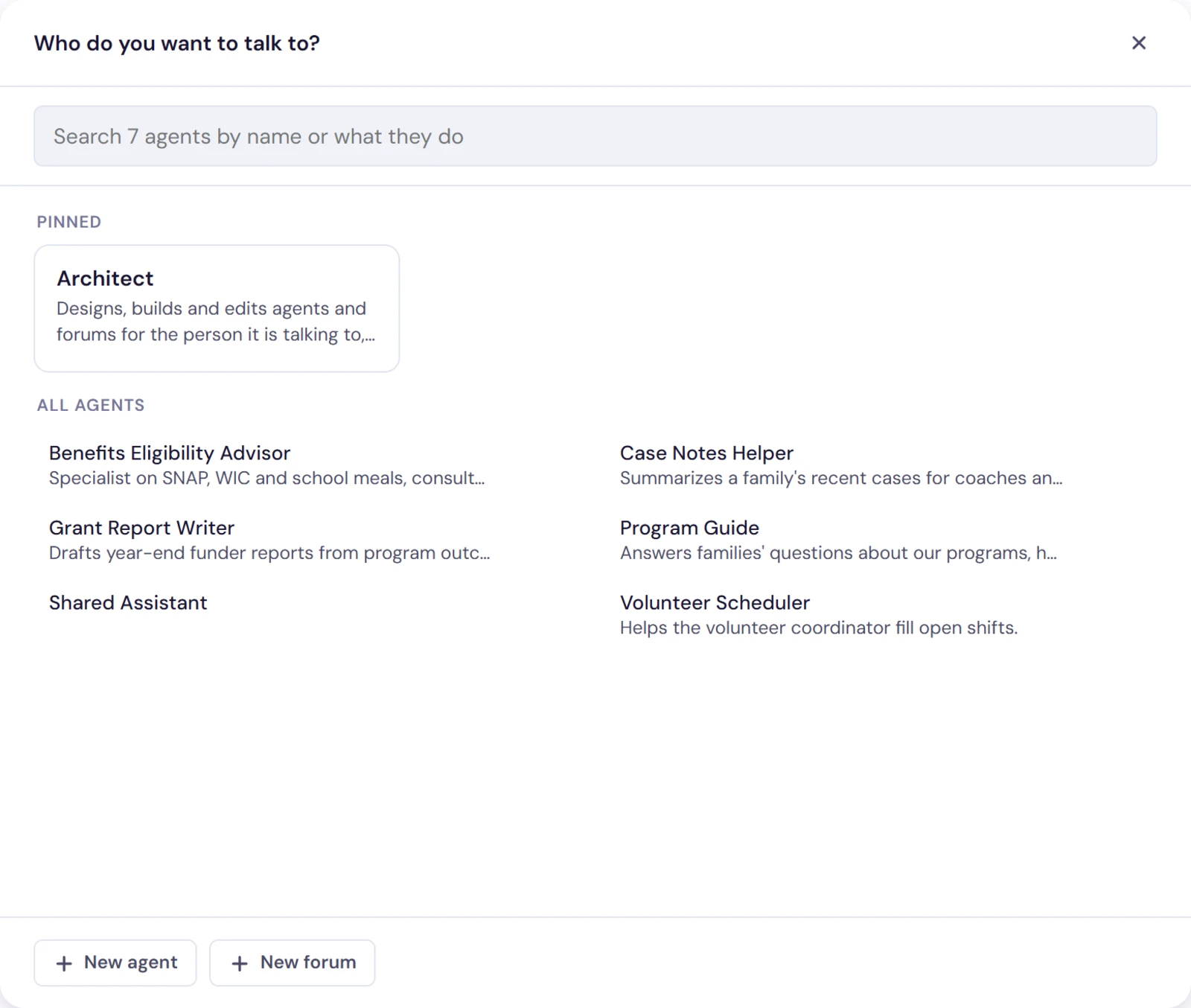
- Pinned: the agents and forums you pinned. The Architect is pinned to begin with.
- All agents, A to Z.
- Forums.
Click one to start a new chat with it. Each has a pin, and, where you may change it, Edit the agent or Manage the forum. New agent and New forum, at the foot, start something new.
Which identity a chat runs as. When more than one of your identities can reach an agent, it shows an as chip naming the identity a new chat runs as. Pick another from its menu, and Greenhouse remembers your choice for that agent. A chat running as anyone but your first identity says so in its header.
Chatting
Type in the box and press Enter to send; Shift+Enter starts a new line. On a touch screen, Return starts a new line and the send button sends.
- Files. Attach files with the paperclip, or drop or paste them into the box: up to 10 a message, 30 MB each. Pasted text over 2,000 characters arrives as an attached
pasted-text.txt. Files the agent makes appear as a card to download. - While the agent works, a line says what it is doing, and Show steps opens the detail. Stop ends the turn at its next step. You can keep typing: a message sent while the agent works is picked up as soon as it finishes what it is doing now, usually in the answer already in progress.
- If a reply fails, Send again retries it.
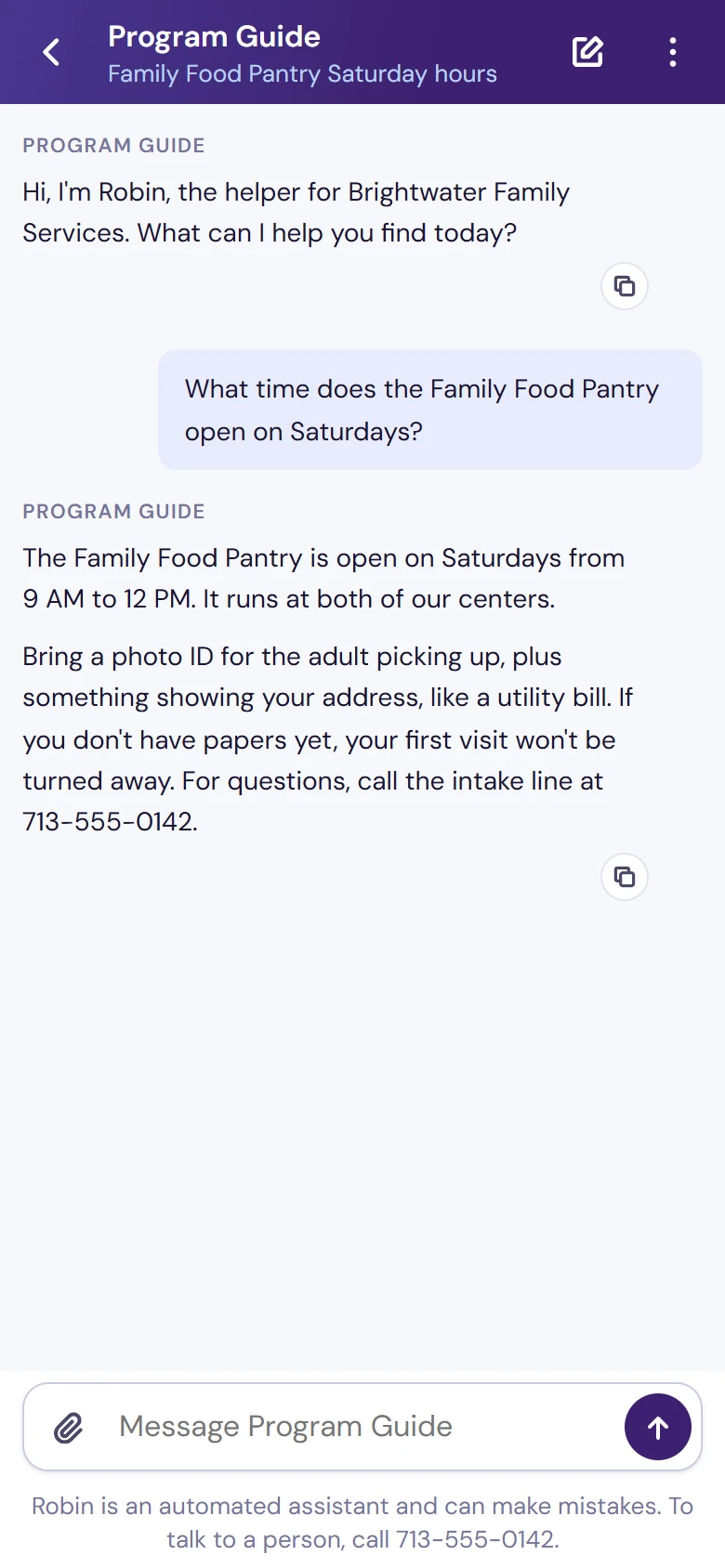
- Each reply has a copy button, and so does each code block.
- Rename a chat by clicking its title. Chats are titled for you after the first reply.
The chat's More menu adds Copy link, Edit agent for an agent you may edit, Show on the map, Reconnect when the connection has dropped, and Archive.
Drafts
An agent may hand you something to work on with it: an email or comment (Draft), a Document, or a Spreadsheet. It arrives as a card in the chat.
- Edit here edits a draft inside the card; Open to edit opens a document or spreadsheet beside the chat.
- Your edits save themselves, and the agent reads your version.
- Copy and Download take it elsewhere: a document as Word or Markdown, a spreadsheet as Excel or CSV.
- A button the agent offers, such as Send, saves your edits first and then tells the agent. Greenhouse itself sends nothing anywhere.
- If the agent changed the draft while you were editing, choose Keep mine or Use the agent's.
Web apps
An agent with a web app has a Chat and Web app switch in the chat's header. Both are the same conversation, so what you do in the app is in the agent's context when you go back to the chat.
Cards an agent may show
Depending on how an agent is built, it may ask you in the chat to Connect an account of yours, to enter a key or password in a secure box rather than in the conversation, or to open the screen of a computer it is working on. Each is a card with its own buttons, and each can be skipped.
Open on two devices
A conversation open on two devices, or in two windows, steps back on the one you are not using, which shows Open elsewhere. Send a message from it, or come back to it, and it picks up again.
Forums
A forum is a room where a facilitator convenes several agents to answer you. Your message goes to the facilitator, which brings in the members and answers you. Each conversation in a forum is a thread.
New forum, at the foot of New chat, asks for a Name, a Description, a Facilitator, the Members, and optional spending caps: Cap per thread (USD) and Monthly cap (USD). Leave a cap blank for none. Create forum opens its first thread. A new thread is a new chat with the forum.
In a thread:
- The header says how many members the forum has; click it for the roster.
- Show the agent discussion shows what the agents said to each other on the way to the answer.
- Manage the forum changes the roster: Add a member, Make facilitator, and remove a member. Archive forum retires it.
The Architect
The Architect is an agent, provided by Flourish, that designs and builds whole suites of agents, advisors and forums with you in a conversation. Everyone has it: it is pinned in New chat to begin with, and heads the Agents list on a phone.
Describe what you need in your own words. As it builds, it opens what it made beside its chat, so you can try an agent while it watches how the conversation goes, and it can show you on the map how the pieces fit together. On a phone it leaves a line to tap instead.
What it builds is created as the identity its chat runs as, so pick the right one on the as chip before you start (see Starting a chat).
The map
The map draws your agents and forums and how they connect: which agents ask which for advice, which agent leads each forum, and who sits in it. Show on the map, in a chat's More menu, opens it beside the chat, centered on that chat's agent or forum.
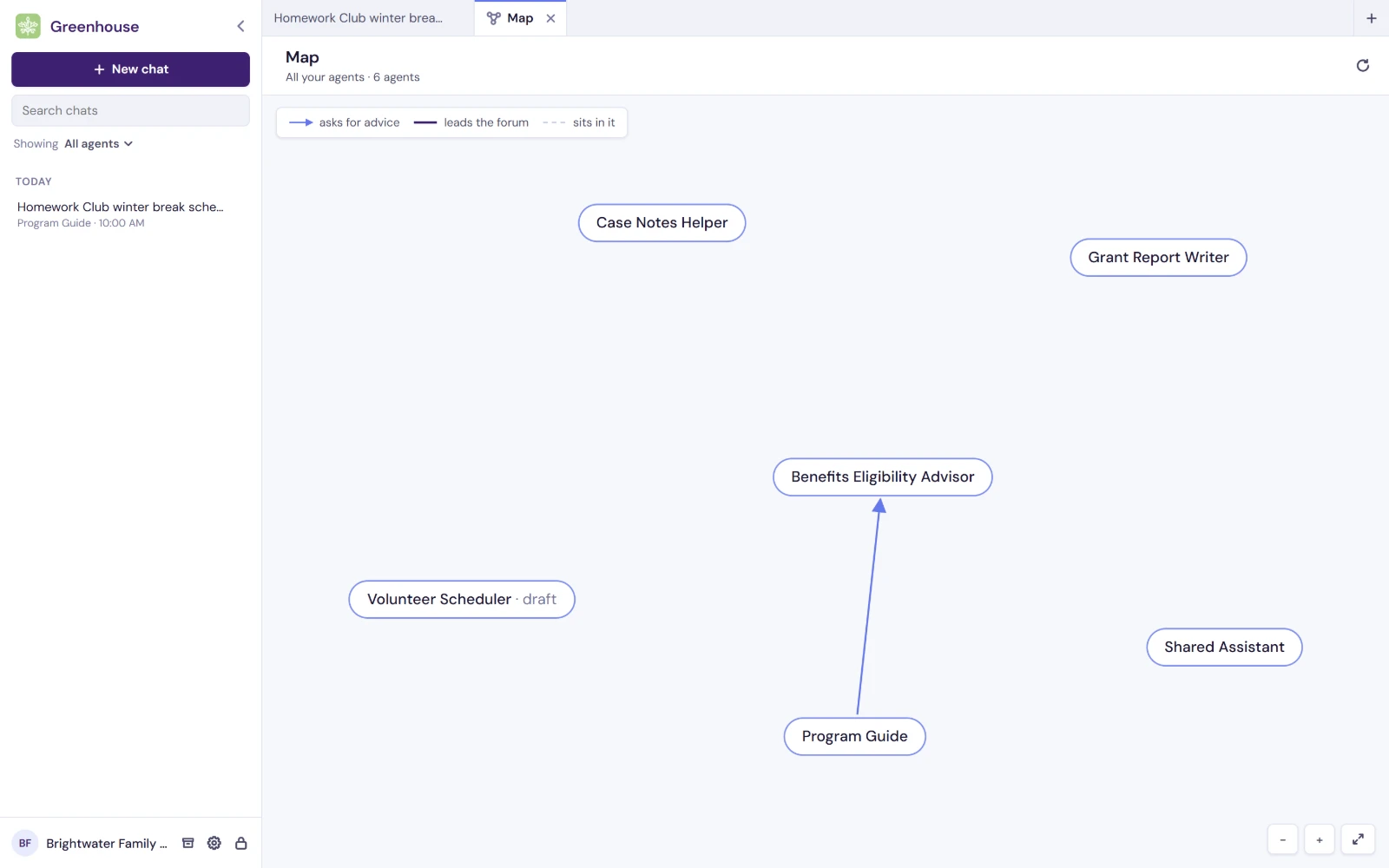
- Drag to move around, and scroll or pinch to zoom. Fit to the pane fits the whole drawing in view. On a map centered on one agent, Show all brings back everything.
- An agent with nothing deployed yet is marked draft. One drawn dashed is outside your lists, so it opens nothing.
- Click an agent to chat with it, edit it, or show what it connects to. Click a forum to start a thread or manage it. What you open from the map opens beside it.
Building agents
Greenhouse's builder opens in a tab of its own. Open it from New agent in New chat, from Edit the agent on an agent in New chat, or from Edit agent in a chat's More menu. Test opens a chat with the deployed version beside the builder, so you can try a change as soon as it is deployed.
Everything in the builder is on Building agents.
Settings
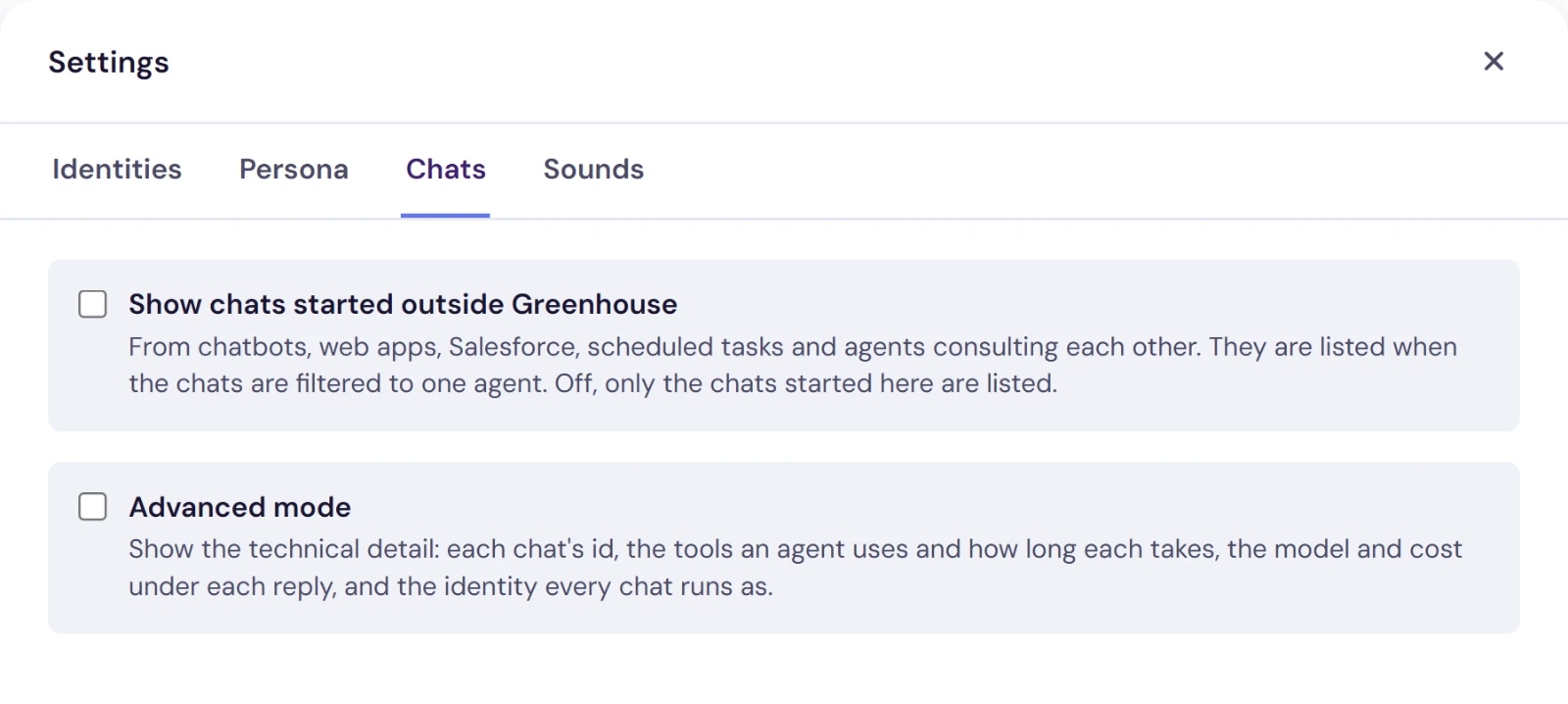
Settings, at the foot of the sidebar, has four tabs:
| Tab | What is on it |
|---|---|
| Identities | Your identities, Add an identity, and Another device, for signing in somewhere else. See Signing in. |
| Persona | Making, choosing or removing your persona, and Notifications on this device. See Your persona. |
| Chats | Show chats started outside Greenhouse, which also lists conversations an agent had through a chatbot, a web app, Salesforce, a scheduled task or another agent, when the list is filtered to one agent. Advanced mode shows the technical detail: each chat's id, the tools an agent uses and how long each takes, the model and cost under each reply, and the identity every chat runs as. |
| Sounds | The chime that plays when an agent replies in a chat you are not looking at: None, Chime, Bell, Droplet or Marimba. |
Your persona
A persona is your own agent: a companion that gets to know you, with one long conversation that Greenhouse keeps first in the sidebar and, on a phone, first in the bottom bar.
In Settings, Persona:
- Get started walks you through making one in about two minutes: what it should call you, its name, a little about you, what you would like help with, and how it should talk with you. Bring it to life makes it, and Start talking opens your conversation.
- Or use an agent you own makes one of your existing agents your persona.
- Remove stops an agent being your persona.
A persona belongs to a person, so it needs a User identity. Conversations with it count toward your Flourish account, as your other agents do.
Notifications on this device lets your persona reach you when Greenhouse is closed. On an iPhone, add Greenhouse to your Home Screen first (Share, then Add to Home Screen) and turn notifications on from there.
On your phone
On a screen 900 pixels wide or less, Greenhouse becomes a phone app, with one view at a time and a tab bar along the bottom: your persona, if you have one, then Chats, Agents and Forums.
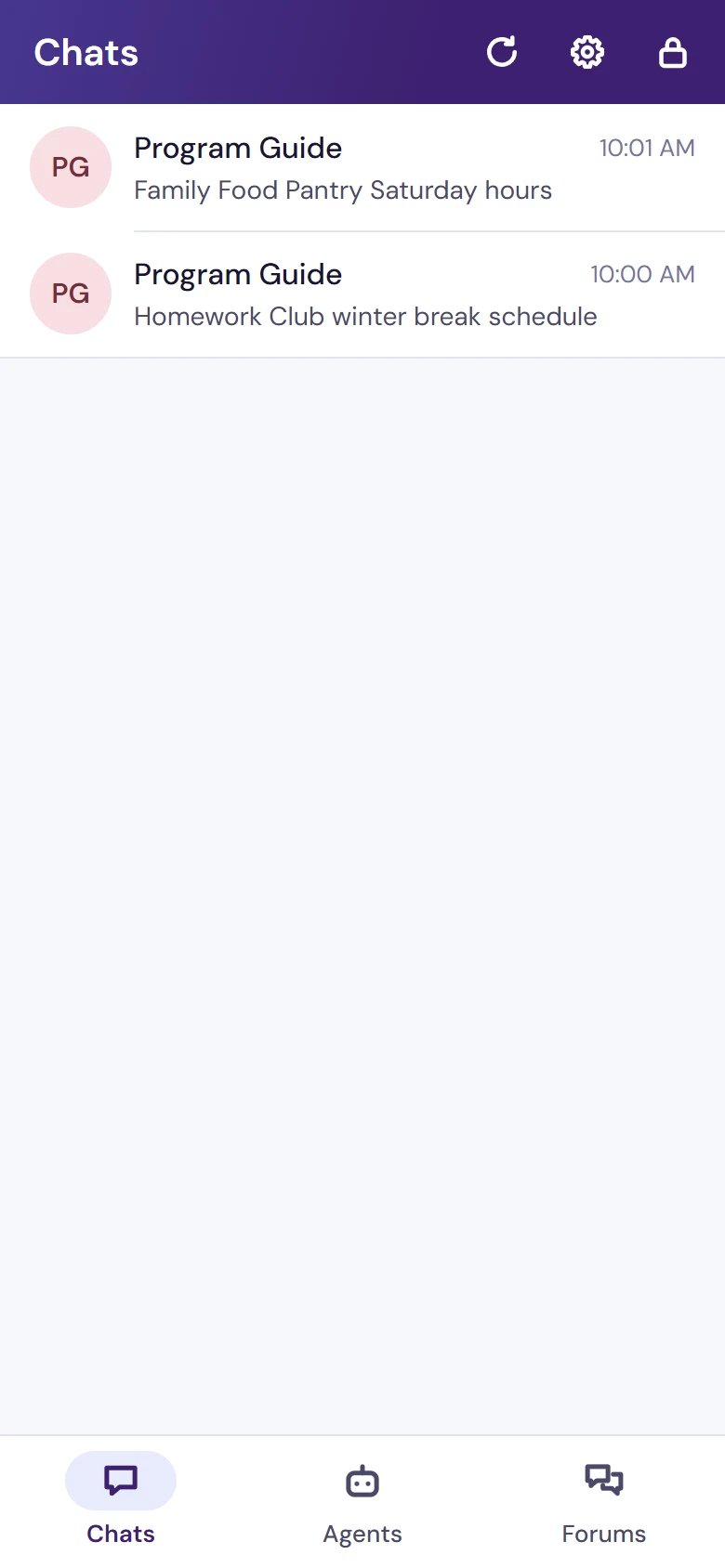
- Chats lists your conversations, pinned first. Press and hold one for Pin to the top, Rename, Copy link, Color and Archive.
- Agents and Forums list what you can reach, with a search box. Open one for its page, where New conversation starts a chat, and its earlier conversations are listed.
- + at the top, on Agents and Forums, makes a new agent or forum.
- The builder, drafts, the map and test chats fill the screen. Your phone's back gesture walks back through the views.
To keep Greenhouse on your home screen, add it from your browser's menu. On an iPhone, open greenhouse.toflourish.org in Safari, tap Share, then Add to Home Screen, and open it from there.
Links
A Greenhouse link opens something in place. Copy link, in a chat's menu, gives you a link to that chat. You can also write one yourself:
| Link | Opens |
|---|---|
https://greenhouse.toflourish.org/#c=CONVERSATION_ID | One of your chats. |
https://greenhouse.toflourish.org/#agent=AGENT_ID | A new chat with that agent. |
https://greenhouse.toflourish.org/#forum=FORUM_ID | A new thread in that forum. |
https://greenhouse.toflourish.org/#builder=AGENT_ID | The builder, for an agent you may edit. |
https://greenhouse.toflourish.org/#map | The map of everything you can reach. |
Add &app=NAME to an agent or chat link to open that web app instead of the chat.
A link opens only what is already in your own lists, so sending someone a link to your chat does not let them read it. To let people without Greenhouse talk to an agent, share it as a chat link or on your website.