Getting Started
How to sign in to the Flourish Dashboard, accept the terms for your organization, and find your way around it.
Overview
The Flourish Dashboard, at dash.toflourish.org, is where your organization manages what it has with Flourish: who is on your team and what each person may do, which Solutions you use and what they cost, the accounts Flourish works in for you, and your access to the Flourish API.
Flourish sets your organization up and invites its first Owner. From there, your Owners and Admins invite everyone else from Team & Permissions.
The dashboard works on a phone as well as a computer. On a phone, the menu button at the top left opens the sidebar.
Signing in
You sign in with a link sent by email. Your first link comes with your invitation, from no-reply@toflourish.org.
- Open the link in the email. The dashboard signs you in and shows your organizations.
- To sign in again later, go to dash.toflourish.org, enter your email address under Sign in to Flourish and choose Continue. A new link is emailed to you, and the page says Check your inbox. We have emailed you a sign-in link. The new link replaces the old one.
The dashboard keeps you signed in on that browser until you sign out or clear the browser's data. If you are signed out partway through, the page says Your session has ended; choose Sign in again. Nothing you saved is lost.
Your email address is how you sign in, so it cannot be changed in the dashboard. Write to support@toflourish.org to change it.
Signing out
Open My profile from your initials at the top right. Under Sign out, choose Sign out. This signs you out on this device only.
Accepting the terms
The first time anyone opens an organization, the dashboard asks for the organization to accept Flourish's Terms of Service. Nothing else in the organization opens until it has.
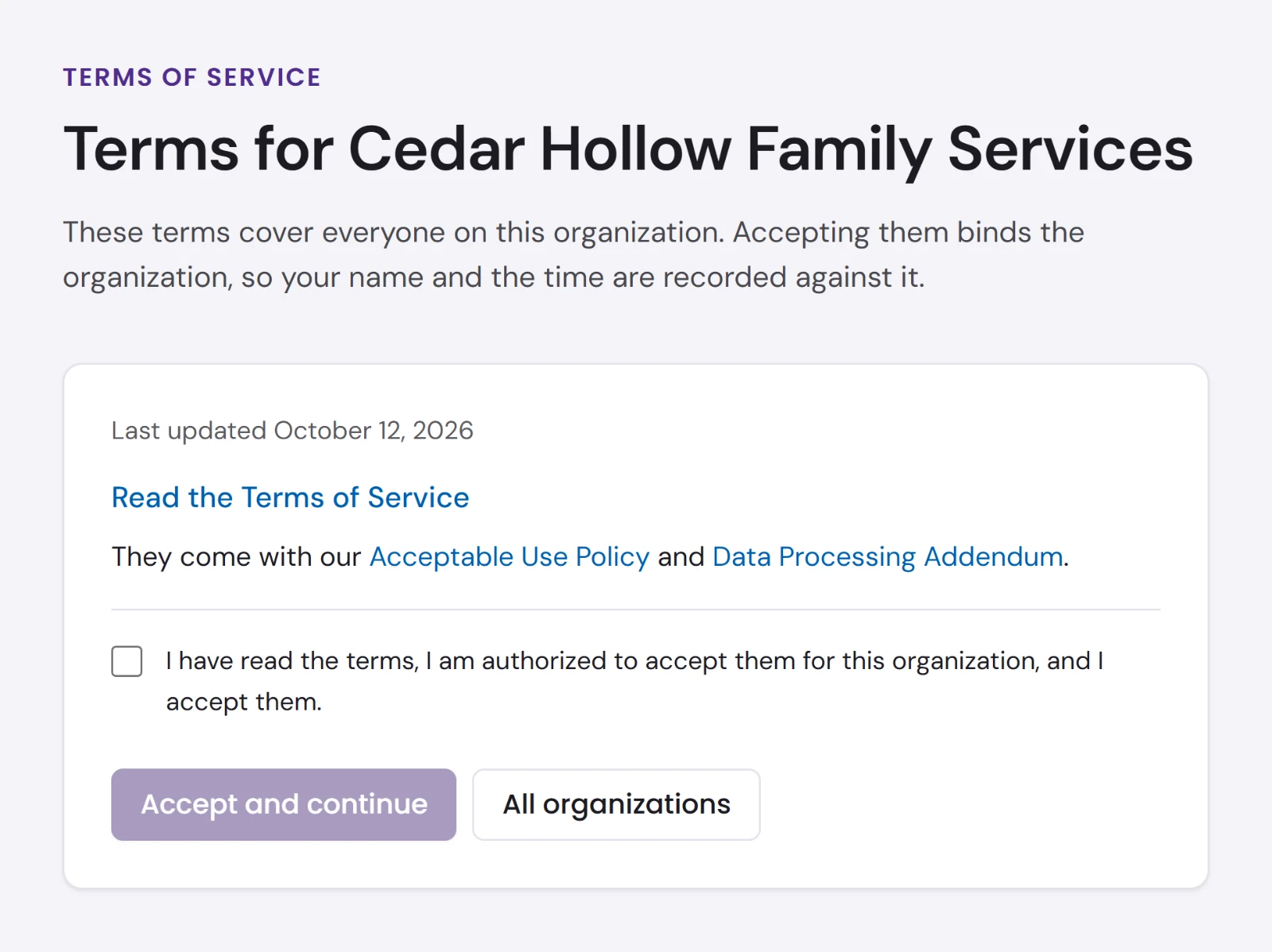
- An Owner or an Admin accepts once, for everyone. Read the terms from Read the Terms of Service, and the Acceptable Use Policy and Data Processing Addendum that come with them, linked just below. Tick I have read the terms, I am authorized to accept them for this organization, and I accept them, and choose Accept and continue. Their name and the time are recorded against the organization, and the rest of the team never sees the page.
- A Member or Billing only person sees You cannot accept these for the organization until an Owner or Admin has accepted. Ask one of them to sign in.
- A new team starts with the terms accepted when the organization above it has accepted the current version.
- When Flourish changes the terms, each organization is asked again. The page shows the date the Terms were last updated.
Someone who is their own organization accepts the terms for themselves, and the page says so. Their page links the Acceptable Use Policy alone, since the Data Processing Addendum is for organizations.
Finding your way around
Organizations
After you sign in, Organizations lists every organization and team you belong to, with your level in each, how many Solutions are on and how many teammates it has. Choose one to open it. Search narrows the list when it is long.
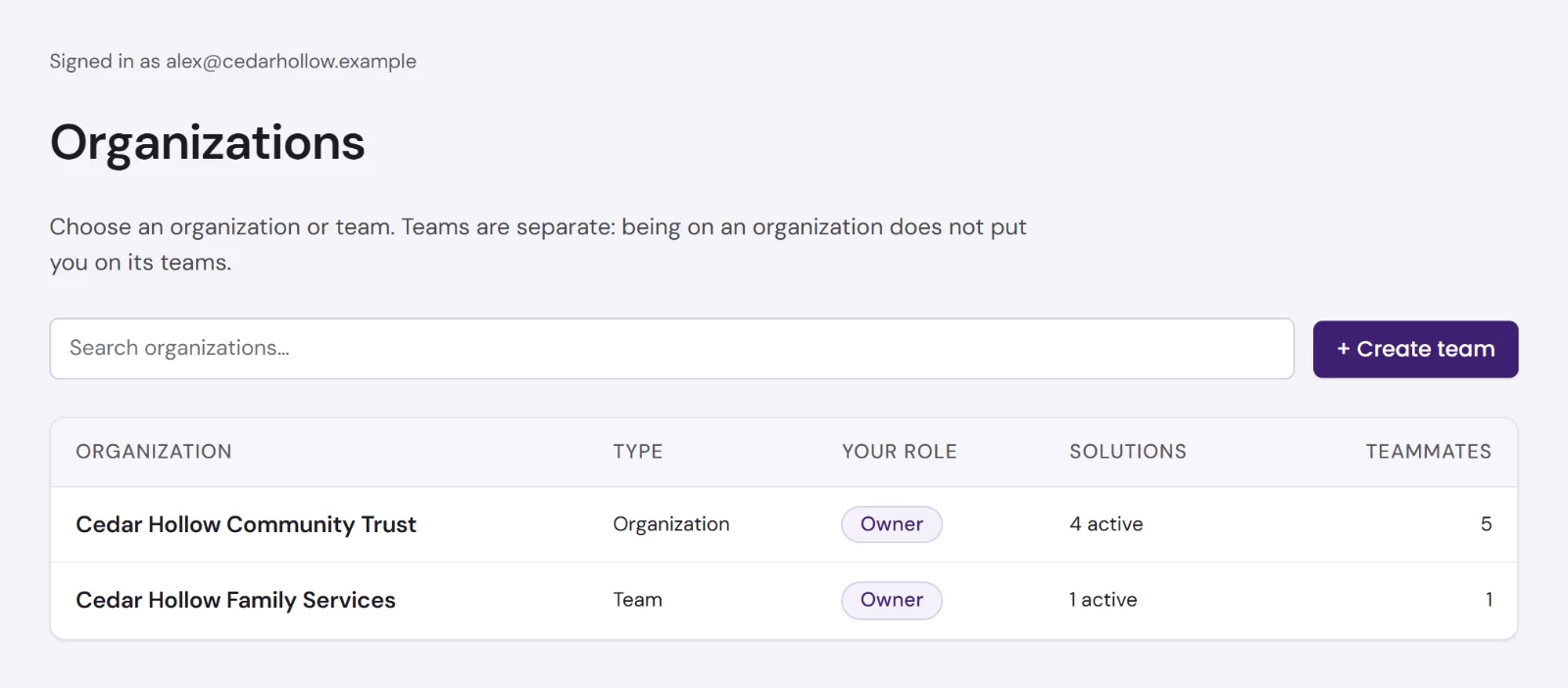
Flourish at the top left always brings you back to this list, and so does the organization's name beside it.
An organization and its teams are separate. Being on an organization does not put you on its teams. See Teams.
The top bar
| Item | What it does |
|---|---|
| Greenhouse | Opens Greenhouse, Flourish's app for working with your AI agents, signed in as you. It appears when an organization you belong to has Agent Platform switched on and you are an Owner, Admin or Member there. |
| Docs | Opens this documentation in a new tab. |
| Support | Opens the Support window, to write to Flourish support. See Getting Help. |
| Your initials | Open My profile. |
The sidebar
Inside an organization, the sidebar has these pages:
| Group | Page | What it is for |
|---|---|---|
| Overview | The organization's home: what is left to set up, a summary, and recent activity. | |
| Organization | Team & permissions | Who is on the organization and what each person may do. See Team & Permissions. |
| Billing | The estimated monthly cost and who is billed. See Billing. | |
| Solutions | Switching Solutions on and off. See Solutions. | |
| Connections | The accounts Flourish uses for the organization. See Connections. | |
| Configuration | Solution settings | The Solutions switched on. See Solution settings. |
| You | My profile | Your own details, your own connections and your organizations. |
Everyone sees every page in the sidebar. A page your level cannot use says who can, such as Billing is not yours to see.
The browser's Back button walks back through the pages you opened.
Overview
The Overview is the first page of an organization.
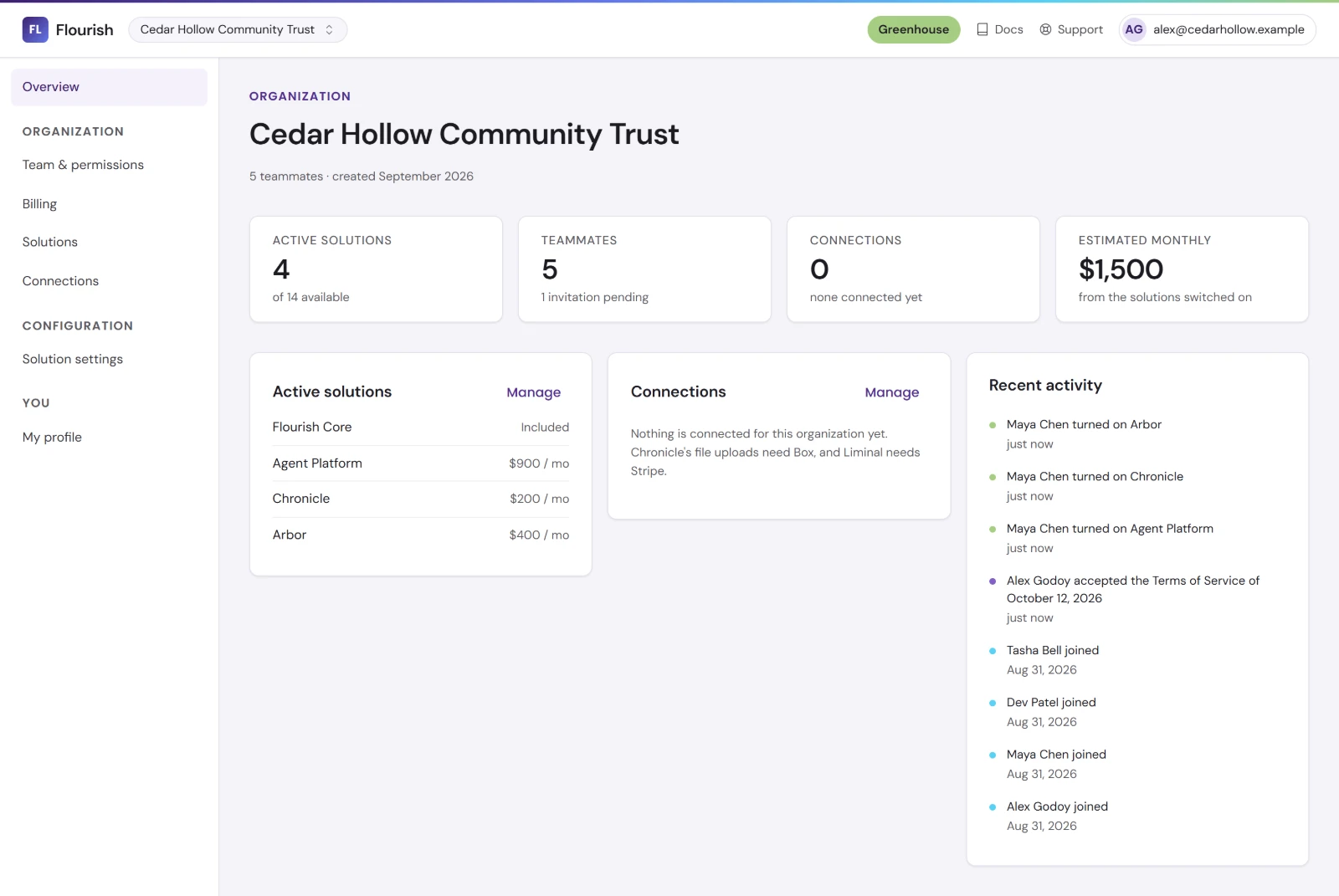
Finish setting up lists what is still to do, each with Do this to go straight there: accepting the terms, adding your name and job title, inviting a teammate and turning on a Solution. You see only the steps your level can do, and the panel goes away once everything is done.
Below it are tiles for the Solutions switched on, the teammates (with any invitations still pending) and the organization's connections (with any that need reconnecting), and, for Owners and Billing only, the Estimated monthly cost. Choose a tile to open its page.
The Active solutions and Connections panels list what is switched on and what is connected, each with Manage to change it.
Recent activity shows the last eight things done in the organization, newest first: invitations, level changes, removals, Solutions switched on or off, the terms accepted, teams created, connections, and people signing in for the first time. Each line names who did it.
My profile
Open My profile from your initials at the top right.
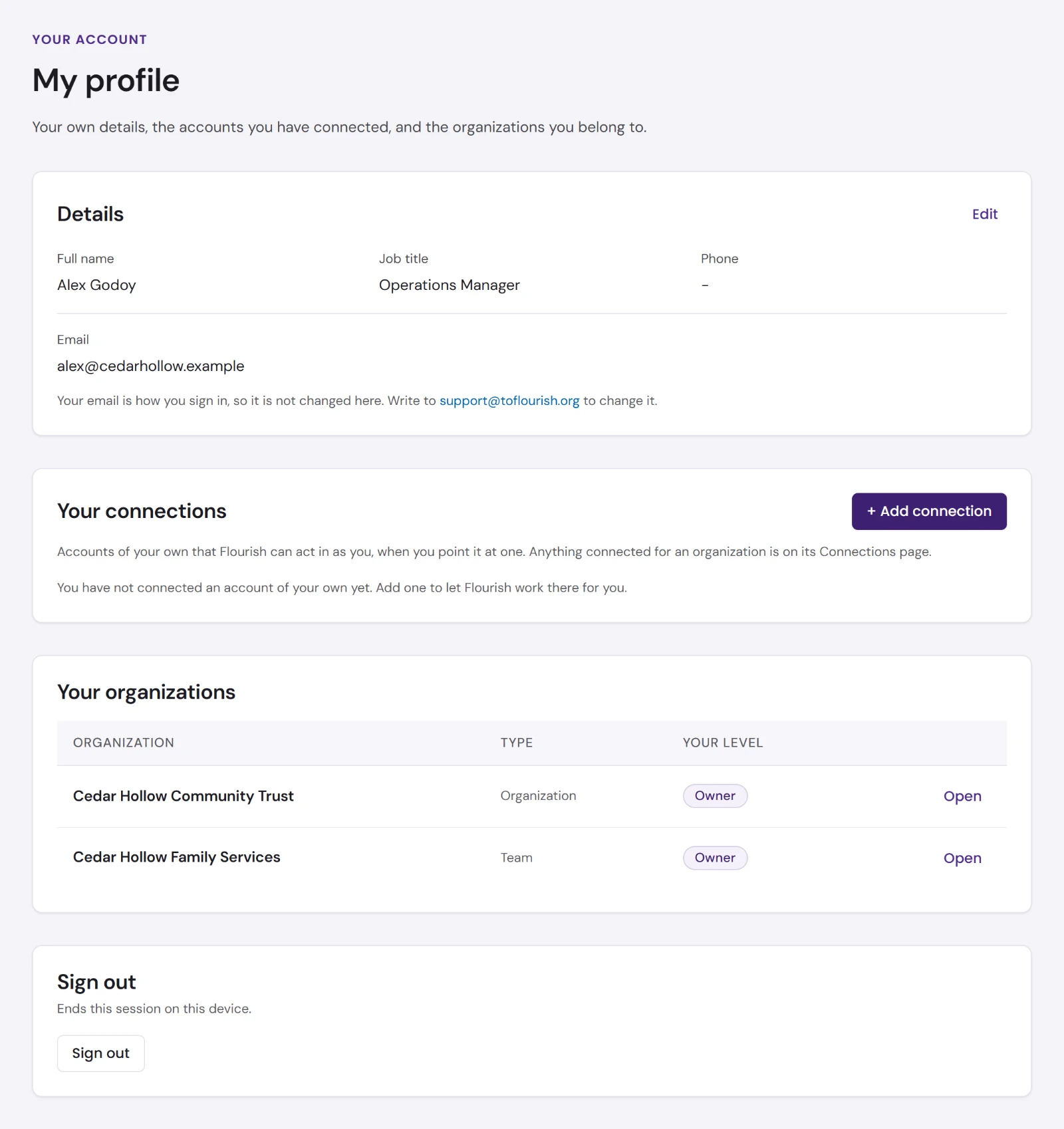
- Details: your name, job title and phone. Choose Edit, change them, and choose Save changes. Your teammates see the name you give here. A last name is required.
- Your connections: accounts of your own that Flourish can act in as you. See Connections.
- Your organizations: every organization you belong to, with your level, and Open to go to it.
- Sign out: see Signing out.