Getting Help
How to reach Flourish support from the dashboard, use the help chat, and read the dashboard's messages.
Overview
There are three ways to get help without leaving the dashboard:
- The help chat, Need help? in the bottom corner of every page, answers questions about the dashboard and can write a support request up for you.
- Support, at the top of every page, sends a message to Flourish support, or logs it as a Service Request in your own Salesforce.
- Docs, at the top of every page, opens this documentation.
You can also write to support@toflourish.org, or to billing@toflourish.org about bills and payment.
The help chat
Choose Need help? in the bottom corner to open it, and ask in your own words: how to invite someone, why a page is locked, what a Solution does. The conversation stays with you as you move between pages, and ends when you sign out.
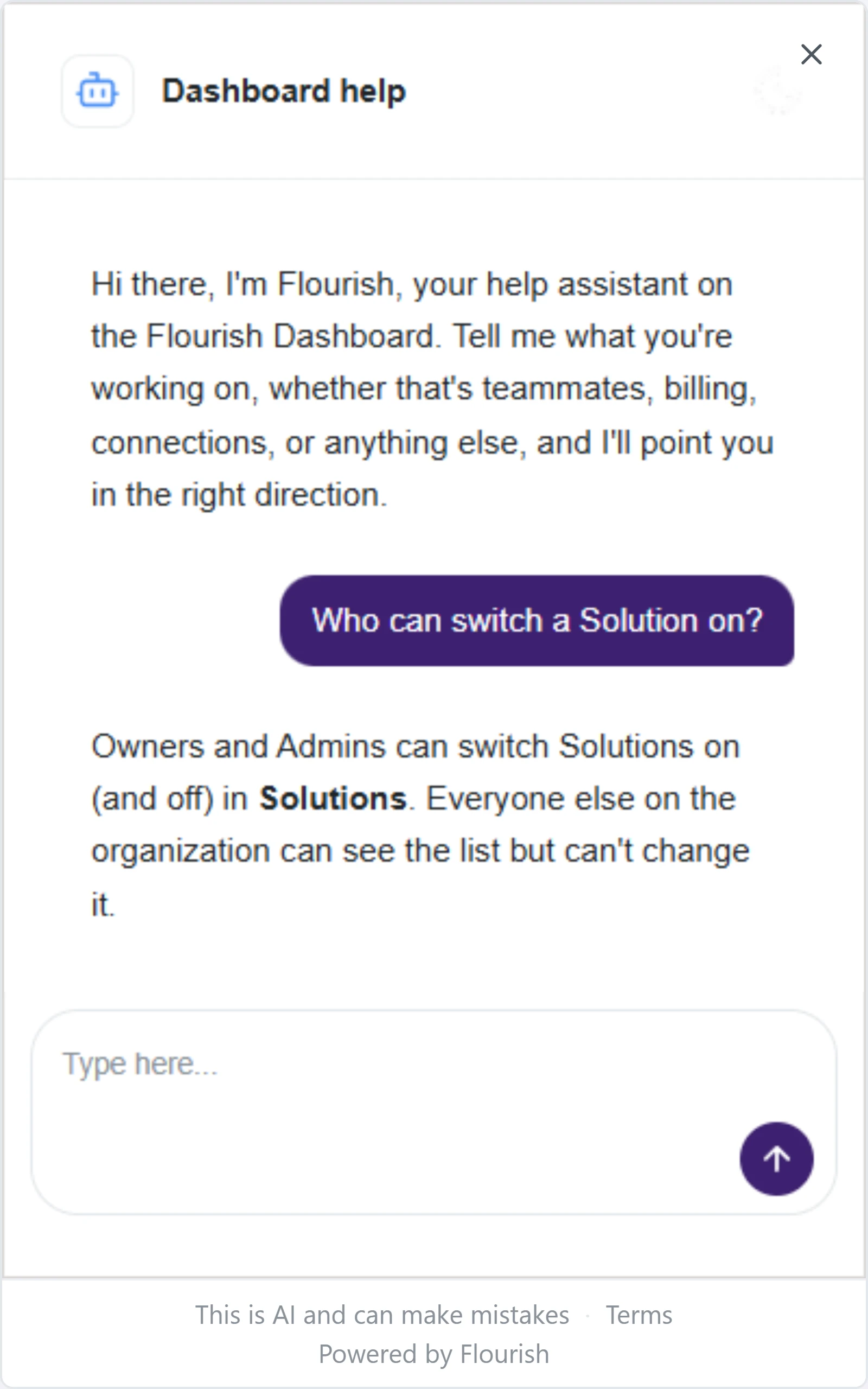
The chat knows this guide and which page and organization you are on. It cannot see your organization's data or change anything in the dashboard, so it tells you where to click instead.
When something is broken, or you need something only Flourish can do, the chat offers to write the request up, then opens the Support window with it filled in. Read it, change anything you like, and choose Send. Nothing goes to Flourish until you do. On a phone the chat closes so you can see the Support window; open it again to carry on.
The chat is an AI assistant and can be wrong. Its terms are under Terms at the bottom of the chat. Never give it a password, a sign-in link, a code or an API key; it never needs one.
The Support window
- Choose Support at the top of any page.
- Write what you need under Message. Say what you were doing, what happened, and any message the dashboard showed, word for word.
- Choose Send.
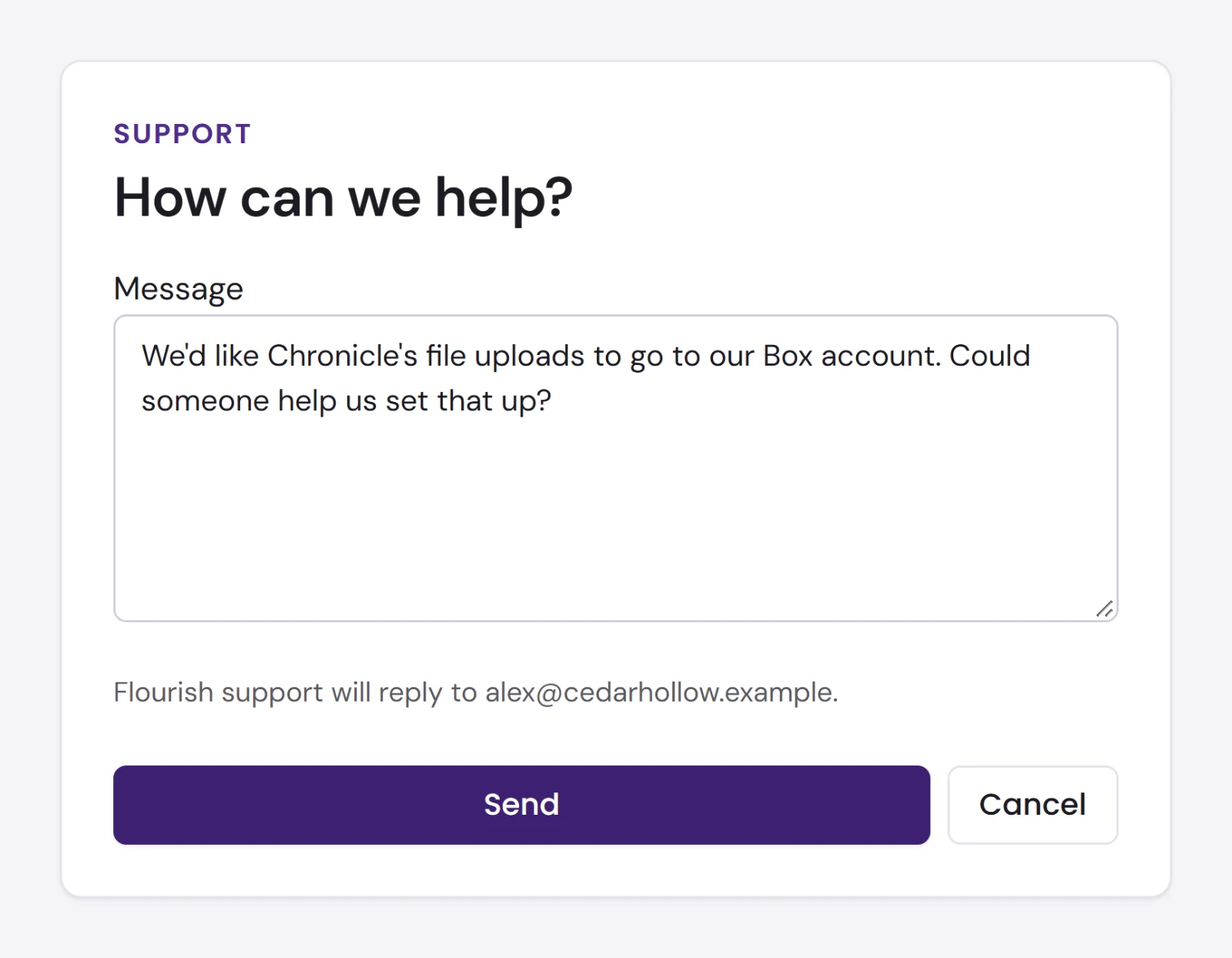
The message goes to Flourish support by email, with your name, the organization you were looking at and the page you were on. Flourish replies to your email address.
Logging it as a Service Request instead
If you have connected one of your own Salesforce production orgs that has Flourish Core's Service Requests (see Connections), the window asks Log it as a Service Request? Choose Yes, then the org under Which Salesforce org?, where each org is named with the Salesforce user you connected it as, for example Cedar Hollow (alex@cedarhollow.example). It is logged there instead of emailed.
Flourish logs it as you, so the org records you as the requester. It gives the request a subject, type and priority from what you wrote, and keeps your words as the description. When it is logged, the window shows its subject and Open it in Salesforce. A Service Request sends no email. For more about Service Requests in your org, see Service Requests.
If Flourish cannot log it right now, the window says so; send it by email instead.
Messages you may see
| Message | What it means |
|---|---|
| Your session has ended | You were signed out. Choose Sign in again. Nothing you saved is lost. |
| You are not on this organization | Your access to it changed. Pick another organization, or ask one of its Owners to add you back. |
| Billing is not yours to see | Billing is for Owners and anyone set to Billing only. |
| You cannot accept these for the organization | An Owner or Admin has to accept the terms first. See Accepting the terms. |
| That did not load | The page could not be read. Choose Try again. |
| This page stopped working | Choose Reload. If it keeps happening, write to Flourish support. |
| Something went wrong on our side. | Try again, and write to Flourish support if it keeps happening. |