Connections
How to connect the accounts Flourish works in for you and for your organization, and how to move or disconnect them.
Overview
A connection lets Flourish's Solutions and AI agents work in another system, such as Salesforce, Microsoft 365 or Google, when you point one at it. Flourish keeps the connection securely and keeps it working. The dashboard is where you add, move and disconnect them.
There are two kinds:
| Where | Whose | |
|---|---|---|
| Your connections | My profile | Yours. Flourish acts in them as you, and only for you. |
| Organization connections | Connections | The organization's. Flourish uses them for the organization, whoever is signed in. |
Every member of an organization can see its connections and who set each one up. Owners and Admins add and disconnect them. Anyone can add and disconnect their own.
A connection has one owner at a time. It is never shared between people, or between a person and an organization.
Adding a connection
- Choose + Add connection: on My profile for one of your own, or on Connections for the organization.
- Search for the platform and choose it. Each one says how it connects: Sign in, API key or App credentials.
- Follow the steps for that kind below.
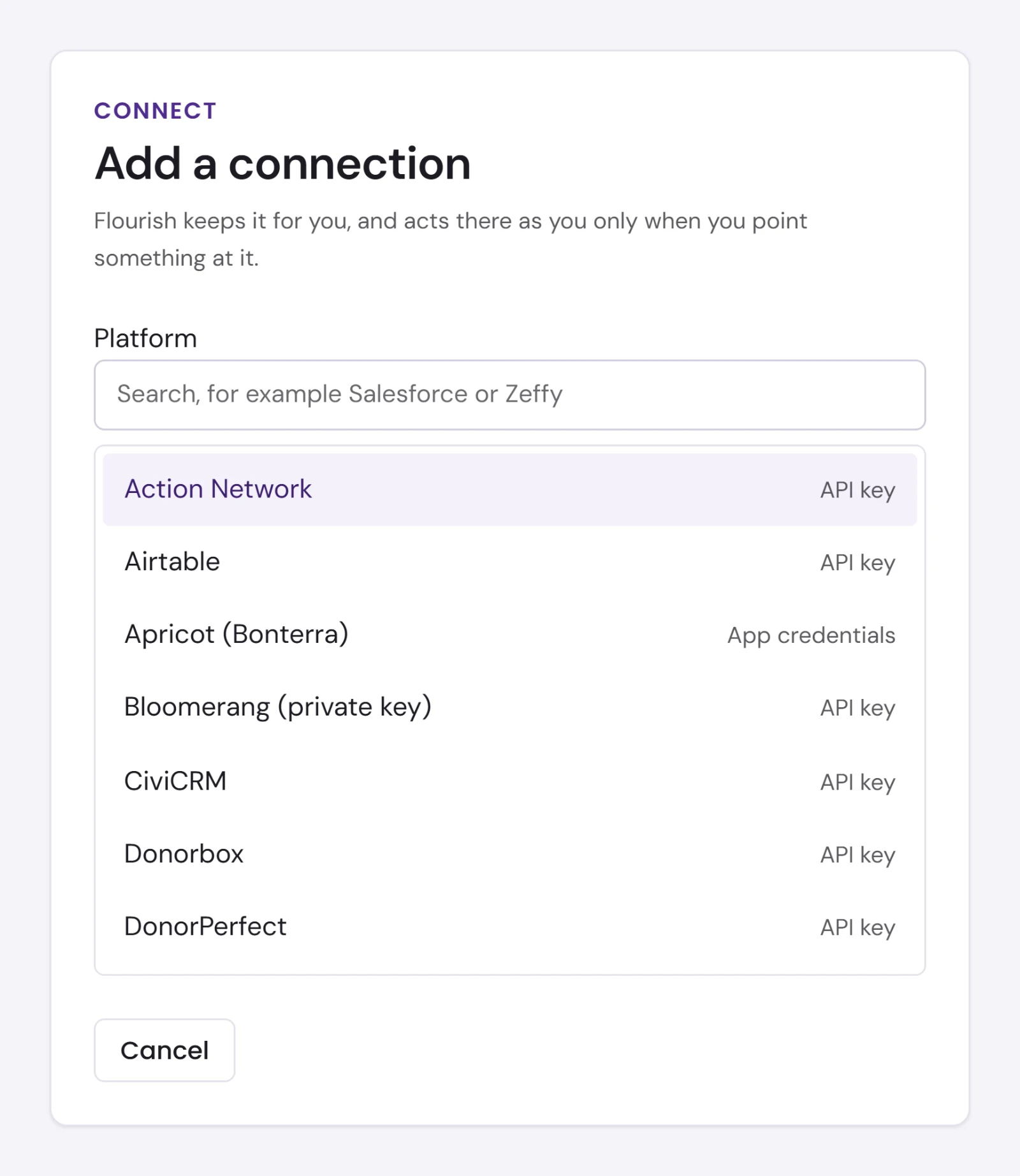
If the platform is not in the list, the dialog says Nothing matches that. Write to support@toflourish.org to ask for a platform.
Sign in
Some platforms first ask for your account's own address, such as a Dynamics 365 environment. Enter it and choose Next.
- Choose Continue to the platform. It opens in a new tab. The link works once, for ten minutes.
- Sign in there, with the account you mean to connect, and allow Flourish.
- Come back to the dashboard's tab. The dialog closes by itself and says the platform is connected.
Microsoft and Google ask which account to use each time, so you can connect an account other than the one your browser is signed in with.
Salesforce orgs connect through Flourish Connect, Flourish's sign-in app for Salesforce, which has to be installed in that org. If Salesforce will not let you allow Flourish, write to Flourish support.
API key and app credentials
The dialog asks for whatever the platform needs beside the key, such as a client ID, then the key or client secret last, and says where to find each. Choose Save. Flourish checks it with the platform before keeping it, and if the platform refuses it, the dialog says why.
When a connection needs attention
A connection whose status is Reconnect has stopped working, for example because its access was revoked at the platform or its password changed. Disconnect it and add it again.
Disconnecting
Choose Disconnect on its row, then confirm. Flourish stops using it, and anything pointed at it loses it. You can connect it again at any time.
Disconnecting an API key stops Flourish using it, but the key itself still works at the platform until you revoke it there.
Moving one of yours to an organization
When an account of your own should belong to an organization instead, such as a shared mailbox or an admin login the organization controls, move it rather than connecting it twice. You need to be an Owner or Admin of the organization.
- On My profile, under Your connections, choose Move to organization on its row.
- If you manage more than one organization, choose which.
- Choose Move.
It becomes the organization's, for anything Flourish does for the organization. It stops being yours, and the organization's Owners and Admins can disconnect it. A sign-in stays signed in as the same account, so move only an account the organization controls, not a person's own.