Team & Permissions
How to invite teammates to your organization, choose what each one may do, and create teams.
Overview
Everyone on an organization has one permission level there: Owner, Admin, Member or Billing only. A level applies to that organization alone, so the same person can be an Owner of one organization and a Member of another.
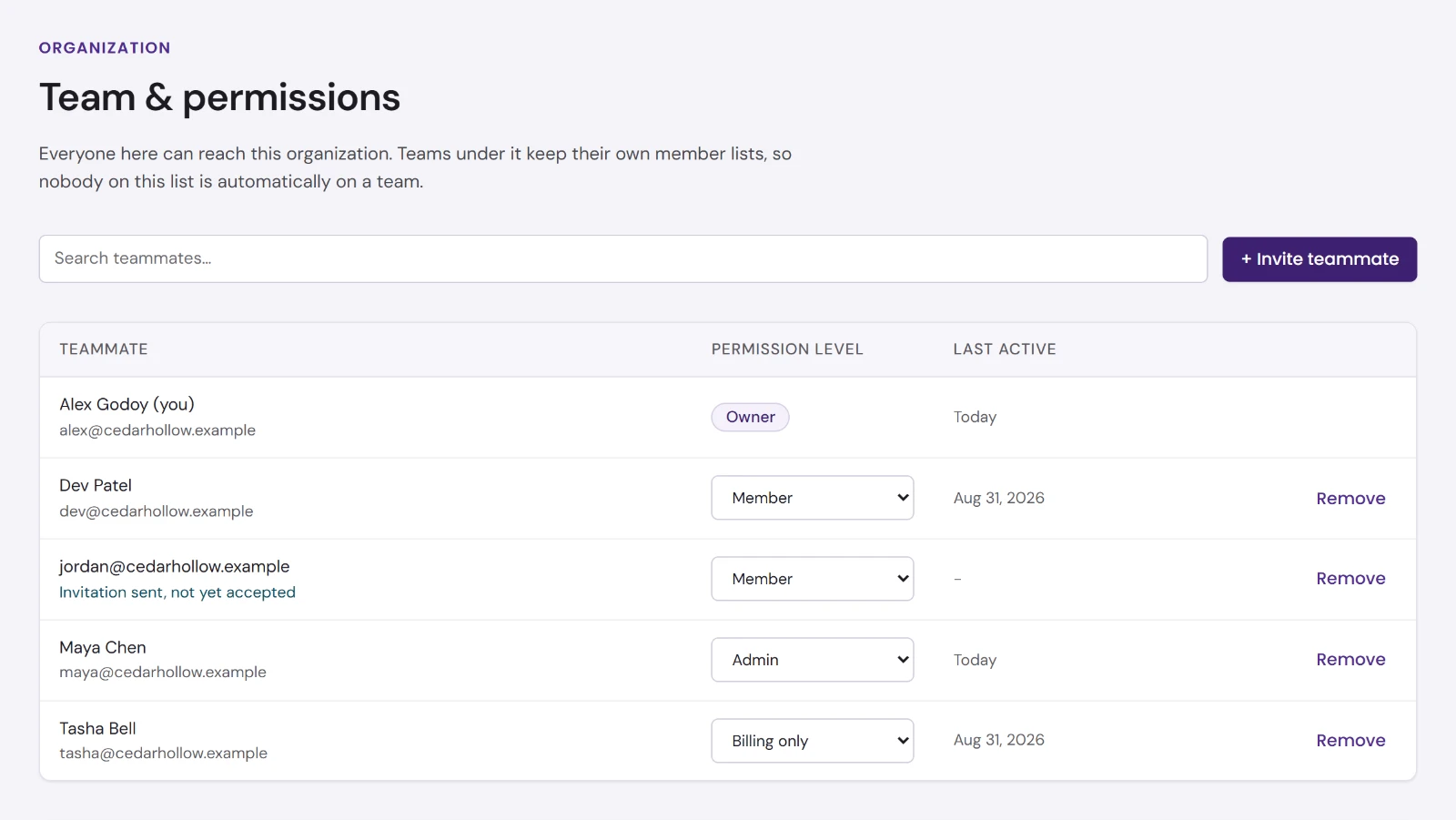
Team & permissions lists everyone on the organization, with their level and when they were last active. Every level can see the list. Owners and Admins invite people, change levels and remove people. The page's What each level can do panel shows the same table as below.
Permission levels
| Owner | Admin | Member | Billing only | |
|---|---|---|---|---|
| Use the Solutions switched on | Yes | Yes | Yes | |
| Change Solution settings | Yes | Yes | ||
| Invite teammates and set levels | Yes | Yes | ||
| Switch Solutions on and off | Yes | Yes | ||
| Add and disconnect the organization's connections | Yes | Yes | ||
| See billing and the payment method | Yes | Yes | ||
| Accept the terms for the organization | Yes | Yes | ||
| Create teams under the organization | Yes |
Every level can open the Overview, the team list, the Solutions, the organization's connections and their own profile.
Three rules apply on top of the table:
- Only an Owner can make someone an Owner, or change or remove an existing Owner. An Admin is not offered Owner when inviting, and cannot change an Owner's level.
- Nobody can change their own level or remove themselves. Ask another Owner or Admin. This keeps an organization from losing its last Owner by accident.
- An organization always keeps at least one Owner. To hand the organization over, make the new person an Owner first.
Inviting a teammate
Owners and Admins can invite.
- On Team & permissions, choose + Invite teammate.
- Enter their Email.
- If they are new to Flourish, enter their First name and Last name. A last name is needed for someone Flourish does not know yet. For someone Flourish already knows, the names are not used.
- Choose a Permission level. It starts at Member.
- Choose Send invitation.
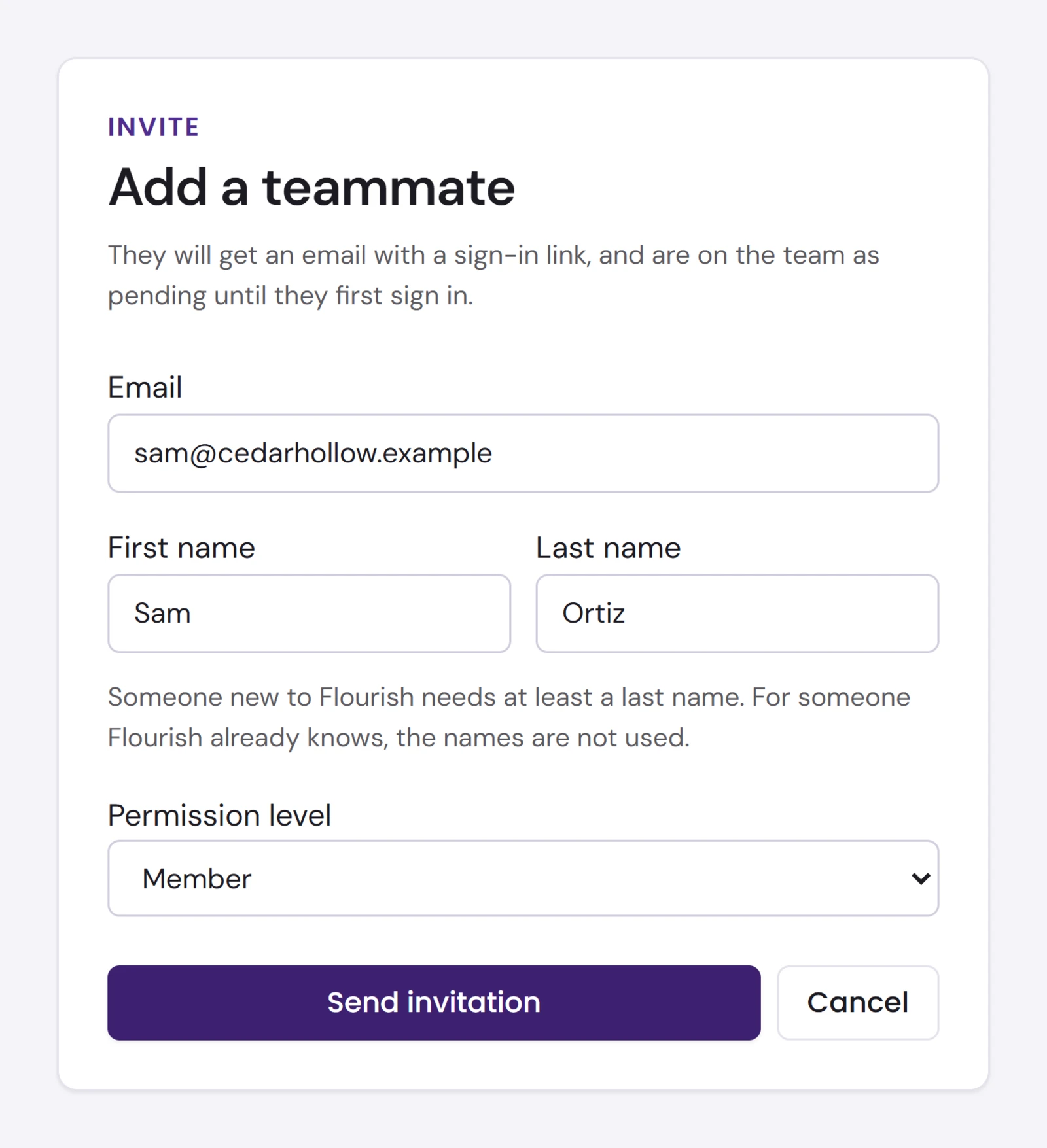
They get an email with a sign-in link. They are on the list straight away, marked Invitation sent, not yet accepted with their level shown as pending, and the Overview counts them as a pending invitation. They become active the first time they sign in with the link.
When an invitation is lost or the link no longer works
There is no resend button, and inviting the same address again is refused with That person is already on this organization. Change their level instead. Either of these gets them in:
- They go to dash.toflourish.org, enter their email address and choose Continue. A new link is emailed to them.
- An Owner or Admin removes the pending invitation (see Removing someone) and invites them again.
If the invitation is refused
| Message | What to do |
|---|---|
| A last name is required to create a new contact. | The person is new to Flourish. Add their last name. |
| That person is already on this organization. Change their level instead. | They are on the list already, perhaps as a pending invitation. |
| Only an Owner can add or change another Owner. | Choose another level, or ask an Owner to invite them. |
| That does not look like an email address. | Check the address. |
Changing a level
Owners and Admins can change the level of anyone they may manage. Choose the new level in that person's Permission level list. It takes effect at once, and the dashboard confirms it, for example Ana Ruiz is now Admin.
You cannot change your own level, and only an Owner can change an Owner's.
Removing someone
Choose Remove on their row, then Remove again to confirm. They lose access to this organization straight away. Their Flourish sign-in stays, along with any other organization they are on.
Removing a pending invitation withdraws it.
Teams
A team is an organization of its own under yours, such as a program or a department, with its own members, Solutions, connections and permission levels. Nobody on the organization is put on its teams automatically, and nobody on a team is put on the organization above it.
Creating a team
Only an Owner can create a team, under an organization they own.
- Go to Organizations, by choosing Flourish at the top left.
- Choose + Create team.
- If you own more than one organization, choose which one it goes under.
- Enter a Team name and choose Create team.
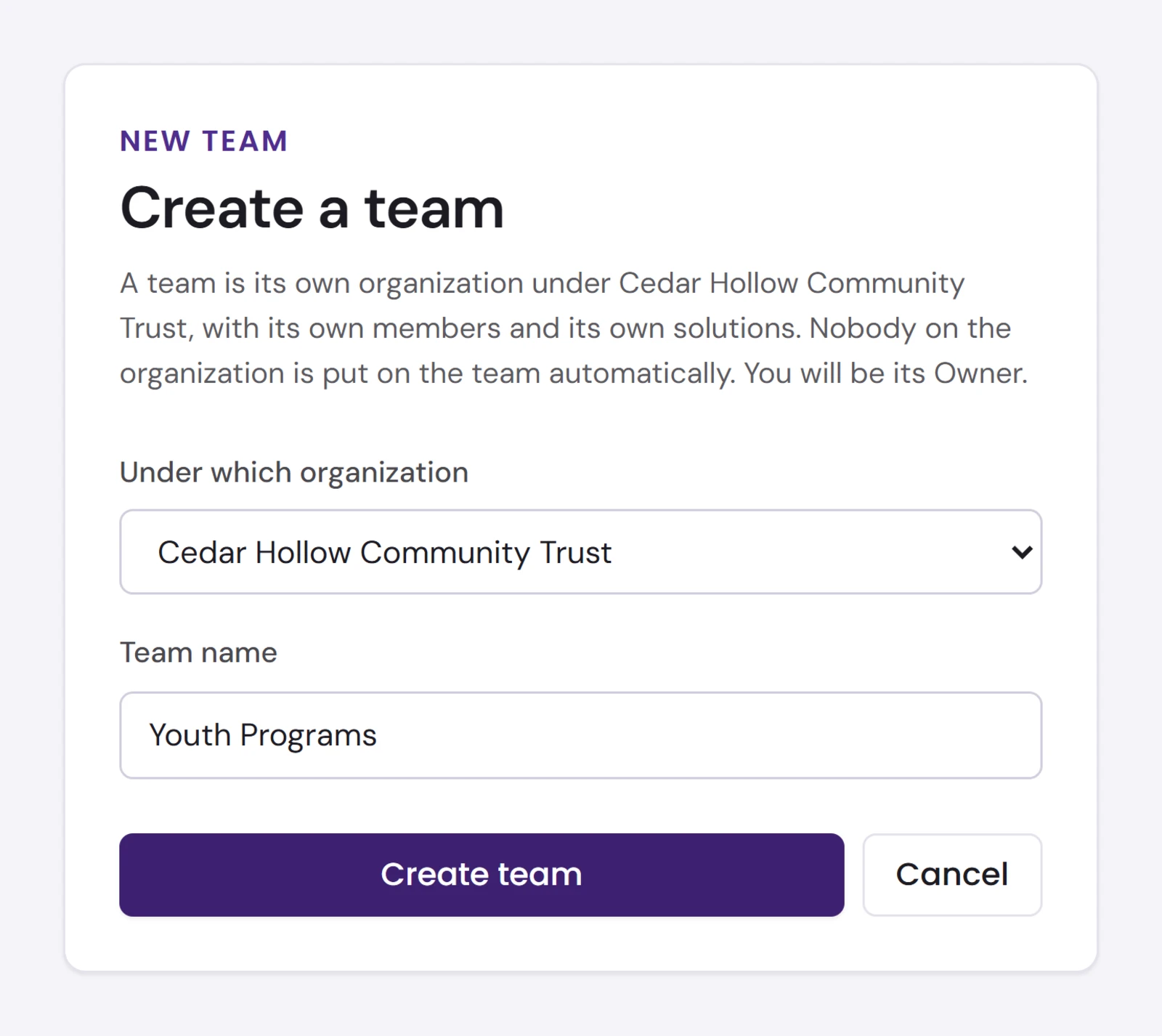
You are the team's Owner, and the dashboard opens it. Invite its members from its own Team & permissions. A new team starts with Flourish Core, and with the terms already accepted when the organization above it has accepted the current version.
A team's name must be different from the other teams under the same organization.
What Flourish does instead
Deleting a team, and creating a new organization that is not a team of one you own, are done by Flourish. Write to Flourish support from Support.