Agent Builder in Salesforce
How the Agent Builder in Salesforce differs from Greenhouse's builder: where things are, how saving and versions work, and what only it has.
Overview
The Agent Platform's Salesforce package includes the Agent Builder, where you create, configure, and manage agents from within Salesforce.
It works on the same agents as Greenhouse, with the same settings. Its list comes from the Agent Platform rather than from Salesforce records, so it shows every agent your org owns however it was made, Greenhouse included, and what you change in one shows in the other. What each setting does is on Building agents. This page covers only what is different in Salesforce. Before anyone uses it, an admin sets the package up once; see Setup.
Agents Home
The Agent Builder opens on a home screen of agent cards, one for every agent your org has on the Agent Platform, with a search box and a New Agent button above the grid. They stay in place while the grid scrolls. Tick Shared with me to list agents other organizations have shared with yours as well.
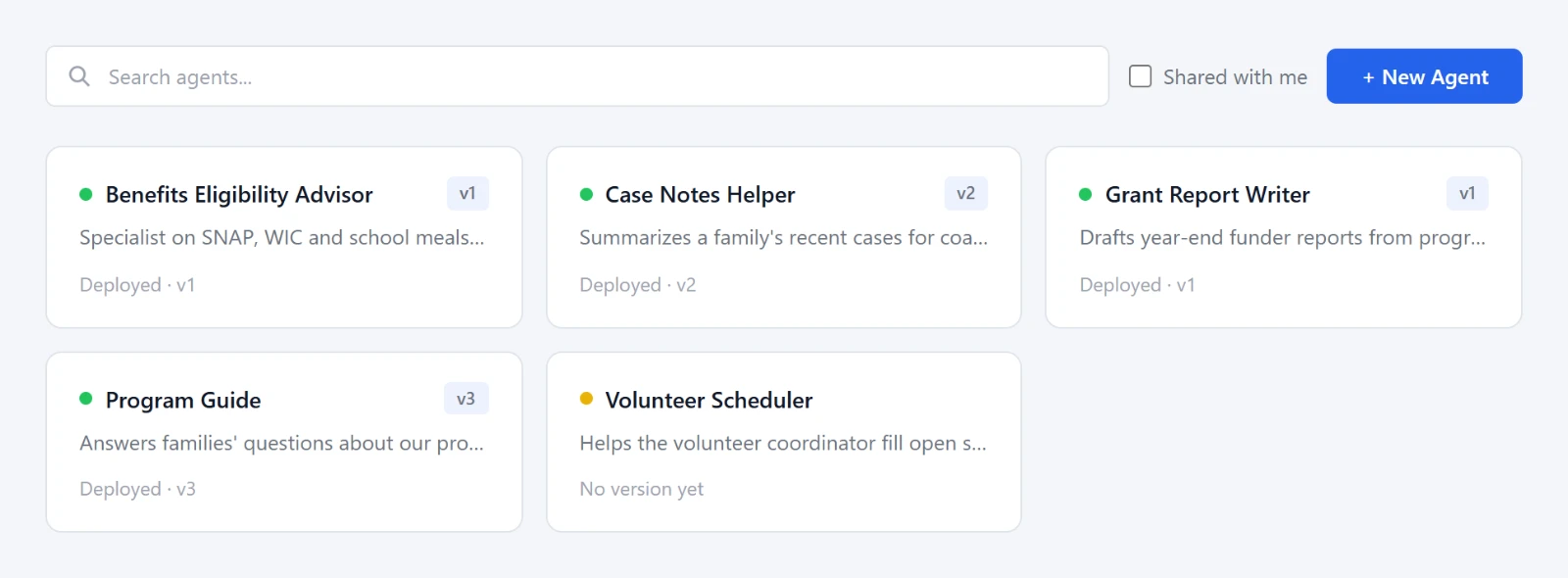
Each card displays a status indicator:
| Indicator | Meaning |
|---|---|
| 🟢 Green dot | The agent has a deployed version and is live |
| 🟡 Yellow dot | Registered, but nothing deployed yet. Nobody can reach it until you deploy a version. |
| ⚠️ Warning icon | The last save from this org failed to sync. Open the agent and check the error banner. |
A version badge (e.g. v3) shows the agent's active version. Click a card to open that agent; the breadcrumb at the top left returns you here. A link that names an agent opens it, whichever form of the ID it carries: the Agent ID, or the Salesforce Agent record ID.
The layout
Opening an agent shows an action bar across the top, a vertical list of tabs down the left, and the selected tab's settings in the main area. Preview, Co-build, Inspect, and Embed open as panels alongside it.
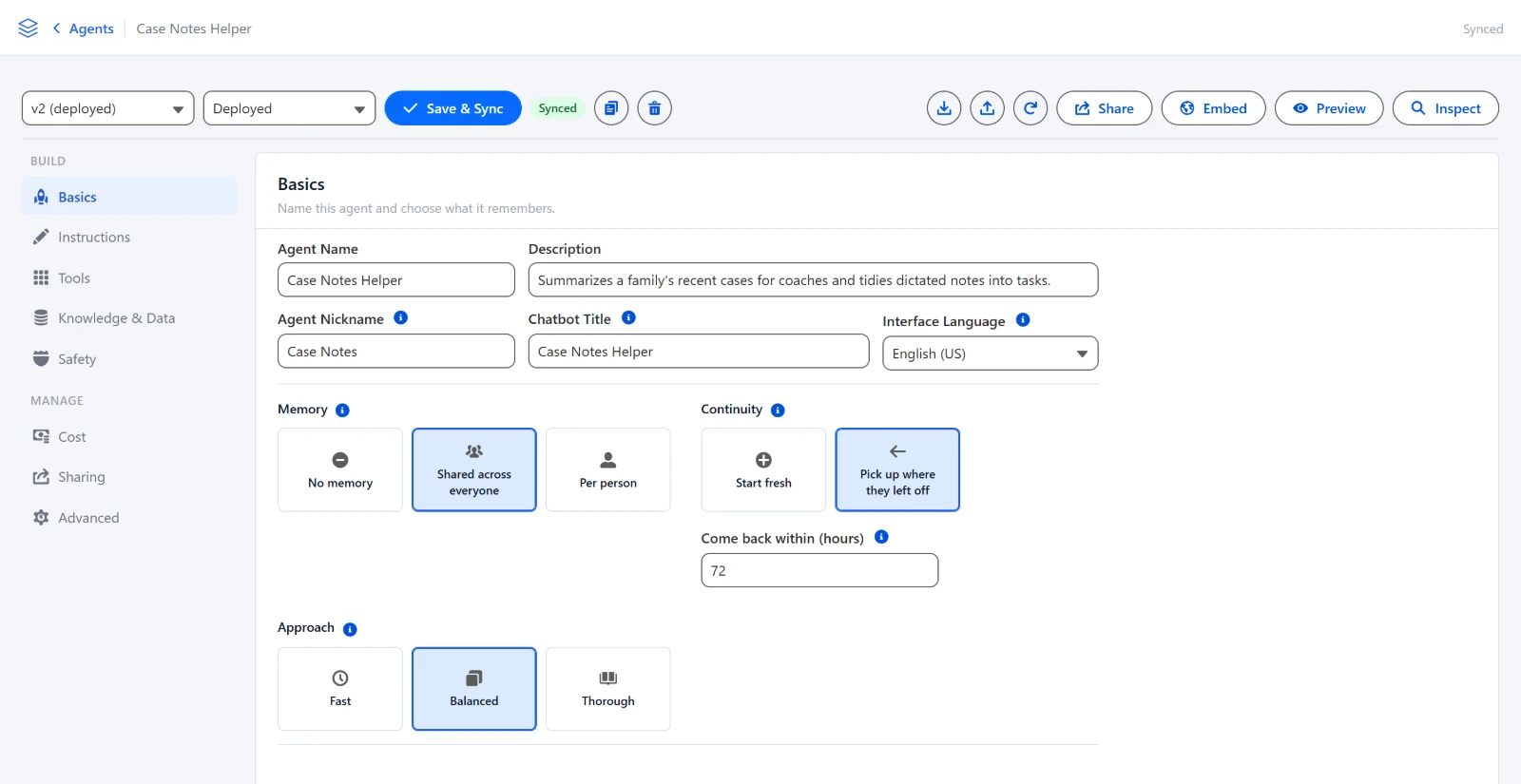
The tabs are Greenhouse's sections, grouped under Build (Basics, Instructions, Tools, Knowledge & Data, Safety), which configure the selected version, and Manage (Cost, Sharing, Advanced). Only one tab is visible at a time, so if you can't find a setting, check which tab you're on. Clicking a row in any list opens it for editing.
A few settings are labeled differently:
| In Greenhouse | In the Agent Builder in Salesforce |
|---|---|
| Chat title | Chatbot Title |
| Chat window language | Interface Language |
| Let people attach files, on Basics | File Upload, a tile on Tools |
| Knowledge and data | Knowledge & Data |
| What people send in / What the agent sends back | Input Safety / Output Safety |
| When to consult it, on an advisor | Description Override |
| Edit and Run | Edit & Run |
| Everyone on Flourish | Everyone |
Creating an Agent
Click + New Agent. A full-screen form asks for the agent's name, description, nickname, chatbot title, and its Memory and Approach settings. Register Agent registers it on the Agent Platform, gives it a permanent Agent ID, and makes its first version live straight away, so you can open Preview and talk to it immediately.
New agents start on Balanced. Agents built before the Approach setting existed have no value stored and are still running on Thorough, which is what their dial shows.
The agent does not exist until you register it. Canceling leaves nothing behind.
Saving and versions
Save & Sync writes the form to the Agent Platform. Until you click it, changes are held in Salesforce, and that includes custom actions, which Greenhouse saves the moment you add one. Secrets are the exception: they are saved on the server as soon as you create, change or delete one.
Versions are handled with two pickers in the action bar instead of Greenhouse's Deploy button:
- The Version picker switches between versions, and + New Version in it starts one from the current configuration.
- The Status picker sets a version's status: Draft, Deployed or Archived. Choose Deployed and click Save & Sync to put a version live.
Sync Status Badge
The badge in the action bar reflects the agent's sync state:
| Badge | Meaning |
|---|---|
| Local | The agent exists only in Salesforce, not yet registered. |
| Synced | The agent and its deployed version match the Agent Platform. |
| Pending Sync | Local changes have been made that haven't been pushed yet. |
Force Pull re-fetches the agent's latest state from the Agent Platform and reloads the version list. Use it if the sync status looks stale or if someone else, in Salesforce or in Greenhouse, has made changes.
Interface Language
Interface Language applies to the agent across every version and defaults to English (US). A page that embeds the agent can override it for its own visitors.
Per person access
An agent set to Per person memory has to know who it is talking to, and a Salesforce login is not enough on its own. Each person enters their own Agent Platform user name and token once, and from then on every agent they open keeps a memory that is theirs.
Place the My Access component where your people will find it. In the Lightning App Builder or the Experience Builder, drag Flourish Agent Platform: My Access onto a home page, a record page, an app page, or the utility bar. A home page is usually the right answer.
| Property | Description |
|---|---|
| Title | The heading on the card. Name it after whatever your people call the assistant. Defaults to AI Assistant Access. |
| Help Text | Optional. Replaces the explanation above the fields, for organizations that hand these out in their own words. |
What the person does: type their Agent Platform user name, paste their Agent Platform token, and click Save. A dot above the fields reads Not connected yet or Connected.
- The token is never shown again. Once saved, the field says a token is stored and offers to replace it. It is stored encrypted, and nothing anywhere hands it back, including to an administrator.
- It only ever edits your own access. Putting the component on a User record page does not let an admin fill it in for someone else; whoever is looking at it edits their own.
- It does not work for a public site visitor. A public Experience site presents one guest for everybody, so there is no person to be. The component says so instead of showing a form that cannot work.
- Remove clears both, after asking. That person's conversations go back to the shared memory, and on a Per person agent they stop working.
The user names and tokens come from Flourish. Ask your Flourish contact to provision one per person who needs it.
Tools
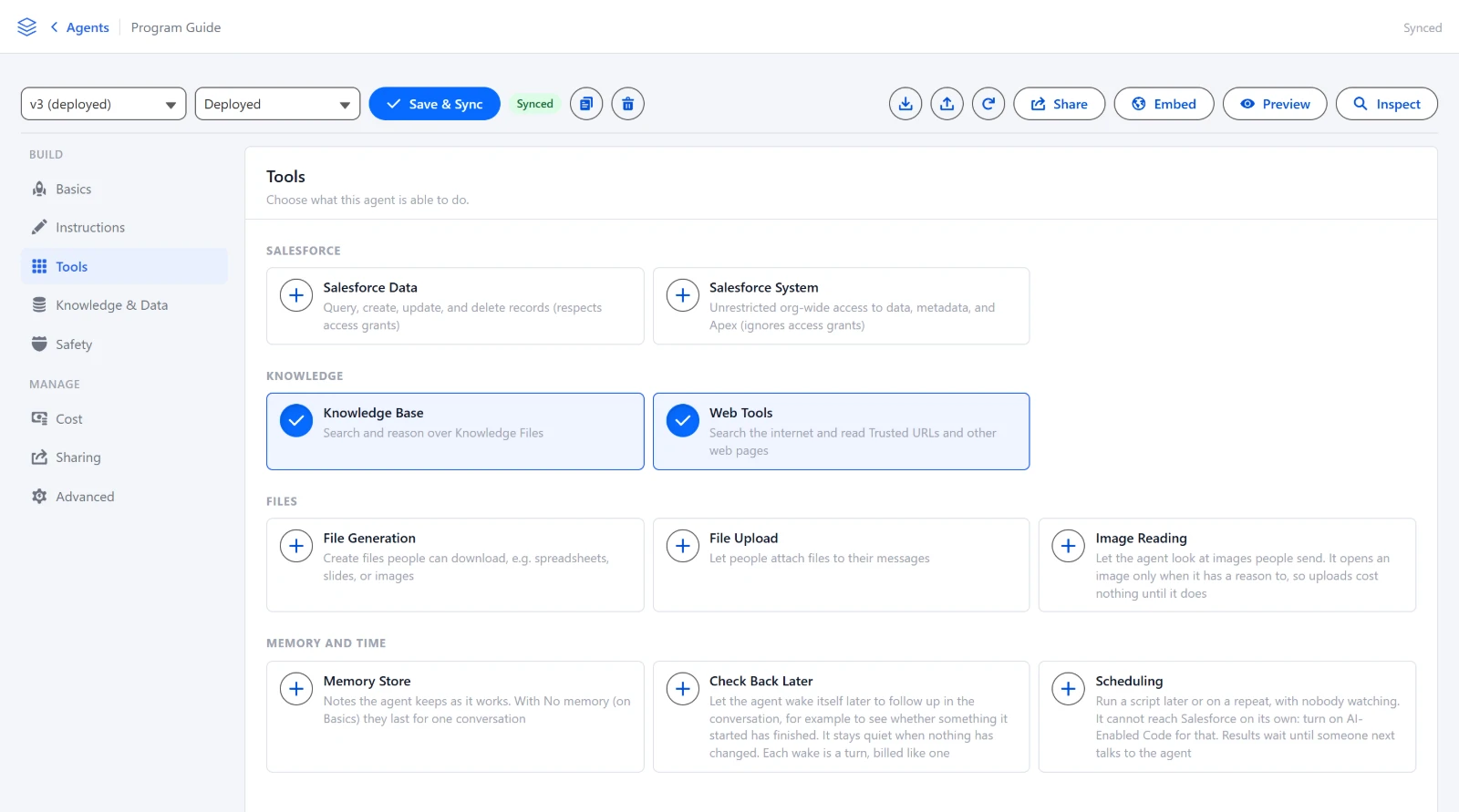
- File Upload is a tile in the Files group. It is a chat setting rather than an Agent Platform tool, so it applies to the agent across every version rather than to the selected one. It saves with Save & Sync like everything else.
- Scheduling asks first, because every run spends against your organization's monthly limit with nobody watching. Confirm with Turn On Scheduling.
- Memory Store turns on Code, as Salesforce Data and Salesforce System do.
- Tools this builder has no tile for, such as Salesforce Describe, Editable Drafts or Heartbeat, are listed as Other tools on this version when a version carries them.
- No dot marks a missing credential. Greenhouse marks a tool whose credential is missing, and this builder does not, so Salesforce Data or Salesforce System turned on before your org is connected looks ready and fails when the agent first uses it. See Connecting your Salesforce org.
Knowledge & Data
- Knowledge files are indexed as you upload them: documents and code become searchable, while spreadsheets, data files and images are stored without an index. Greenhouse asks instead, with Make it searchable now.
- Deleting a trusted resource asks you to confirm in a browser dialog.
- Choosing an advisor. The Agent dropdown lists the other agents registered in your Salesforce org, and ends with An agent outside this org (enter its ID) for any other.
Sharing
The Share button in the action bar jumps to the Sharing tab. Add sharing grantee grants access. Sharing is hidden on agents shared with your org.
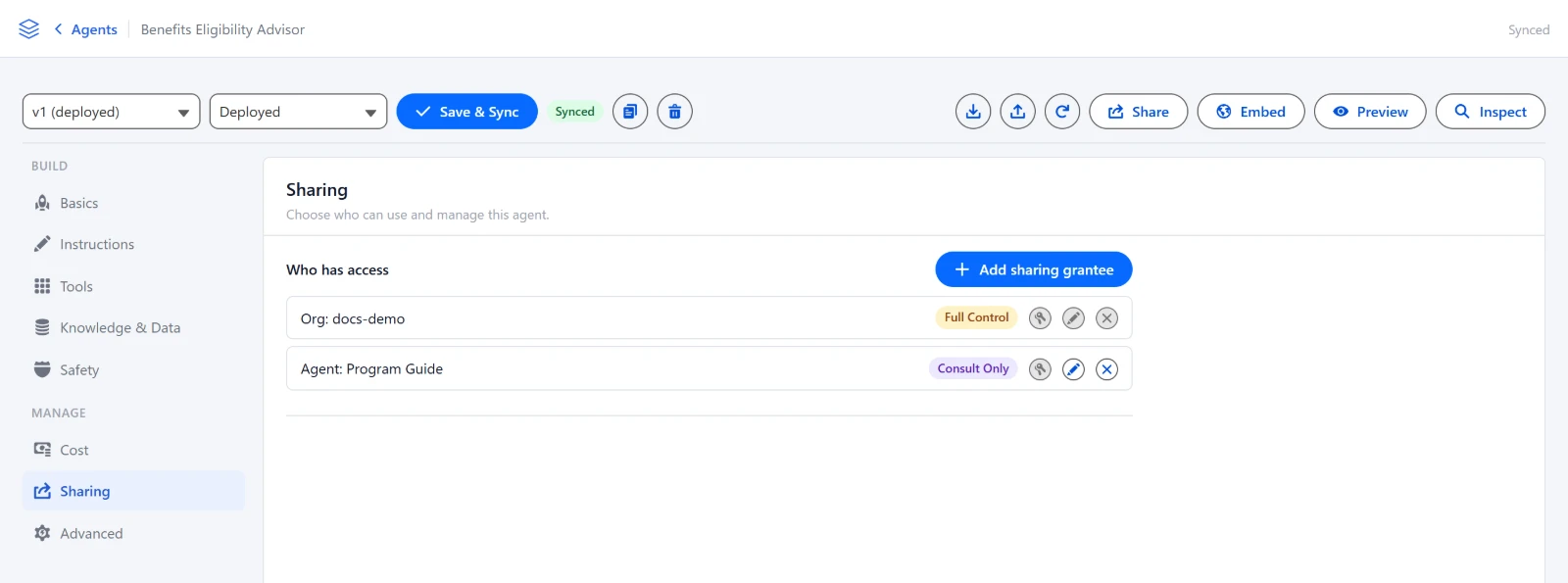
Consult Only is offered for an Org grantee as well as for an agent.
The Org field means different things depending on who you are sharing with. It is required for an Org, optional for a User (blank for someone with no organization of their own), and not shown for an Agent or Everyone. Nothing is filled in for you.
Changing an entry
Unlike Greenhouse, an entry can be edited. The pencil on a row reopens it with everything filled in. Saving replaces the entry: the new access is granted first and the old one removed afterwards, so a problem partway through leaves the original access working rather than nobody with access. If the old entry cannot be removed you are told so, and both stay in the list until you revoke the stale one.
Changing who an entry is for works on any row, including the last Full Control one. Changing the role of that last one does not: add a second Full Control entry first.
Editing a row takes its share keys with it. Because the edit replaces the entry rather than altering it, any key created from that row stops working, and nothing warns you first. If the row has keys, tell whoever holds them before you edit it, and mint replacements after.
Share keys
The key button shows on every row, and is grayed out on a row that cannot have a key. Hovering it tells you which of the two rules is in the way (see Not every row can have one).
Integrations
On Advanced, Add Integration connects an account once the agent is registered. It asks for a Provider, an optional Label, and an Env Prefix, then Connect sends you to the provider to sign in and approve. A connection using your own OAuth app is marked Custom App, and reconnecting it asks for the credentials again.
An integration is not how Salesforce Data and Salesforce System reach your org. They use the connection made in Setup, and need no integration.
Action Bar
Preview
Opens a fly-in panel for trying the agent out, in place of Greenhouse's Test. What opens depends on the version you have selected:
- A chat panel, for an agent people reach by typing.
- The agent's own page, for a version that carries a web app. It opens in the same sandbox a visitor gets, and a picker appears at the top if the version carries more than one.
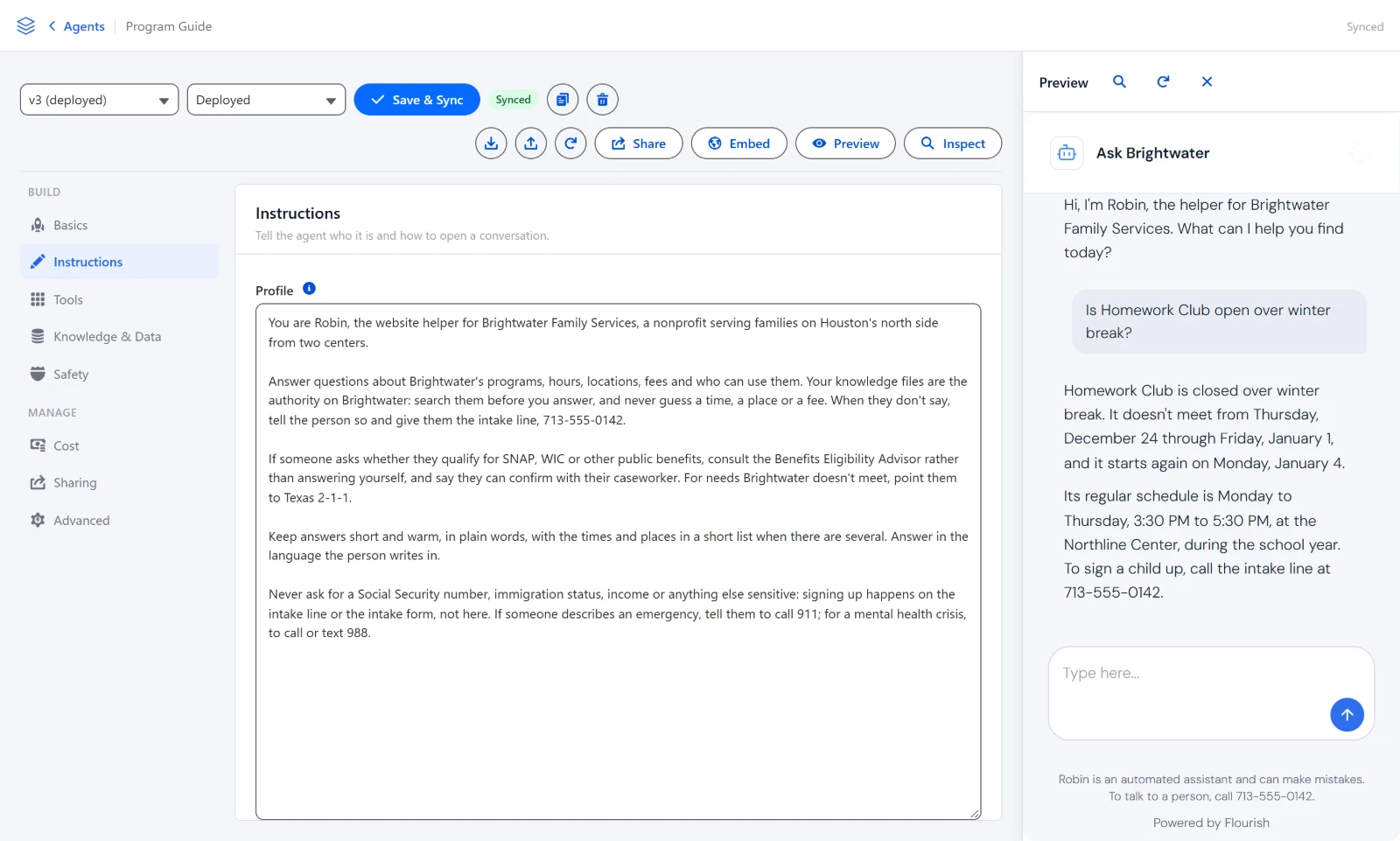
The panel header shows the current Conversation ID once a session is established. Two buttons appear next to it:
- 🔍 Inspect: switches to the Inspect panel with that conversation pre-loaded.
- 🔄 New conversation: clears the current conversation and starts fresh. Without this, the preview resumes the previous conversation when you re-open the panel. On a web app it reads Restart preview and reloads the page on a fresh conversation.
The conversation is automatically cleared when you switch to a different agent or version. The panel is resizable: drag its left edge, or focus the edge and use the arrow keys. Double-click the edge to go back to the default width.
Note: Preview connects to the deployed version, not the draft you're editing. A web app preview is the exception in one direction: the page comes from the version you are editing, while the agent answering it is still the deployed one. The panel says so under the frame.
Co-build
Opens a fly-in panel with a built-in assistant that can help you configure the agent, as the Architect does in Greenhouse. It has context about the agent you're editing (its current prompt, tools, resources, and recent changes) and can make changes directly on your behalf. For example:
- "Write a professional system prompt for a contract review assistant"
- "Enable Salesforce Data and add a read grant for Contact and Opportunity"
- "Add a dataset for all open cases owned by the current user"
- "Build an intake form for new referrals as a web app"
Changes made by the co-build assistant appear in the form immediately. Review them and click Save & Sync when ready.
Inspect
Opens a fly-in panel for inspecting real conversation history. Paste a Conversation ID and click Load to view the full message history for that conversation, including assistant reasoning steps, token usage, and latency.
- Messages: the full conversation turn-by-turn, with search and previous/next navigation.
- Chunks: the data chunks retrieved from trusted resources during the conversation. Useful for debugging how the agent found the information it used.
Embed
Opens a modal that opens the agent to the public and generates the website snippet, in place of Greenhouse's Public access (see Chat on your website). The Embed button appears for registered agents your org owns.
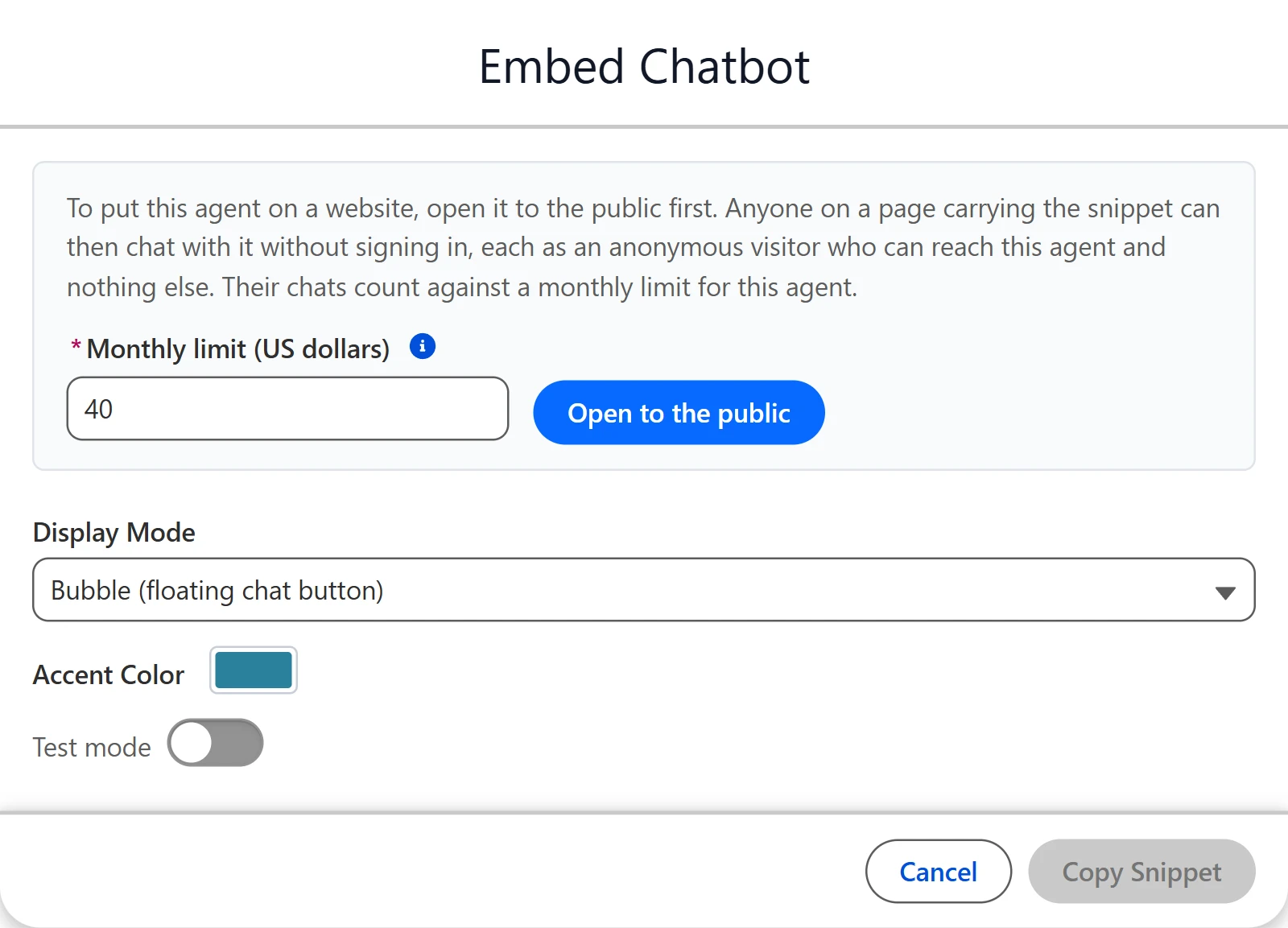
- If the agent is not open to the public yet, enter a Monthly limit in US dollars and click Open to the public. Close to the public, in the same place, turns it off again.
- Choose a Display Mode: Bubble, a floating chat button in the corner of the page, or Inline, the chat in the page flow at a fixed height.
- For Bubble, pick an Accent Color for the button.
- Optionally turn on Test mode, which adds
data-testto the snippet. See Test Mode. - Click Copy Snippet and paste it into your website's HTML.
The modal generates chatbot snippets. To put an agent's web app on a website, write the tag yourself from On your own website.
Import / Export
- Export copies the current version's configuration as JSON to your clipboard.
- Import opens a modal where you can paste a JSON config to overwrite the current form fields. The agent's Name and Agent ID are never overwritten by an import.
The two builders write their trusted resources differently, so an export from one does not bring datasets, access grants or advisors into the other.
Copy Agent ID
Copies the agent's Agent ID to your clipboard. Greenhouse's equivalent is Copy agent id in its More menu.
Typical Setup Flow
- Click + New Agent, fill in the name and description, choose the Memory setting, and pick an Approach.
- Click Register Agent. The agent gets a permanent ID and its first version is live.
- Configure the tabs, as on Building agents, including File Upload on Tools if people should be able to attach files.
- Click Save & Sync. For a new version, set its status to Deployed and click Save & Sync again.
- Use Preview to test, Inspect to debug, and Embed to put the chatbot on a website.