Chatbot on Salesforce pages
How to put an agent's chat window on a Salesforce page with the Chatbot component, and how to work with it from code.
Overview
The Agent Platform's Salesforce package includes the Chatbot, a component that puts an agent's chat window on any Salesforce page: a record page, an app page, a community. It connects to the agent you specify.
It is the same chat window an agent has on your website. Streaming, stopping, file uploads and downloads, reconnection, dark mode, and the styling and language settings all work the same way, and are covered on Chat on your website. This page covers what is particular to Salesforce: placing the component, what it passes from the page, and using it from your own components.
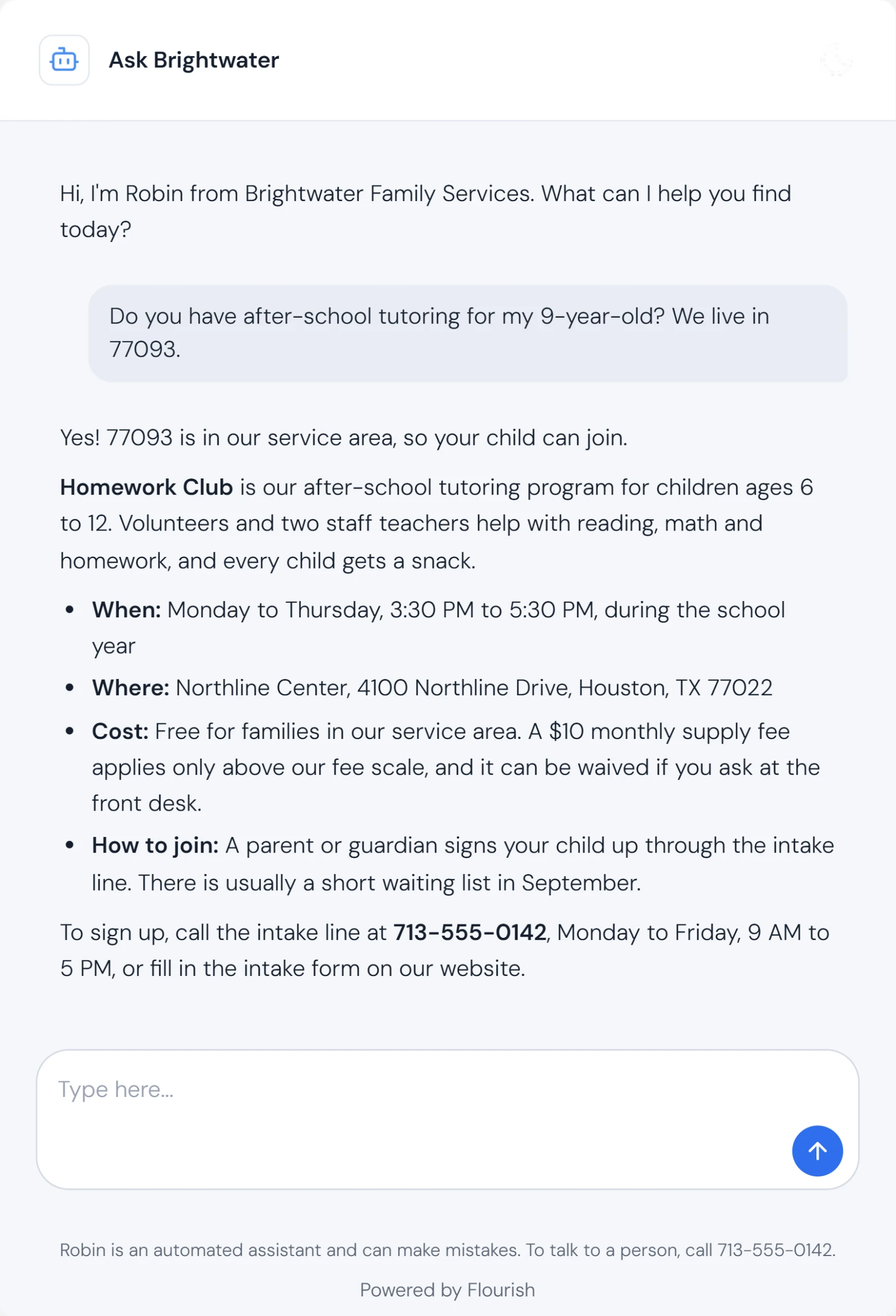
Adding the Chatbot to a Salesforce Page
In App Builder, drag the Chatbot component onto your page layout and set the Agent ID property to either a Salesforce Agent record ID or a Flourish Agent ID. The component resolves both automatically.
On record pages, the component automatically picks up the page's record ID and passes it through to the agent as context.
Properties
These are what App Builder offers when you drop the component on a page:
| Property | Default | Description |
|---|---|---|
| Agent ID | - | Required. A Salesforce Agent record ID or a Flourish Agent ID. |
| Record ID | - | Populated automatically on record pages. Used as a fallback if Agent ID is not set. |
| Conversation ID | - | Resumes an existing conversation instead of starting a new one. |
| Group Key | - | Names which memory the agent should use for this conversation: a class, an account, a case. Only applies to agents whose Memory setting is not No memory. A record ID or an account number is usually the right thing to pass. |
| Custom Style (JSON) | - | A JSON string of styling overrides. See Custom Styling. |
Height, the footer, the language and context are not in that panel. They are set in markup by a developer placing the component in code, and the first three also have a home in Custom Style (JSON), which is the way to reach them from App Builder. Height is the
layoutsection, the footer isshow, the wording istext. See Custom Styling and Text and language.
The properties available in markup, on top of the five above, are height-mode (small at 400px, medium at 600px, large at 800px, or custom), custom-height (any CSS height, used with height-mode="custom"), hide-footer, language, and context. See For Developers.
Choosing the language. The component's own labels take, in order, the language property, then the c__fllang URL parameter, then the agent's own Interface Language. A page serving more than one language has to say which one it wants, per placement, through one of the first two.
Passing Context
The Context property lets the host page pass structured data to the agent at runtime. The agent receives this data as part of every conversation turn, which is useful for providing record data, user details, or any other information the agent should be aware of.
The agent reads the context as a JSON block, called the host context, on every turn. Nothing is filled into the agent's Profile or Startup Instructions, so there is no template syntax: to use a value, name its key in plain words. For example: The visitor's language is the language value in the host context. Reply in that language. On a record page the chatbot adds sfdc_record_id and sfdc_object_type for you.
See the For Developers section for how to set context programmatically.
Things particular to Salesforce
- Per person memory needs each person's own access. An agent set to Per person memory refuses a conversation with somebody who has not entered their own Agent Platform access, and says so. That person fills in the My Access component; see Per person access.
- Images need the package's storage entries in CSP Trusted Sites. If an image the agent delivers cannot be shown, usually because the org has not upgraded to a version of the package carrying them, the card quietly becomes an ordinary download card. The file is still there; only the picture is missing.
- Dark mode is remembered in the browser. If your Salesforce environment restricts browser storage, dark mode still works for the session. The preference just won't persist across page loads.
- The Contact and Report forms are starter templates. A developer can connect them to Salesforce logic such as Case creation.
For Developers
This section covers embedding the Chatbot as a child Lightning Web Component (LWC) inside a custom page or another component. Framing the chat window on a page outside Salesforce, and driving it from that page, are under Iframe Integration.
Basic Markup
<c-intel_chatbot
    agent-id="a01xx0000001234AAA"
    record-id={recordId}
    height-mode="medium"
    hide-footer={false}>
</c-intel_chatbot>
You can pass either a Salesforce record ID (pointing to an Agent__c record) or a Flourish Agent ID directly to agent-id. The component resolves both automatically.
Property Reference
| Property | Type | Default | Description |
|---|---|---|---|
agent-id | String | - | Required. Salesforce Agent record ID (15 or 18 chars) or Flourish Agent ID. |
record-id | String | - | Passed automatically on record pages. Fallback if agent-id is not set. |
height-mode | String | medium | Component height: small, medium, large, or custom. |
custom-height | String | 600px | Used when height-mode is custom. Any CSS height value. |
hide-footer | Boolean | false | Legacy: hides the utility bar. Prefer show.utilityBar / show.poweredBy in custom-style. |
custom-style | String | - | JSON styling contract (colors / show / layout / text). See Custom Styling. |
object-api-name | String | - | Auto-populated on record pages. Identifies the host record's object type (e.g. Account). |
context | Object | - | Opaque data object passed to the agent at runtime. |
conversation-id | String | - | Resumes an existing conversation rather than starting a new one. |
group-key | String | - | Names which memory the agent uses for this conversation. Fixed when the conversation starts, so nothing later can name a different one. |
language | String | - | Locale code for the chatbot's own labels, e.g. es-us. See Text and language. The property is language, not lang. |
Setting Context Programmatically
Pass structured data to the agent from the parent component. When the value changes, the chatbot automatically sends the updated context.
// In the parent LWC's JS
get chatbotContext() {
    return {
        recordId: this.recordId,
        accountName: this.account.Name,
        userRole: this.currentUserRole,
    };
}
<c-intel_chatbot
    agent-id="your-agent-uuid"
    context={chatbotContext}>
</c-intel_chatbot>
contextlands in the agent's host context, which the platform treats as read-only ambient background (used to interpret references like "this record"), not as a data source the agent answers from. To hand the agent data it should actively use, preferattachDataplussendMessage(below).
Host API Methods
A same-document parent LWC can grab the component via this.template.querySelector (or refs) and call these imperative methods directly. Across an iframe, the same three are driven over postMessage. See Driving the Chatbot from the Parent Page.
| Method | Signature | Purpose |
|---|---|---|
sendMessage | sendMessage(text, { origin }) | Sends a message. origin: 'user' (default) renders a user bubble; origin: 'host' delivers a state-change notification (no bubble, and the think loop decides whether to respond). Returns true if sent. |
attachData | attachData(name, data, contentType?) | Stages in-memory data (string, JSON-serializable object, or Blob) as a conversation upload the agent reads via uploads["<name>"] in run_code. Keeps bulk data out of the LLM context window. Returns a Promise<boolean>. Requires a live session. |
setHostBusy | setHostBusy(isBusy, label?) | Raises or clears the host's own busy state (locks the composer, shows the indicator with label). Independent of the agent's own busy state: it can raise but never clear the agent's. |
// In the parent LWC's JS: hand the agent local data, then ask it to use it.
async askOverResults(question, results) {
    const chatbot = this.template.querySelector('c-intel_chatbot');
    chatbot.setHostBusy(true, 'Searching…');
    await chatbot.attachData('results.json', results, 'application/json');
    chatbot.sendMessage(
        `Attached results.json (${results.length} hits). Answer "${question}" from it, citing sources.`,
        { origin: 'host' },
    );
    chatbot.setHostBusy(false);
}
Handling Agent Actions
The chatbot dispatches an agentaction custom event when the agent sends a structured action during its response. Actions are delivered via two mechanisms; both produce the same agentaction event on the host side:
- Structured delivery (preferred): agents with Custom Actions configured send actions as typed events. The chatbot receives them and dispatches each as an
agentactionevent. - Text-based delivery (legacy): agents can embed
:::action ... :::blocks in their response text. The chatbot parses these, strips them from the displayed message, and dispatches them as events.
The agentaction DOM event reaches a same-document LWC parent. When the chatbot runs in an iframe, the same action is also posted to the parent window as an fl__action message. Both surfaces fire, from both delivery paths.
handleChatEvents(event) {
    const action = event.detail;
    console.log(action.type, action);

    if (action.type === 'navigate_record') {
        this[NavigationMixin.Navigate]({
            type: 'standard__recordPage',
            attributes: { recordId: action.record_id, actionName: 'view' },
        });
    }
}
<c-intel_chatbot
    agent-id="your-agent-uuid"
    onagentaction={handleChatEvents}>
</c-intel_chatbot>
Action blocks are parsed and stripped before the response text is displayed. Users never see the raw syntax.
Custom Style Markup
The custom-style value uses the namespaced contract described in Custom Styling: colors / show / layout, with any value accepting a { "light", "dark" } pair.
<c-intel_chatbot
    agent-id="your-agent-uuid"
    custom-style='{"colors": {"accent": "#7C3AED"}, "layout": {"radius": "0"}}'>
</c-intel_chatbot>
Embedding Examples
Flush full-height embed (fill a sidebar panel):
<c-intel_chatbot
    agent-id="your-agent-uuid"
    custom-style='{
        "show": { "utilityBar": false, "poweredBy": false },
        "layout": { "height": "fill", "radius": "0", "headerRadius": "0" }
    }'>
</c-intel_chatbot>
Branded embed (match your org's color scheme):
<c-intel_chatbot
    agent-id="your-agent-uuid"
    custom-style='{
        "colors": {
            "accent": { "light": "#0F766E", "dark": "#0D9488" },
            "userBubble": { "light": "#CCFBF1", "dark": "#134E4A" }
        }
    }'>
</c-intel_chatbot>
A Salesforce Site page in an iframe
A Salesforce Site page hosting the Chatbot can be framed on an outside page, with the same parameters on its URL that Flourish's own chat page takes (see Building the iframe yourself). It starts every visitor's chat with your org's own credentials rather than as an anonymous visitor, so keep it for pages where that is what you want. Because of that, a conversation id is enough to reopen one there. Snippets that carry data-embed-url frame such a page; new ones leave it off.