People and Roles
How to add people to Folio, choose who builds reports, and reset someone's sign-in.
Overview
People in the sidebar lists everyone in your organization, the roles they hold in Folio, and its teams. Everyone in the organization can see it because sharing picks from these people and teams. Only admins change anything here.
Folio's admins are your organization's Owners and Admins in the Flourish Dashboard. See Team & Permissions.
The roles
| Role | What it lets someone do |
|---|---|
| No role | Opens what's shared with them and changes nothing. |
| Creator | Builds reports and dashboards, makes collections, and shares them. |
| Admin | Adds people, chooses who builds reports, and changes the organization's settings. |
Someone can hold both. An admin who should build reports needs the creator role, too. What each role does, at the bottom of the page, says the same.
Only people with the creator role can be given edit rights on a report, a dashboard, or a collection. See Sharing.
Making someone an admin here makes them an Admin of your organization in the Flourish Dashboard, too.
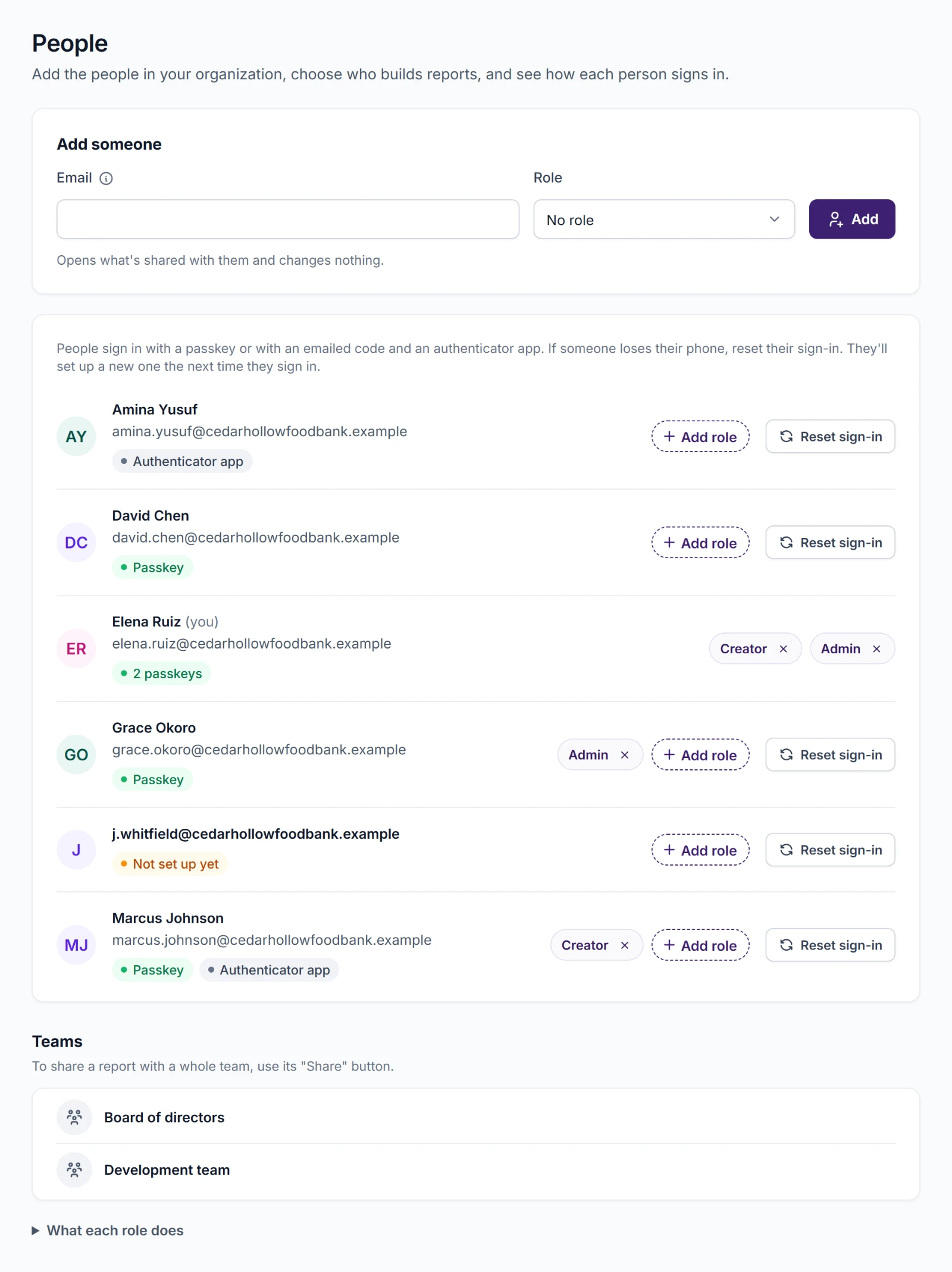
Adding someone
- Under Add someone, enter their Email.
- Choose a Role: No role, Creator, or Admin. The line below says what the role lets them do.
- Choose Add.
They can sign in with that email address straight away. Someone new to Flourish signs in on Flourish's sign-in page and sets up a passkey or an authenticator app the first time.
Giving and taking roles
- To give a role, choose Add role on the person's row, then the role. Each choice says what it lets them do.
- To take a role away, choose the × on its chip and confirm. Taking your own role away also warns you that you may lose access to parts of the organization.
If Folio refuses a change, the reason shows in that person's row. An organization always keeps at least one admin, and an Owner's admin role changes only in the Flourish Dashboard.
How each person signs in
Admins see how each person signs in: how many passkeys they have, whether they use an authenticator app, or Not set up yet.
Resetting someone's sign-in
When someone loses the phone they sign in with, reset their sign-in:
- Choose Reset sign-in on their row.
- Read what happens and choose Reset sign-in again.
Folio removes their passkeys and authenticator app and signs them out of every Flourish app. The next time they sign in, they get an emailed code and set up a new passkey or authenticator app. We email them to say you reset it.
You can't reset your own sign-in here. Ask another admin.
Teams
Teams lists your organization's teams. Folio doesn't make teams. They come from the Flourish Dashboard. See Teams.
Share a report, a dashboard, or a collection with a team to share it with everyone on it. Use Share on the item. See Sharing.