Sources and Settings
How to choose which data Folio's reports can read, and how to set your organization's name, time zone, fiscal year, and report color.
Overview
A report reads one source. A source is one of two things:
- A Salesforce connection your organization made in the Flourish Dashboard.
- A Flourish solution your organization uses that Folio can read, such as Consumer Health.
Admins turn each source on for Folio, and the people who build reports build on the sources that are on. Sources are on Settings in the sidebar, below the organization's own settings.
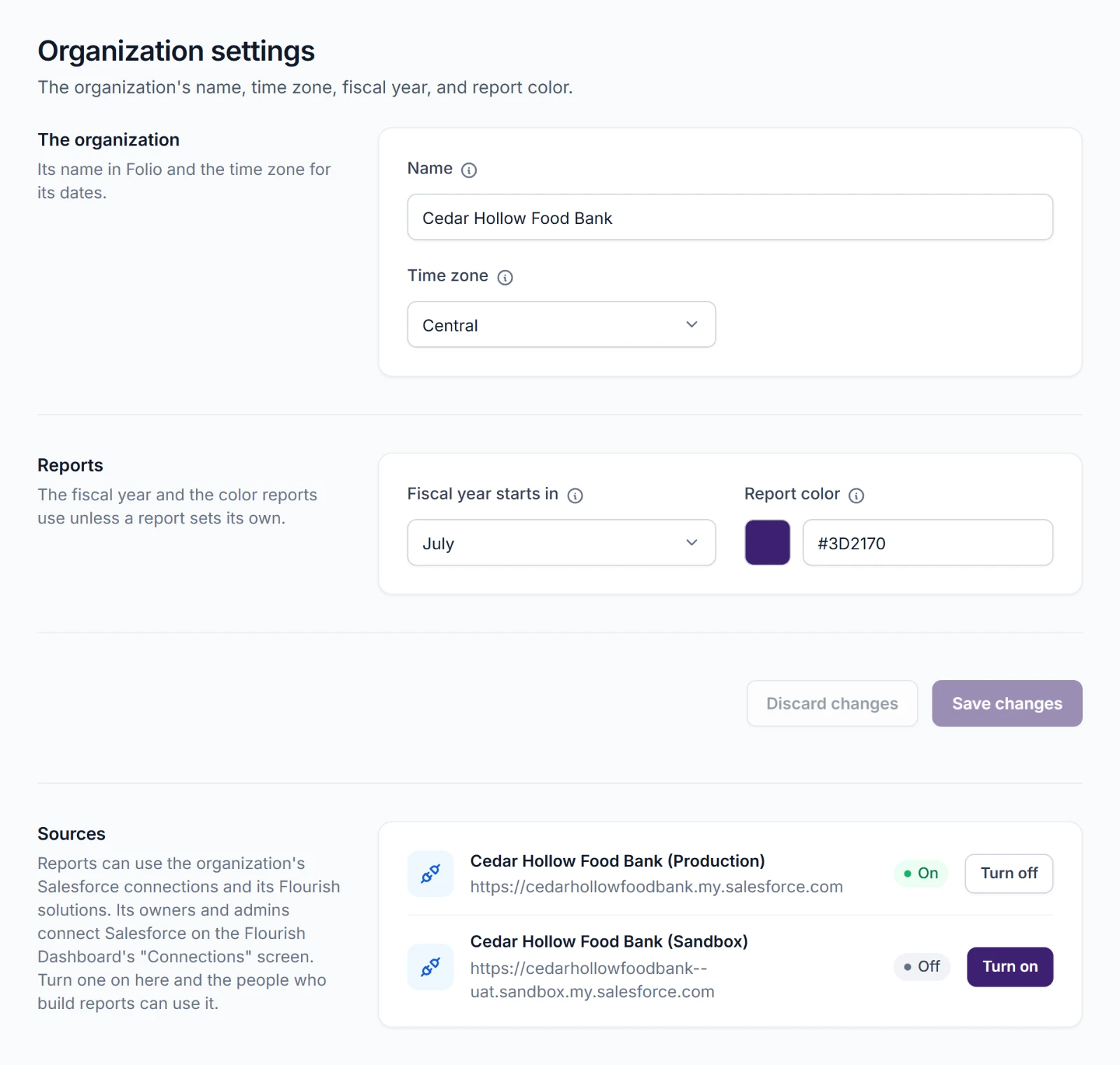
Sources
Where they come from
Salesforce connections are made in the Flourish Dashboard by your organization's Owners and Admins. Folio lists the organization's own connections, never anyone's personal ones. See Connections.
Flourish solutions come with your organization. Folio lists the ones it can read that your organization uses.
If Sources says Nothing to turn on yet, your organization has no Salesforce connection and no solution Folio reads. Connect Salesforce in the Dashboard first.
Turning a source on or off
Admins use the button on each source's row.
- Turn on lets the people who build reports use it. Turning a Salesforce connection on also lets Folio use that account, and the Dashboard's Connections shows Folio among what can use it.
- Turn off asks first. Reports that use the source stop running until it's turned on again. They aren't deleted.
People who build reports but aren't admins see the sources that are on for them. Nobody else in the organization sees Sources.
What a report sees
A report reads Salesforce as the Salesforce user the connection signs in as. That user's sharing and field access decide what every report on the connection can see. Anyone a report is shared with sees what it shows. Their own access in Salesforce doesn't change that. Choose the account you connect with that in mind.
A report runs on the organization's connection, so it keeps working when the person who built it leaves.
Building on a Flourish solution needs a role in that solution. The line under it in Sources says so. Someone a report on it is shared with opens it without one.
When a source stops working
A report whose source can't be used says why when it opens. Dashboards say the same on each tile.
| The report says | What to do |
|---|---|
| This report's source is turned off. An admin can turn it on in "Settings." | An admin turns the source on again. An admin sees a link to Settings above the report. |
| This report's connection needs connecting again. An admin can do that in the Flourish Dashboard. | The connection stopped working, for example because its password changed. An Owner or Admin adds it again in the Dashboard. See When a connection needs attention. |
| Salesforce refused this report's connection. An admin can connect it again in the Flourish Dashboard. | Salesforce no longer accepts the connection. An Owner or Admin adds it again in the Dashboard. |
| This report's connection is no longer in the Flourish Dashboard. An admin can connect it again there. | Someone disconnected it. An Owner or Admin connects it again in the Dashboard. |
A Salesforce connection that needs connecting again shows Needs connecting again in Sources. One that's gone from the Dashboard, or a solution your organization no longer uses, shows under Turned on here but no longer available, where an admin can turn it off.
Organization settings
Admins change these. Everyone else can read them.
| Setting | What it does |
|---|---|
| Name | The organization's name in Folio. |
| Time zone | The time zone for dates and for periods such as This month. |
| Fiscal year starts in | The month the fiscal year starts. Periods such as This fiscal year use it for a source with no fiscal year of its own. Salesforce has its own, so its reports follow your Salesforce org's fiscal year. |
| Report color | The color every report and dashboard uses unless it sets its own, written like #3D2170. |
Change what you need and choose Save changes. Discard changes puts back what was saved.