Building Reports in Salesforce
How the Folio Editor in Salesforce differs from the editor in Folio on the web: where reports live, what things are called, how versions work, and what only Salesforce has.
Overview
Folio's Salesforce package builds reports over the Salesforce org it's installed in. You build them in the Editor, opened from the Folio Reports tab. Each report is kept in the org as Folio Definition records. They're separate from the reports in Folio on the web.
The four formats, the field picker, summing up columns, groupings, sorting, filters, filter logic, and charts work as they do on the web. What each one does is on Building Reports. This page covers only what's different in Salesforce.
Building reports needs the Flourish Folio: Admin permission set. See Setup.
The gallery
Folio Reports opens on a card for every report.
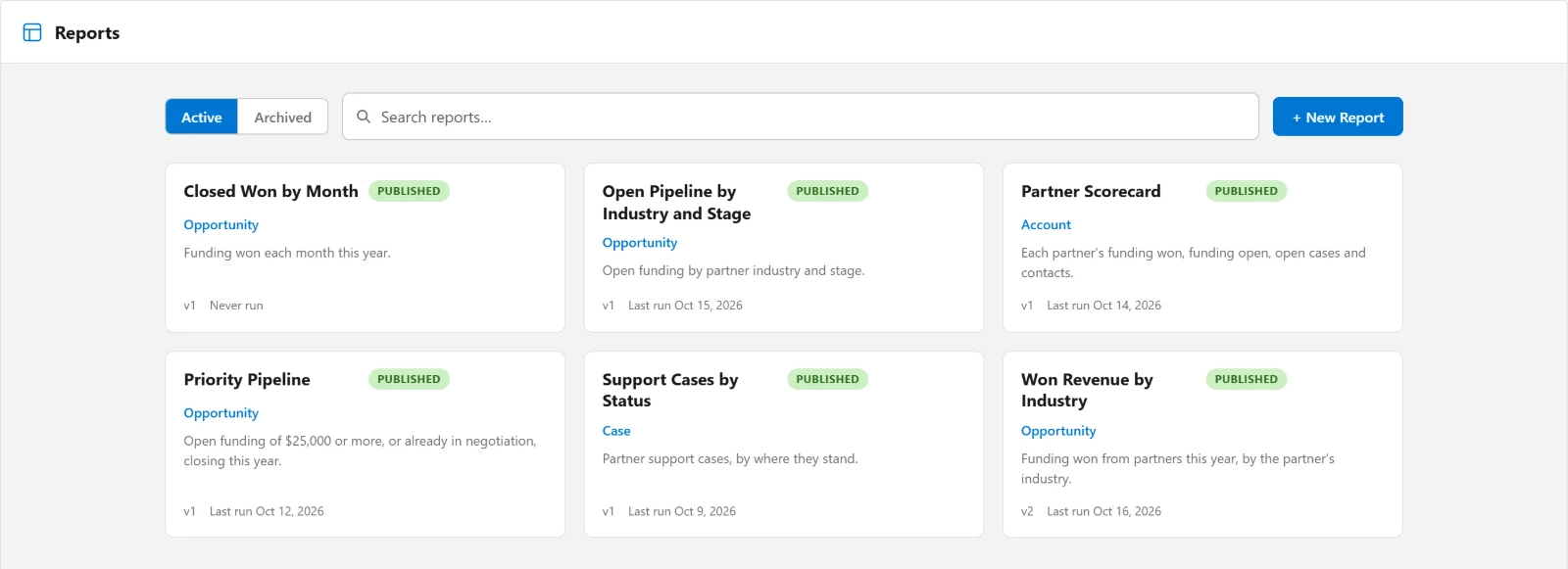
| On a card | |
|---|---|
| Name and status | Published for a report in service. Archived for one taken out of service. |
| Object | The object the report is built on. |
| Description | The report's description if it has one. |
| Version | The version readers see. |
| Last run | When anyone last opened the report. A report nobody has opened says Never run. |
Active and Archived across the top switch between reports in service and those you've archived. Search reports… matches on the report's name or its object.
Click a card to open the report as readers see it. The header then offers:
| Editor / Viewer | Switch between editing the report and viewing it. |
| Go to Definition | Opens the report's Folio Definition record in a new tab. Its Unique Name is what you need to place the report on a page. |
Reports in the breadcrumb goes back to the gallery. A link copied from the address bar opens the same report, and one copied while editing opens the Editor.
To make a report, click + New Report, type a name over Untitled report, and pick the object under Report On. There's no source to choose. A report always reads the org it's in.
The Editor
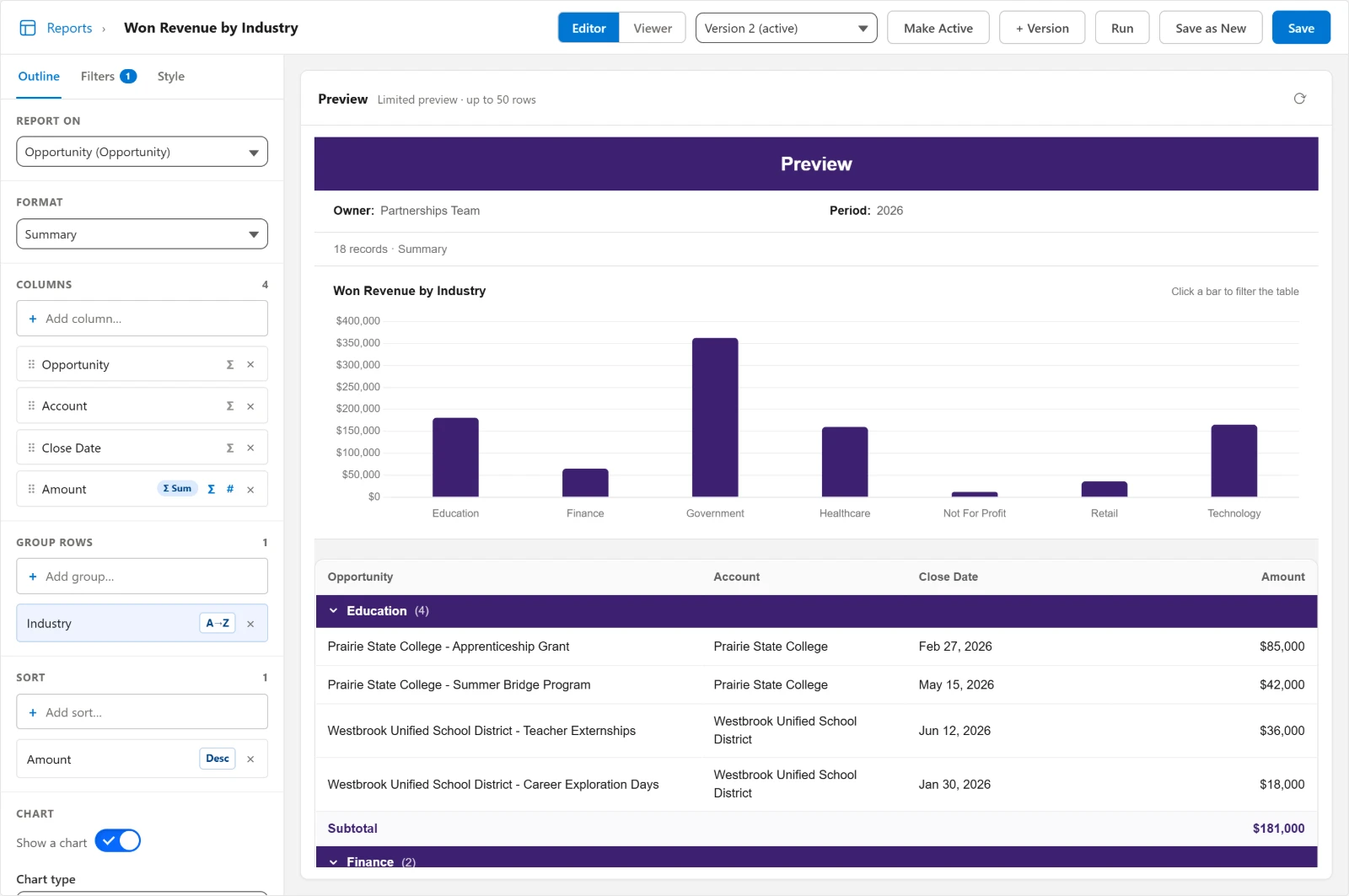
What things are called
| On the web | In Salesforce |
|---|---|
| Report on | Report On |
| Sum up | Σ |
| Count distinct, Smallest, Largest | Count Distinct, Min, Max |
| Before and After in a number's format | Prefix and Suffix |
| Group rows, and a matrix's Rows | Group Rows |
| A matrix's Columns | Group Columns |
| A to Z, Z to A | A→Z, Z→A |
| Sort by | Sort |
| Chart | Show a chart |
| Row names come from | Row Label |
| A measure's Sum up by | A measure's Σ |
| A measure's Only the … where | + Filter this measure |
| Most rows to show | Row limit |
| Add a condition on Filters | + Add filter… |
| Combine them with AND, OR, and NOT | Combine conditions with custom logic |
| Date range | Date Filter |
| Run again | Run, and Refresh preview on the preview |
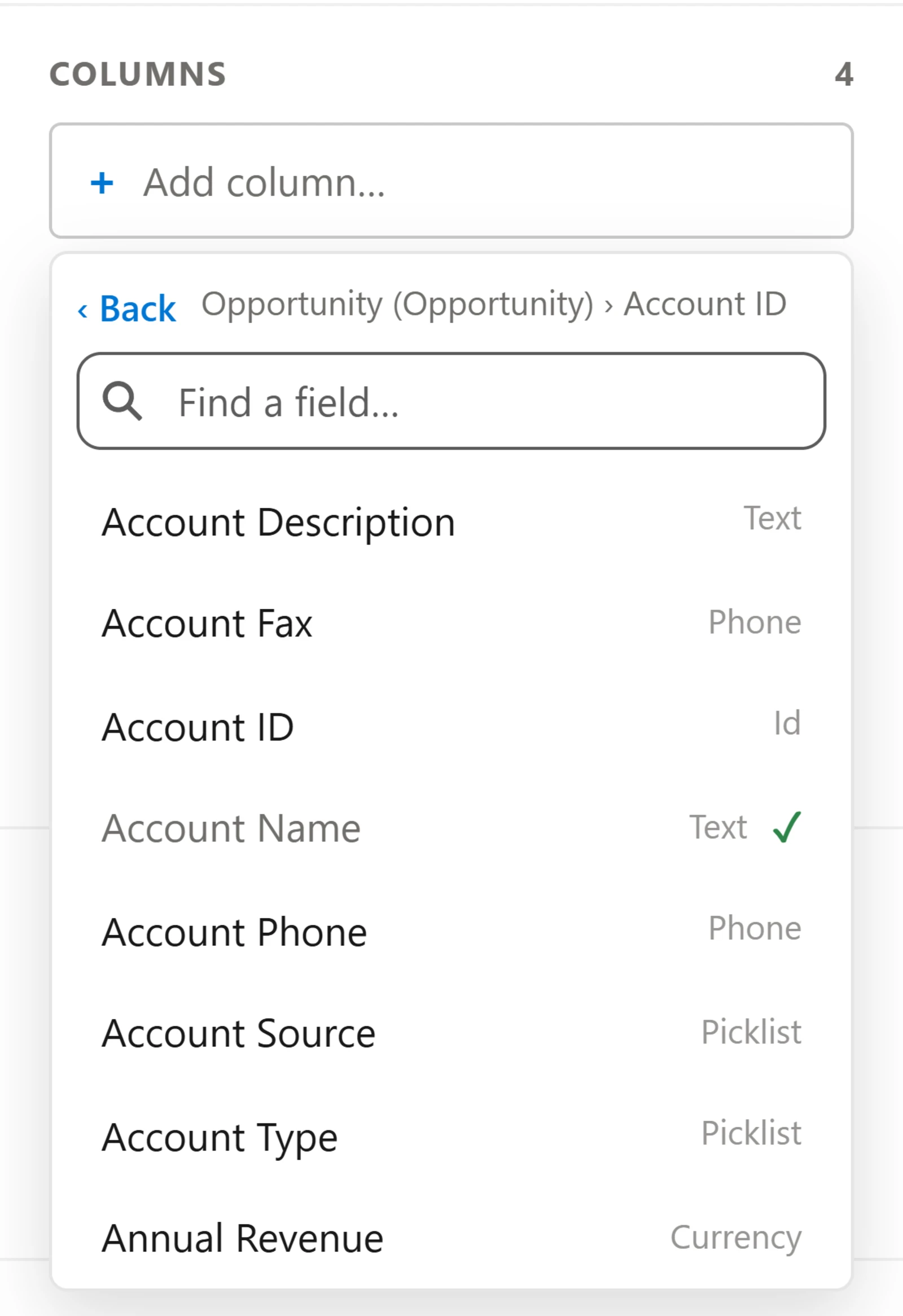
In the field picker, a lookup is marked ›. ‹ Back steps out again, and a ✓ marks a field already added.
What the Editor in Salesforce doesn't have
- More than one grouping. The Editor lets you add more than one group row, but the report uses only the first, so a summary doesn't nest.
- Charts on tabular reports. Only summary and matrix reports have charts. There are no Ranked bars or Funnel, no split bars on a summary, and no running total.
- Earliest and Latest. Min and Max are offered on numbers only.
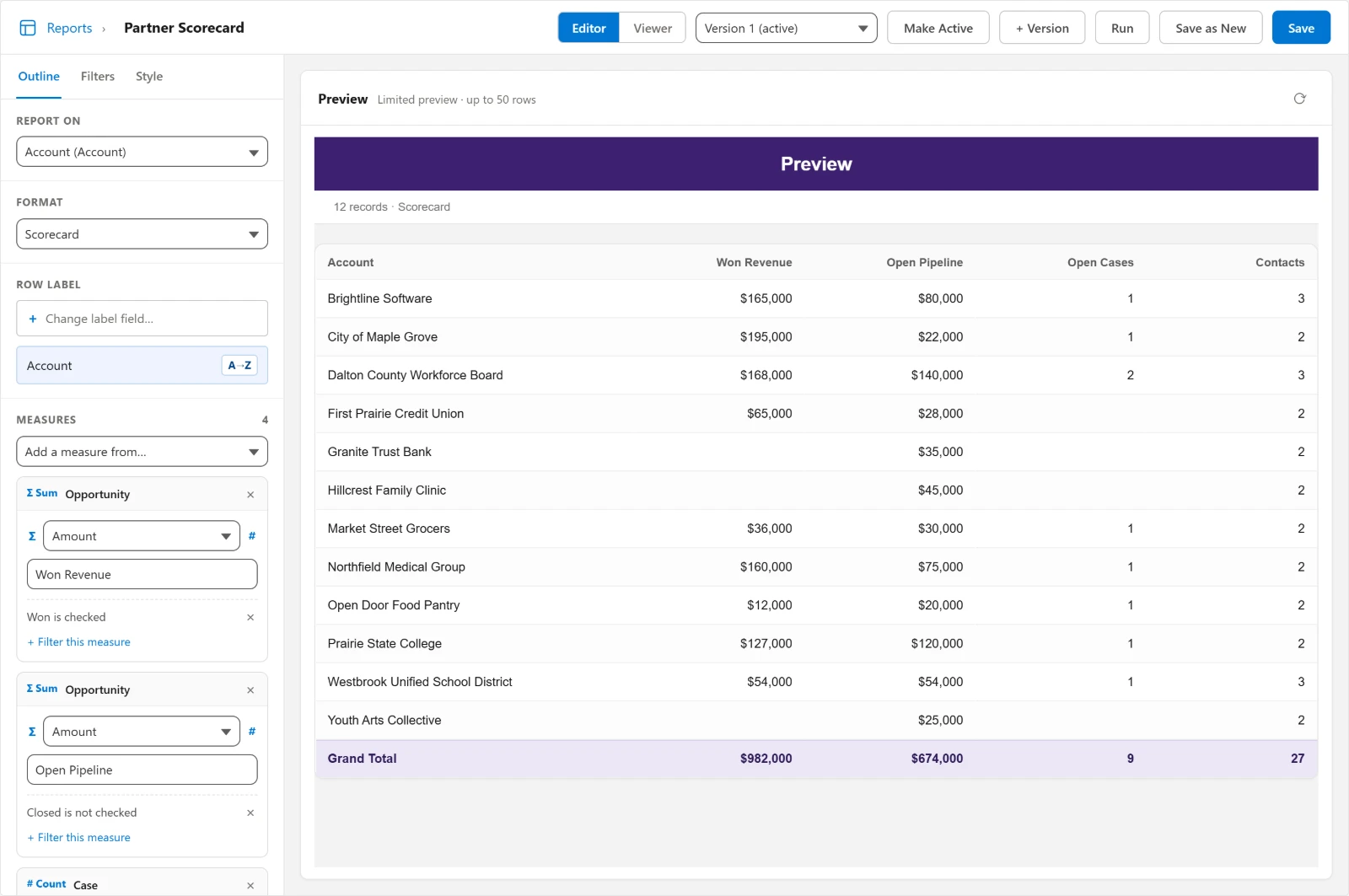
- Ordering a scorecard by a measure. The Row Label's A→Z button sets the order. Report JSON can order it by a measure.
On a scorecard, Add a measure from… names each object like "Opportunities (via Account ID)." A measure's field Record Count counts the related records.
Filters
The conditions have names of their own in Salesforce:
| Field type | Operators |
|---|---|
| Text, email, phone, URL, lookup | Is Equal To, Is Not Equal To, Contains, Does Not Contain, Starts With, Is Blank, Is Not Blank |
| Number, currency, percent, date | Is Equal To, Is Not Equal To, Is Greater Than, Is Less Than, Is Greater Than or Equal To, Is Less Than or Equal To, Is Blank, Is Not Blank |
| Picklist | Is Equal To, Is Not Equal To, Is Blank, Is Not Blank |
| Multi-select picklist | Contains, Does Not Contain, Is Blank, Is Not Blank |
| Checkbox | Is Checked, Is Not Checked |
A picklist has no is one of here. Join several Is Equal To conditions with OR in the filter logic instead.
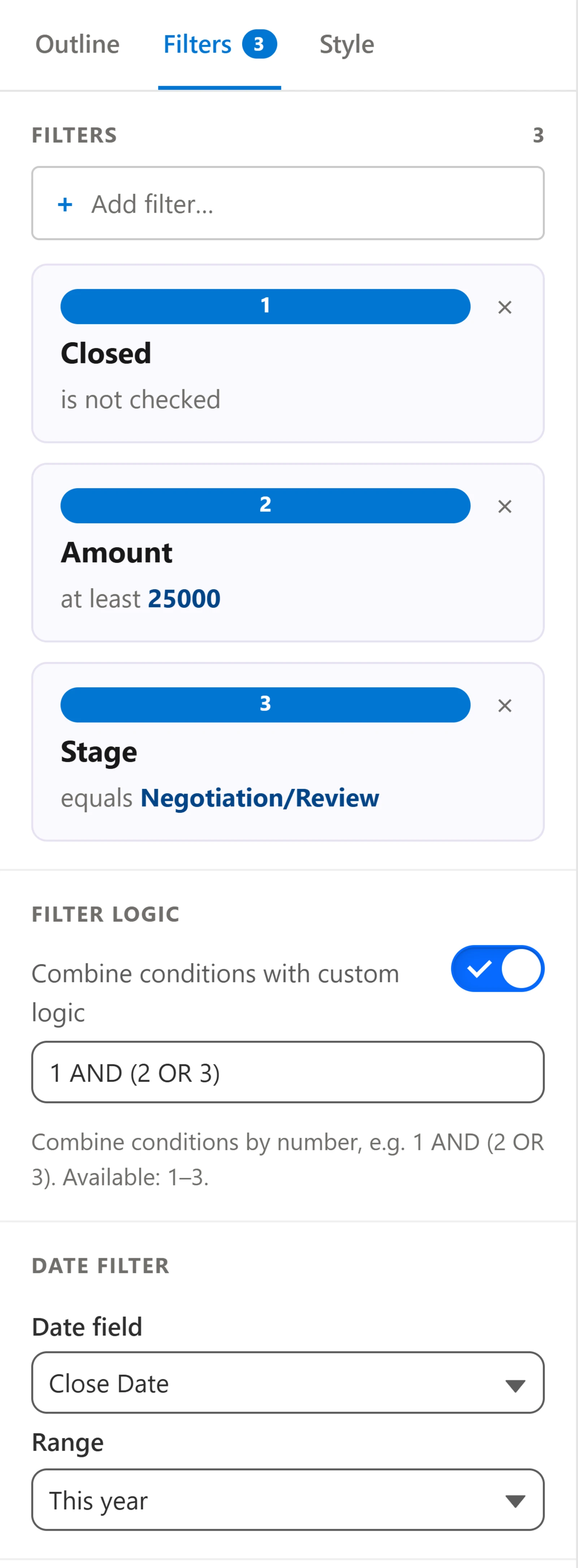
The Date Filter's ranges are Today, Yesterday, This week, Last week, This month, Last month, This quarter, Last quarter, This year, Last year, This fiscal quarter, This fiscal year, Last N days…, Next N days…, and Custom range…. The N-days ranges ask for a Number of days, and Custom range… asks for From and To. Fiscal ranges follow your org's fiscal year settings.
Style
The Style tab has the web's settings under names of its own:
| On the web | In Salesforce |
|---|---|
| Color | Brand color, a hex value such as #3D2170. It colors the title banner, too. |
| Rows: Roomy or Compact | Density: Comfortable or Compact |
| Cell lines | Cell border color |
| Hide the record count above the report | Hide the record-count / format subline |
| Keep the first column in view when scrolling across | Freeze the first column |
| Facts above the report, Add a fact | Header Strip, + Add row |
| What viewers can do | Utility Bar: Export, Interactive filter, Chart toggle, and the export file types |
Where a report is placed can narrow its Utility Bar further but never widen it. See The Utility Bar setting. The Folio Reports tab and the Folio Definition record page always show every tool because those are admin views.
Saving and versions
Save saves the version you're on, and readers see it the next time they open the report.
The first save gives the report its Unique Name, made from its name: lower case, spaces turned into hyphens, and punctuation dropped. "Won Revenue by Industry" becomes won-revenue-by-industry. If that's taken, a number is added. Renaming the report later doesn't change it, so pages that show the report by its unique name keep working.
Save as New copies the report into a separate one with its own card and history. The original is untouched.
On the web, every save is kept. In Salesforce, a new version exists only when you ask for one:
| + Version | Copies the version you're on into a new one and opens it in the Editor. Readers see the new version right away. |
| Make Active | Makes the version you're looking at the live one again. Use it to roll back. |
The version picker lists every version and marks the one readers see with (active). Picking another opens it in the Editor. Readers don't see it until you click Make Active. To try a change without readers seeing it, use Save as New and copy your change back once it works.
The preview runs with your own access even on a report marked Run Elevated. See Placing Reports.
Archiving and deleting
Both act on every version of the report. Hover over a card to find them.
Archive takes the report out of service. It leaves the gallery for the Archived list, and pages that show it by its unique name stop showing it. Restore on the Archived list brings it back as it was. Archive is the safe way to retire a report.
× deletes the report after a confirmation. Folio can't bring a deleted report back. An admin can undelete its records from the org's Recycle Bin for about 15 days. The report then returns with its unique name changed, and someone has to change it back by hand before any page finds the report again.
Folio can't tell you where a report is used in Salesforce. A report placed on a Lightning page, in a Flow, or on a site stops appearing without warning when it's archived or deleted. Check where it's placed before you remove it.
Things the Editor doesn't set
A few presentation options aren't in the Editor: coloring cells by rule, coloring individual column headers, fixing column widths, choosing which columns readers can sort, and PDF page sizing. You set them in the report's JSON. Report JSON describes them. The Editor keeps them when you save, so options set by hand survive later edits.