Building a Campaign
How to make a campaign, write its prompts in every language you offer, and choose what people meet and what we do with their answers.
Overview
A campaign is a set of prompts, the questions people answer, and the settings around them. One campaign holds every language it's offered in. The prompts, their order, and the settings are shared, and only the words change from one language to another.
Building a campaign takes the editor role. Viewers can open every section and change nothing. See What you can do.
Making a campaign
On Campaigns, choose New campaign.
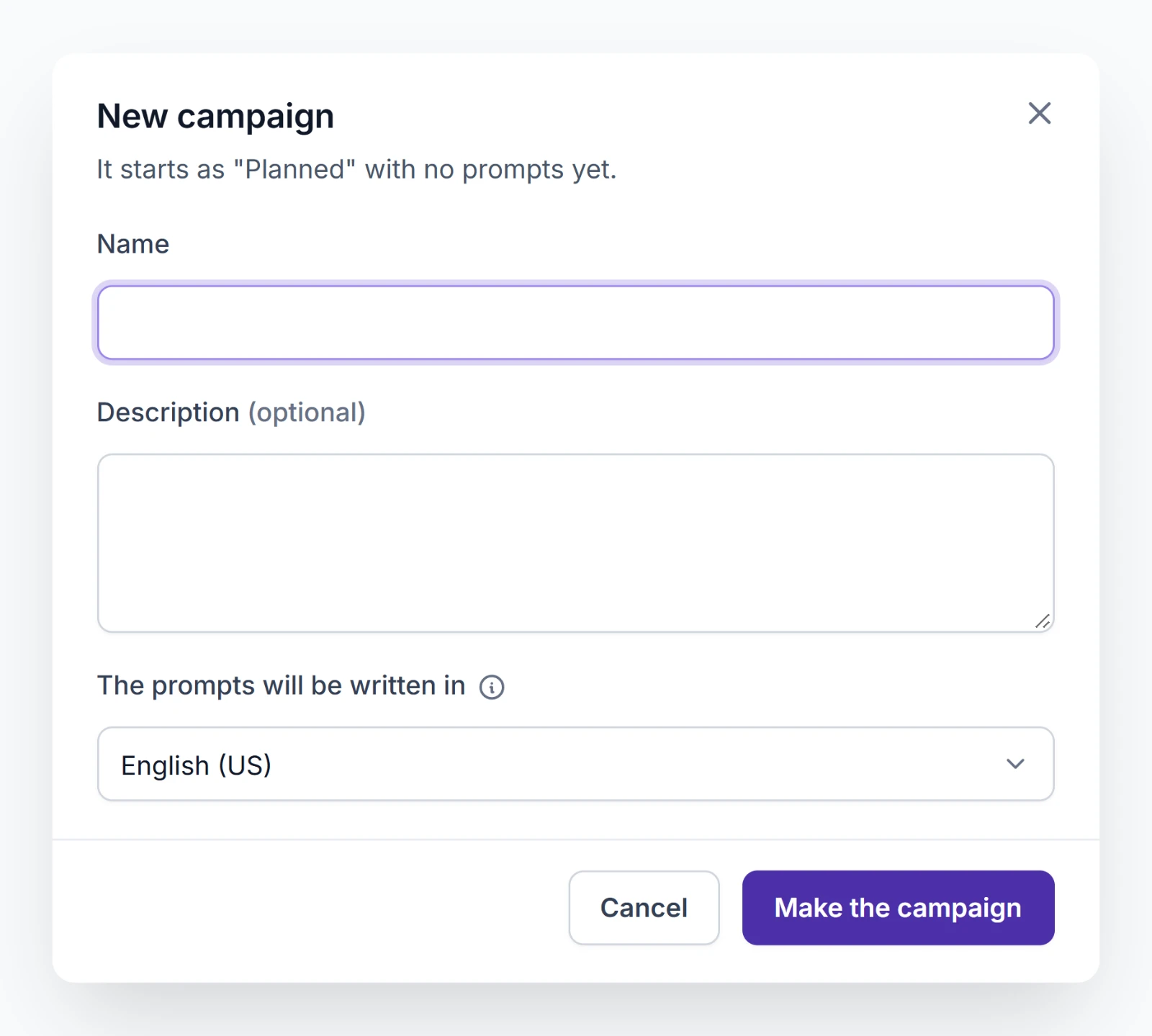
- Give it a Name. A Description is optional.
- Under The prompts will be written in, choose the language you'll write the prompts in. You can add and translate other languages later.
- Choose Make the campaign.
The campaign starts as Planned with no prompts and opens on Prompts.
The builder
A campaign's sections run down the left. Build holds what shapes the campaign, and Manage holds what you do with it once it's running.
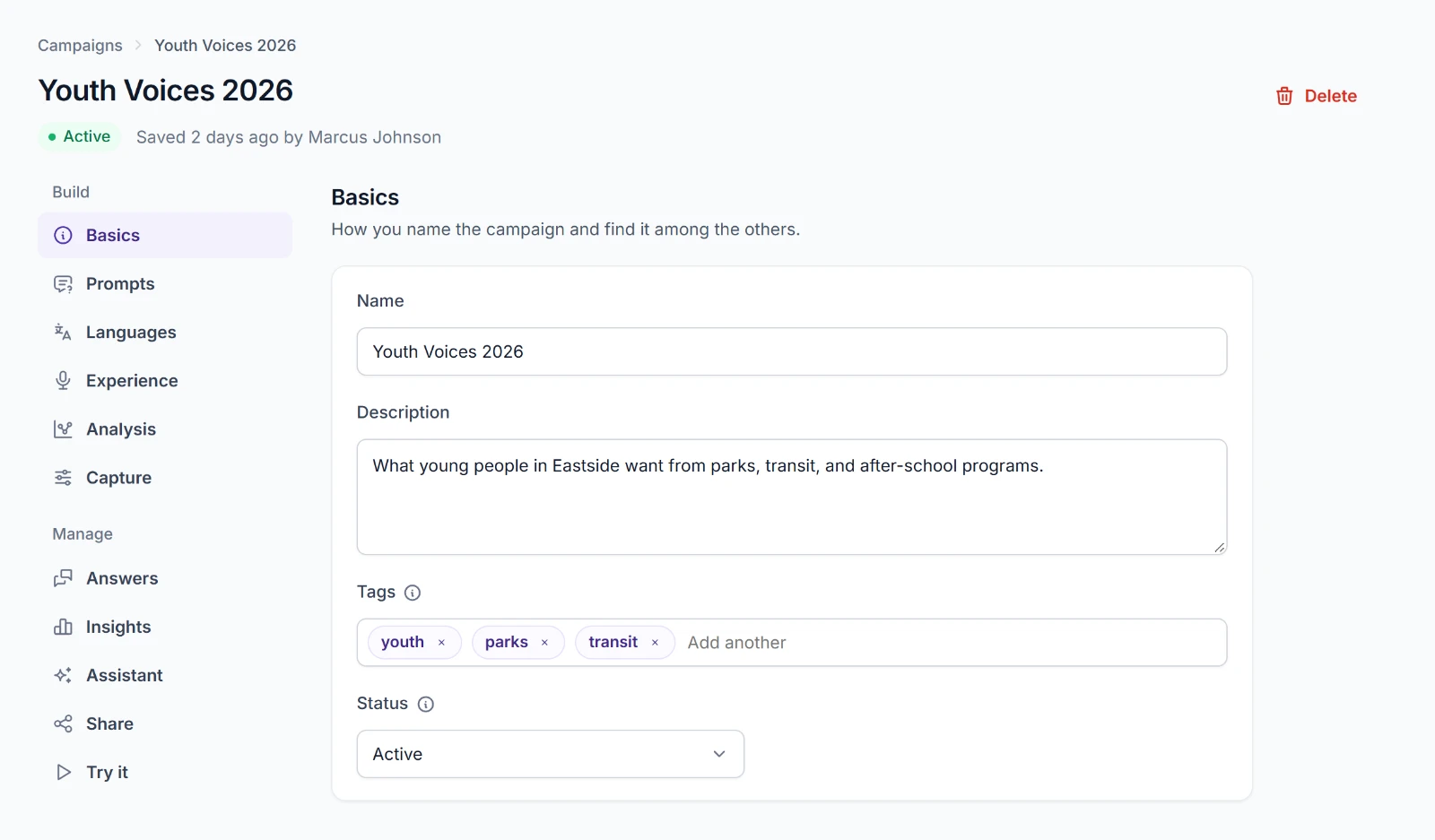
Saving
Your changes wait until you save them. While any are unsaved, a bar at the bottom says You have changes that aren't saved. Choose Save to keep them or Discard changes to drop them. Leaving the campaign with unsaved changes asks you first.
Before it saves, the bar lists anything that stops the save, such as a prompt with no wording. Each item links to the section to fix.
If someone else saved the campaign after you opened it, your save is refused rather than overwriting theirs. Choose Load their changes, then make yours again.
The campaign's header says when it was last saved and by whom.
Basics
| Field | What it's for |
|---|---|
| Name | The campaign's name in Community Microphone. The page people answer on shows the Welcome title from Experience instead. |
| Description | What the campaign is about. Only your staff see it. |
| Tags | Words to find and group campaigns by, such as a program or a neighborhood. Type a tag and press Enter. |
| Status | Planned, Active, or Completed. |
Only Completed closes a campaign. Anyone who opens a completed campaign's link sees that it no longer accepts answers. Planned and Active both accept answers and are there for your own sorting.
Prompts
A prompt is one question. We ask the prompts in the order they're listed, one at a time.
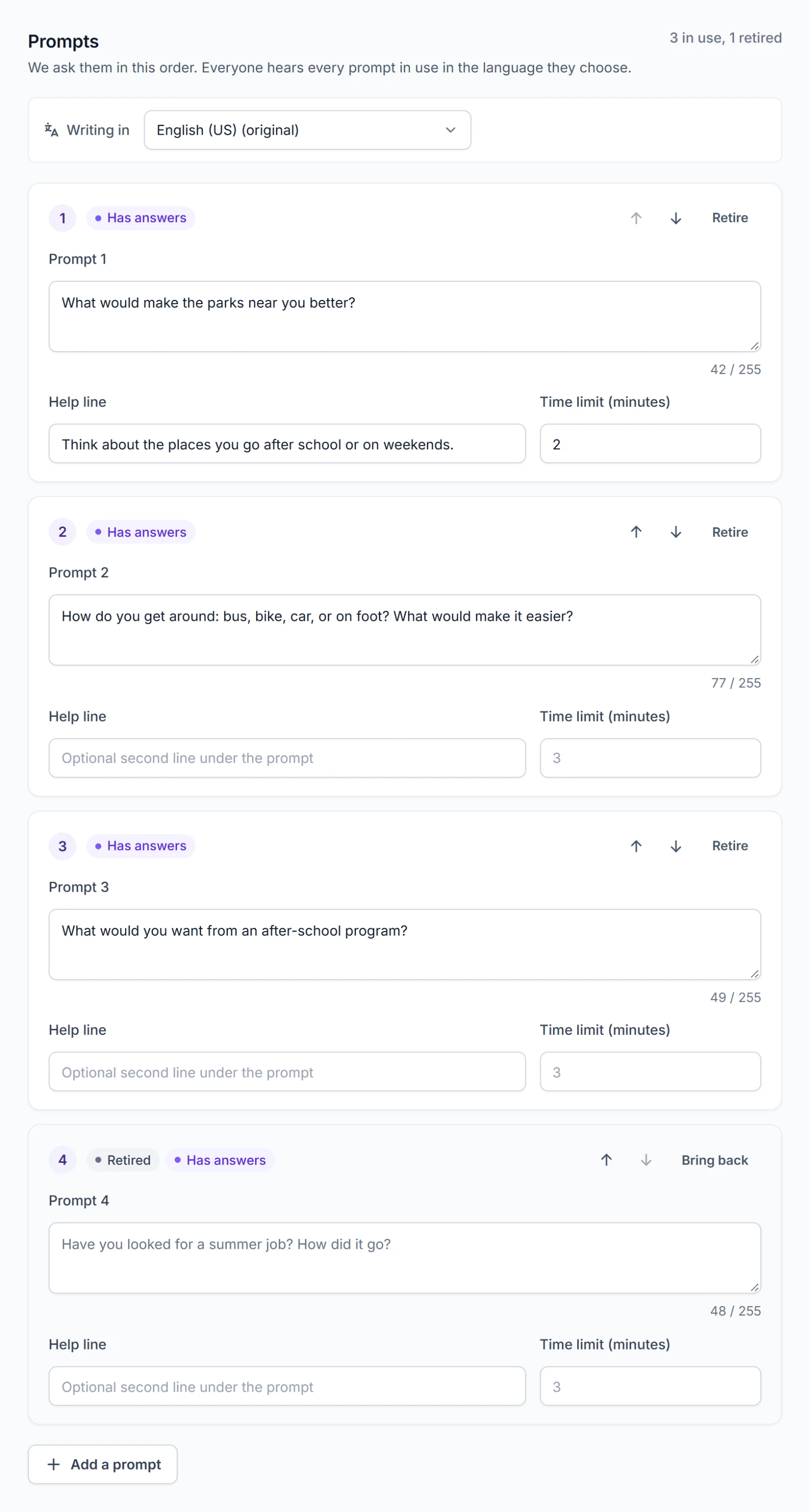
Choose Add a prompt to add one. Each prompt has:
| Field | What it's for |
|---|---|
| Prompt | The question as people will read it, up to 255 characters. |
| Help line | An optional second line under the question. Use it to say what kind of answer you're after. |
| Time limit (minutes) | How long a recording can run for this prompt. Choose 1 to 60, or leave it blank to use the campaign's limit from Capture. |
The arrows move a prompt up or down.
A prompt can be at most 255 characters in every language. We keep the prompt's wording with every answer to it, in the language the person read it in, so a report always shows what they were asked.
Retire a prompt with answers
Once a prompt has answers, it's marked Has answers, and it can't be deleted. Its answers are grouped by it.
Retire takes a prompt out of use. Nobody is asked it any more, it's marked Retired, and its answers stay with it. Bring back puts it back into use.
A prompt nobody has answered offers Delete as well. Deleting it asks you first and can't be undone.
Languages
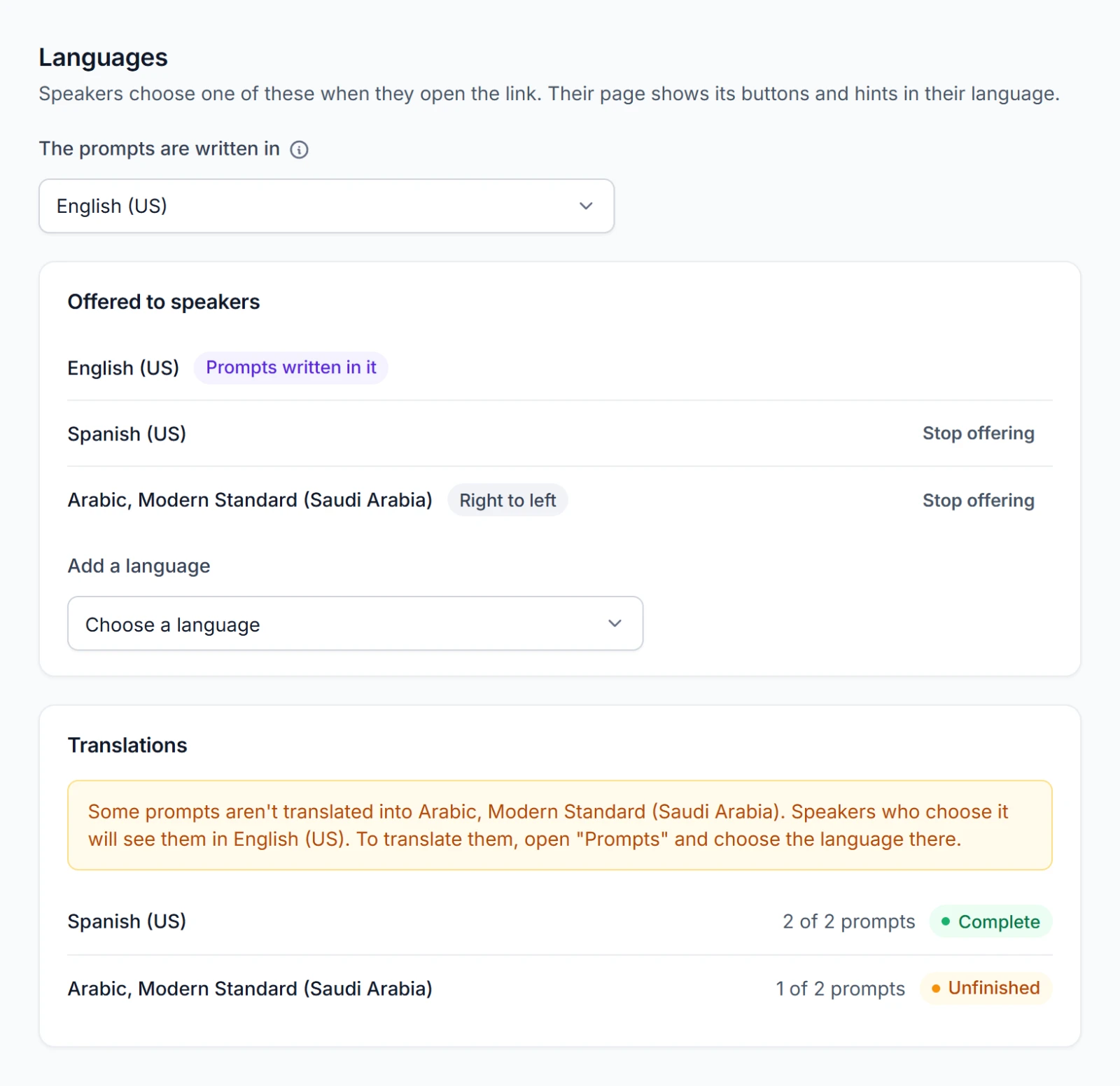
Languages sets the language the prompts are written in and the languages people can choose from.
| Setting | What it does |
|---|---|
| The prompts are written in | The language you write the prompts in. Every other language is a translation of it. |
| Offered to speakers | The languages people choose from when they open the link. Stop offering takes one off the list and deletes its translations. |
| Add a language | Adds one of 30 languages. |
| Translations | How many prompts each language has a translation for, Complete or Unfinished. |
Changing The prompts are written in treats the wording already on the prompts as the new language, so check that it is. The builder asks before it changes it.
The page people answer on has its buttons and hints in each of the 30 languages, so you translate only your own words. Arabic and the other right-to-left languages read right to left on the page.
Translating
Translating is a mode of its own. Prompts and the wording in Experience each start with Writing in. Choose another language there to write that language's wording for the same prompts in the same order.
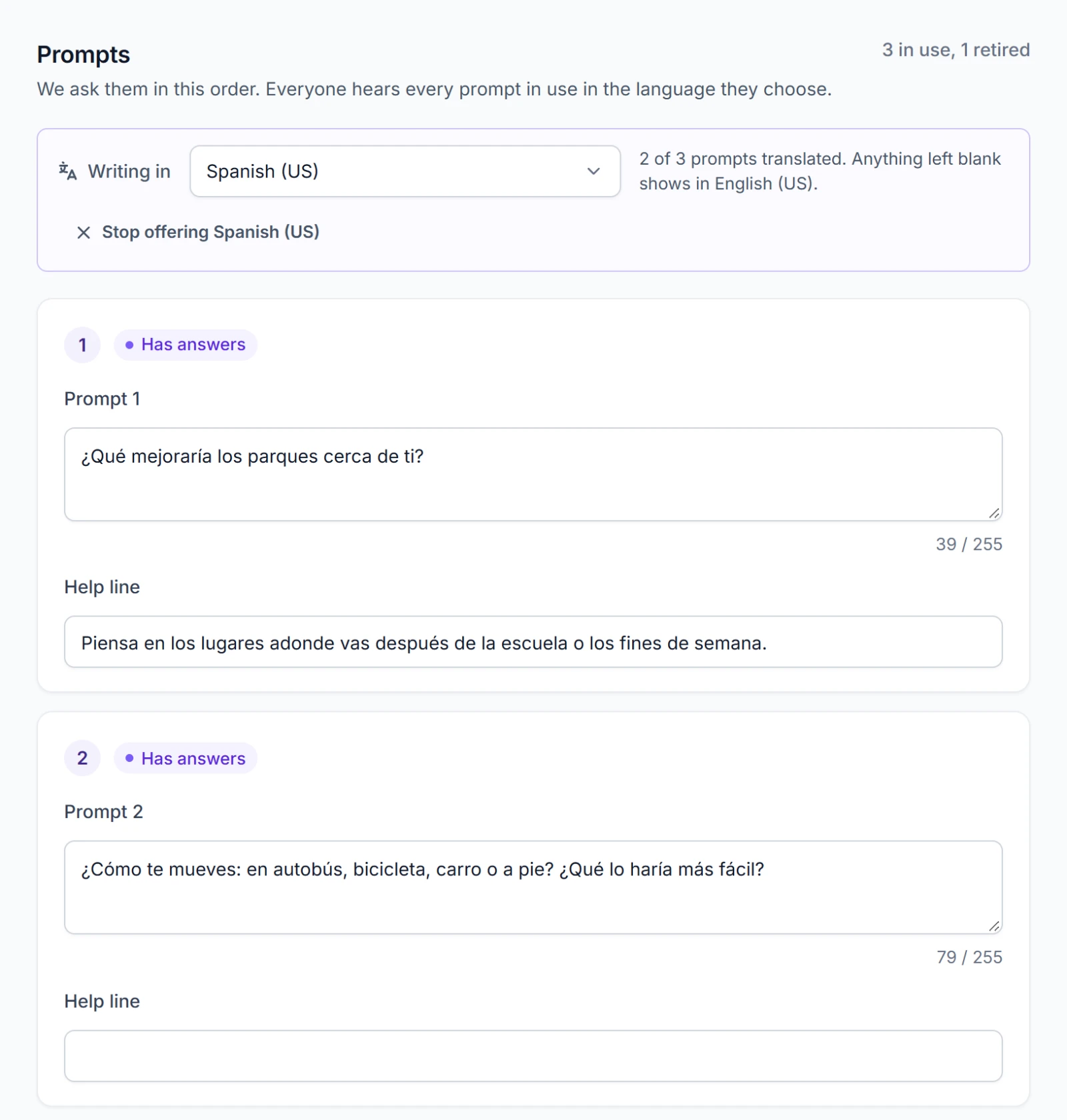
While you translate, each empty field shows the original wording as a hint, and the bar says how many prompts are translated. Order, time limits, and retiring are the same in every language, so they're hidden. Writing in also lists the languages you could add under Add a language, so you can start translating into a new one there.
Anything you leave blank shows in the original language. Translate three prompts of four, and the fourth appears in the language the prompts are written in.
Experience
Experience sets what people meet when they open the link and the campaign's own wording.
| Setting | What it does |
|---|---|
| A page of its own | Shows the welcome title and intro above the prompts. Leave it off when you show the campaign inside a page of your own that has a heading. |
| People may skip a prompt | Offers Skip on each prompt. |
| People may type an answer instead | Offers Type my response beside the microphone. We keep typed answers as written. |
| Show a sound meter while recording | Shows the voice moving while someone records, so they can see they're being heard. |
| Where to go when finished | A web address to send people to after the last prompt. Leave it blank to stay on the last screen. |
All four switches start on except A page of its own.
Under Wording, write the Welcome title, the Intro, and the Last screen in each language. Each blank field shows what people see instead: Welcome to the Community Microphone! as the title, no intro, and Thanks for the responses! on the last screen. Writing in switches the language as it does on Prompts.
Analysis
Analysis sets what we do with each answer after it comes in. All four start on.
| Setting | What it does |
|---|---|
| Transcribe recordings | Turns each recording into text. Without it, we keep recordings as sound only and analyze only typed answers. |
| Translate into English | Adds an English version of every answer given in another language. |
| Summarize | Writes a sentence or two for each answer and the campaign's summary in Insights. |
| Sentiment | Rates each answer from Very negative to Very positive. |
Topics work only if you list them. Under Topics to look for, write one topic per line, such as Housing or Transit. We tag each answer with the topics from your list that it mentions. With none listed, we don't tag answers.
A change here applies to answers that come in after you save it.
Capture
| Setting | What it does |
|---|---|
| Time limit for a recording (minutes) | The longest a recording can run on any prompt that doesn't set its own. Choose 1 to 60. It's 3 minutes unless you change it. |
| Keep where each answer came from | Keeps the network address each answer was sent from. It gives a rough idea of location. It's off unless you turn it on. |
A network address is approximate and may belong to a whole network instead of one person, such as a library's Wi-Fi. Some places count it as personal information. Tell people you're collecting it before you turn it on.
Deleting a campaign
Choose Delete at the top of the campaign. On a phone, it's under the ⋯ button beside the section menu.
Delete this campaign? says how many answers go with it. Deleting it removes the campaign, its link, and every answer and recording in it, and it can't be undone. To stop taking answers and keep what you have, set its Status to Completed instead.