Getting Started
How to open Community Microphone, find your way around it, and know what you can do there.
Overview
Community Microphone, at communitymic.toflourish.org, is where your organization runs listening campaigns. A campaign is a short set of questions, called prompts. You share its link, its QR code, or its page on your website. People answer on their phones by speaking or typing in their own language, and nobody needs an account to answer.
We transcribe each answer, translate it into English, summarize it, rate its sentiment, and tag it with the topics you list. Each campaign adds its answers up in Insights, and an assistant answers your questions about what people said.
Your organization switches Community Microphone on in the Flourish Dashboard. See Solutions. To try it before that, build a demo. See Trying a Demo.
Community Microphone works on a phone as well as a computer. On a phone, the menu button at the top opens the sidebar, and a campaign's sections are a menu at the top of the campaign.
Opening Community Microphone
There are two ways in:
- In the Flourish Dashboard, open Solutions and choose Open on Community Microphone's card. It opens in a new tab.
- Go to communitymic.toflourish.org.
You sign in on Flourish's sign-in page, the one every Flourish app uses. If you've signed in to a Flourish app in this browser before, you choose your account from its list. How signing in works is on the Flourish Dashboard's Getting Started.
After you sign in, Community Microphone opens your organization's campaigns. If you belong to more than one organization, Your organizations lists them, and you choose one. An organization whose Community Microphone is switched off shows Not active right now and doesn't open.
If it says You aren't part of an organization in Community Microphone yet, ask your organization's admin to add the email address you signed in with. If you signed in with the wrong account, choose Use another account.
Each organization's address is its own, so you can work in two organizations in two tabs.
Signing out
Choose your name at the bottom of the sidebar, then Sign out. It signs you out of every Flourish app in this browser.
Campaigns
Campaigns is the first page of an organization. It shows a card for each of its campaigns.
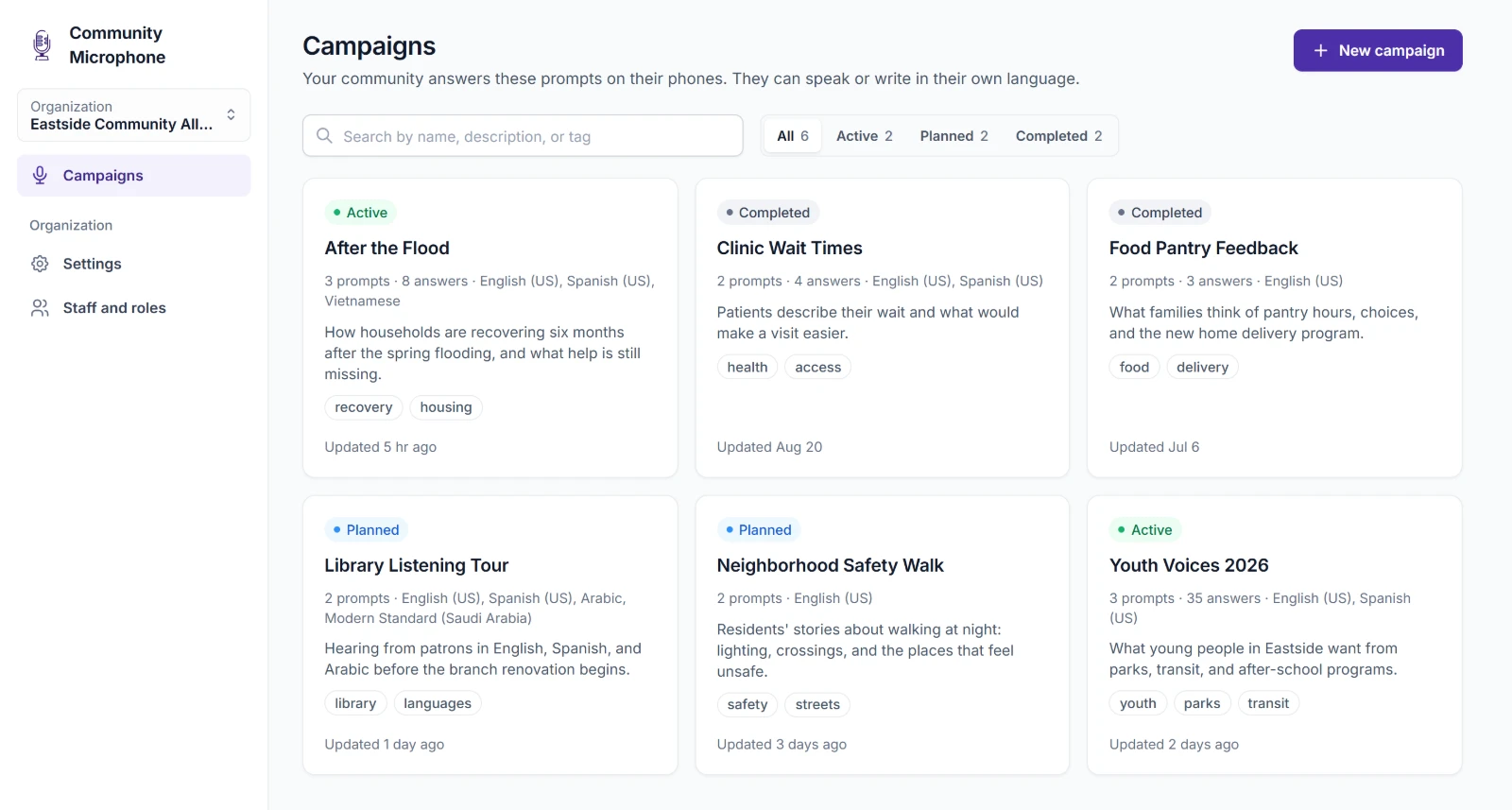
Each card shows the campaign's status, how many prompts and answers it has, the languages it's offered in, its description and tags, and when someone last changed it. Choose a campaign's name to open it.
Search by name, description, or tag finds campaigns as you type, and All, Active, Planned, and Completed show the campaigns with that status. The search and the status you pick stay in the page's address, so you can bookmark a list or send it to someone.
Editors start a new campaign with New campaign. See Building a Campaign.
The sidebar
| Item | What it's for |
|---|---|
| Organization, at the top | The organization you're in. Choose it to switch to another one or to go to All organizations. |
| Campaigns | Your organization's campaigns. |
| Settings | The organization's name and time zone. See Settings. |
| Staff and roles | Who works in Community Microphone and what each person can do. See Staff and Settings. |
| Your name, at the bottom | Your email address and Sign out. |
What you can do
What you can do depends on your role in the organization.
| Role | Can |
|---|---|
| Editor | Make and run campaigns, work with their answers, and change the organization's settings. |
| Viewer | See campaigns, their answers, and Insights, and ask the assistant. A viewer changes nothing. |
| Admin | Add and remove the organization's staff and make other admins. |
An admin who doesn't also hold the editor or viewer role can't open the campaigns. Campaigns offers them Give yourself a role instead, so they can take one in one click. See Staff and Settings.
What a campaign holds
Open a campaign, and its sections run down the left in two groups.
| Group | Sections | See |
|---|---|---|
| Build | Basics, Prompts, Languages, Experience, Analysis, and Capture | Building a Campaign |
| Manage | Answers | Reading Answers |
| Insights | Insights | |
| Assistant | The Assistant | |
| Share and Try it | Sharing a Campaign |