Sharing a Campaign
How to share a campaign by link, QR code, or your own website, what the people you share it with see, and how to try it yourself.
Overview
Each campaign has one link. Anyone who opens it can answer on a phone or a computer. Nobody needs an account or an app. The link, its QR code, and the code for your website all open the same page.
Share in the campaign's Manage group holds all three. Try it beside it runs that page inside Community Microphone, so you can hear the prompts and check the wording before you share.
The link and the QR code
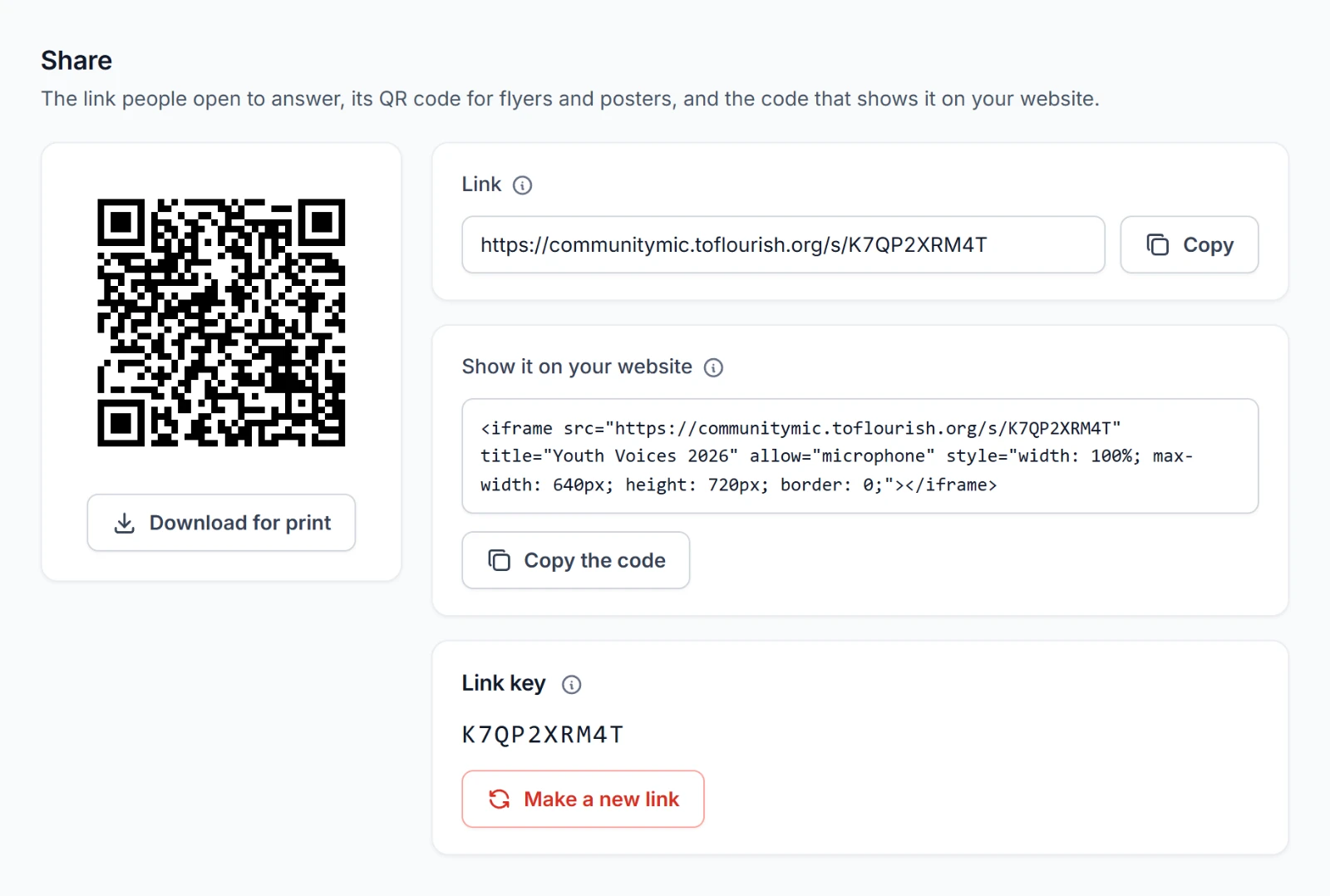
| Part | What it's for |
|---|---|
| Link | The address people open to answer. Copy puts it on your clipboard for an email, a text message, or a post. |
| QR code | The same link for a phone's camera. Download for print saves it as an image for flyers and posters. |
| Show it on your website | Code to paste into a page of your own, so the campaign shows there. Copy the code copies it. |
| Link key | The ten letters and numbers at the end of the link. See Making a new link. |
Share a campaign once it has at least one prompt in use. Until then, Share says the link has nothing to ask.
On your website
The code is a frame 720 pixels high and up to 640 pixels wide that shows the campaign's page and lets it use the microphone. Paste it where your website takes HTML. People's browsers still ask them before the microphone opens.
If your website's own settings keep the frame from using the microphone, the page says so and offers Open the campaign's own page. People can record there. Typing an answer works either way.
Turn off A page of its own in Experience when your page already has a heading, so the campaign doesn't show a second title. See Experience.
Options you can add to the link
Add an option to the end of the link after a ?, and any more after an &, such as https://communitymic.toflourish.org/s/K7QP2XRM4T?miclang=es-us&micuser=1042.
| Add to the link | What it does |
|---|---|
miclang= and a language code, such as miclang=es-us for Spanish (US) | Skips the choice of language and opens in that language if the campaign offers it. |
micuser= and anything that tells you who the person is | Kept with every answer from that link as Speaker. Use it when you already know who you sent the link to. |
utm_source=, utm_medium=, utm_campaign=, utm_term=, and utm_content= | Kept with every answer, so you can tell a flyer from an email. |
Each answer shows what its link carried. See An answer.
Making a new link
A new link key gives the campaign a new link and QR code and stops the old ones working at once wherever they've been printed, sent, or put on a website. Anyone who opens an old one sees that the campaign wasn't found. Use it when a link has reached somewhere it shouldn't.
- On Share, choose Make a new link.
- Read what happens and choose Make a new link again.
The answers you've collected stay as they are. Replace the link everywhere you shared it, the code on your website included.
To stop taking answers without changing the link, set the campaign's Status to Completed. See Basics.
What people see
People open the link and answer one prompt at a time. Nobody signs in.
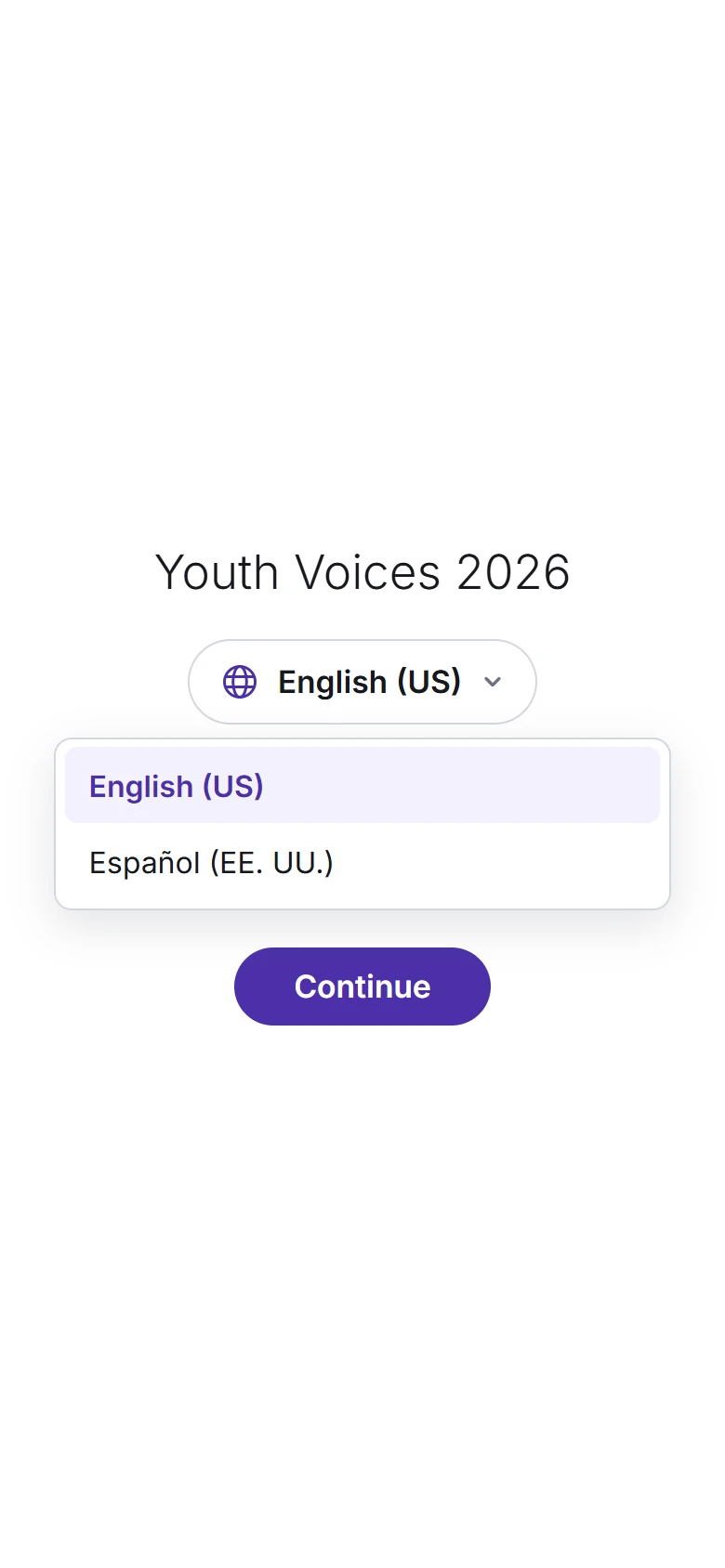
Choosing a language. If the campaign offers more than one, people see each language written in its own name, so someone who reads none of your other languages can still find theirs. The choice starts on their browser's language when the campaign offers it. They choose Continue.
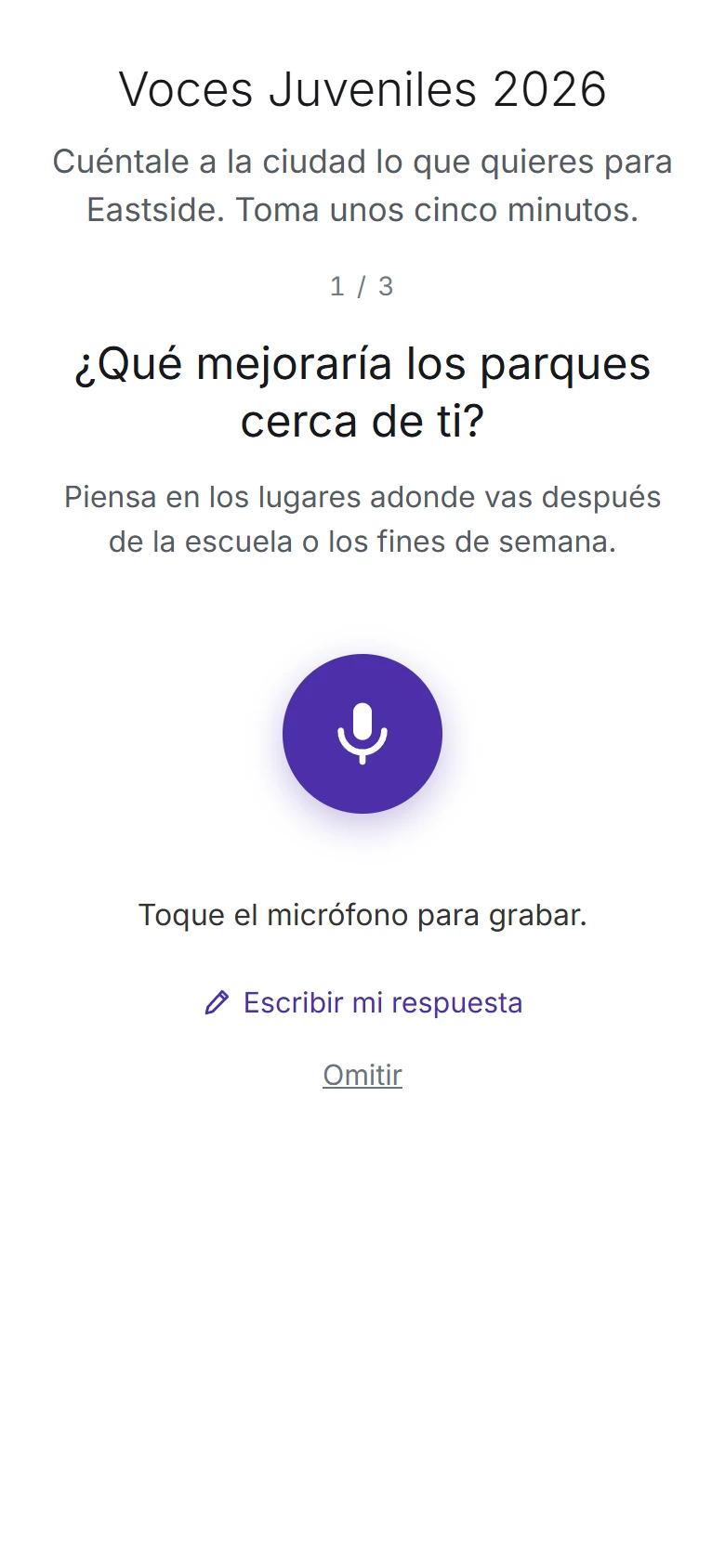
Answering. Each prompt shows its help line and how far along they are, such as 1 / 3. They tap the microphone to record and tap again when they're finished. While they record, the page shows that it hears them and how much time is left. If it hears nothing, it says to check that the microphone isn't muted.
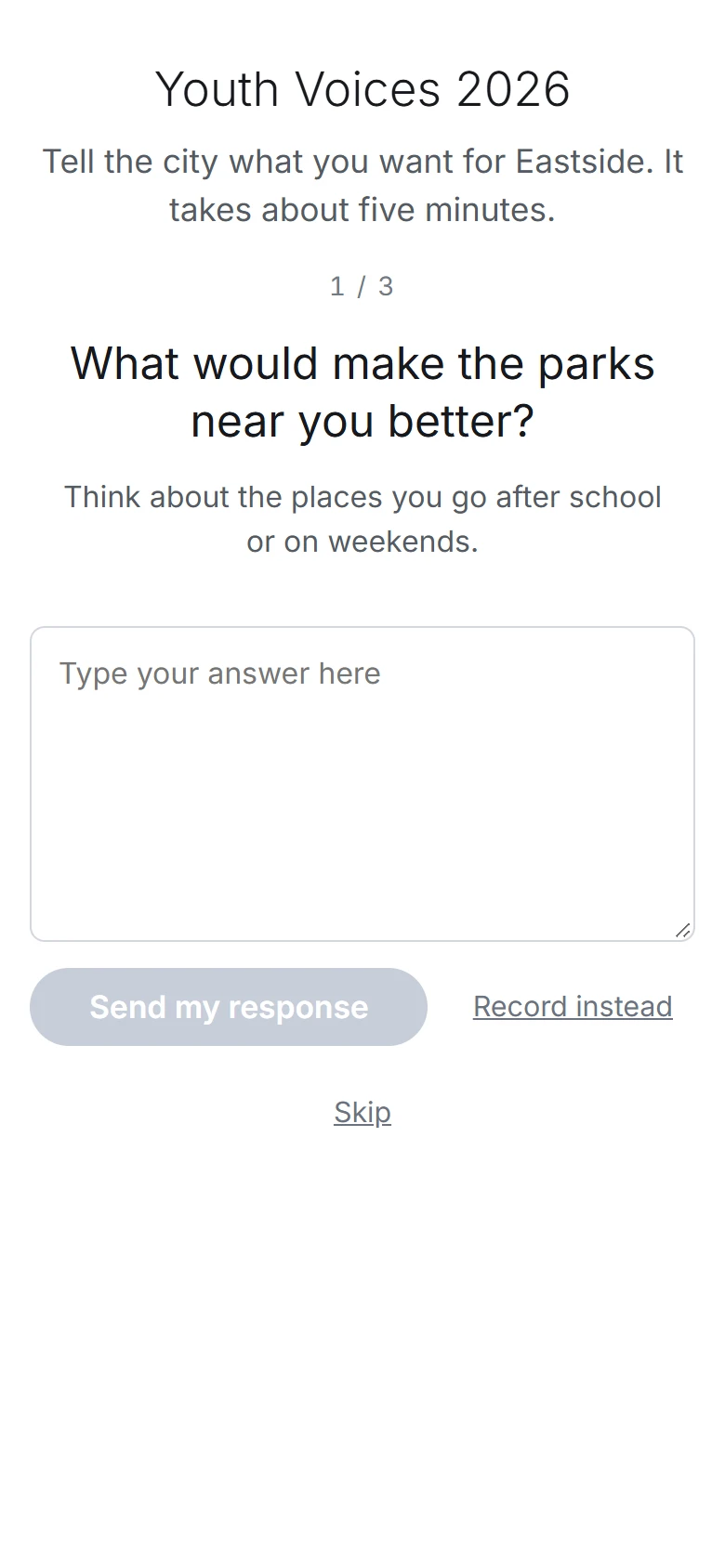
Typing. Where the campaign allows it, Type my response lets them write an answer instead, up to 10,000 characters. They choose for each prompt. Record instead goes back to the microphone.
Skipping. Where the campaign allows it, Skip moves on without an answer.
The end. After the last prompt, they see the campaign's last screen or go to the address in Where to go when finished.
When something goes wrong
- A recording we heard nothing in. The page says so and lets them record again or send it as it is.
- An answer that doesn't send. The page says to check their connection and offers Try to send again once. If that fails too, it apologizes and asks them to try again later.
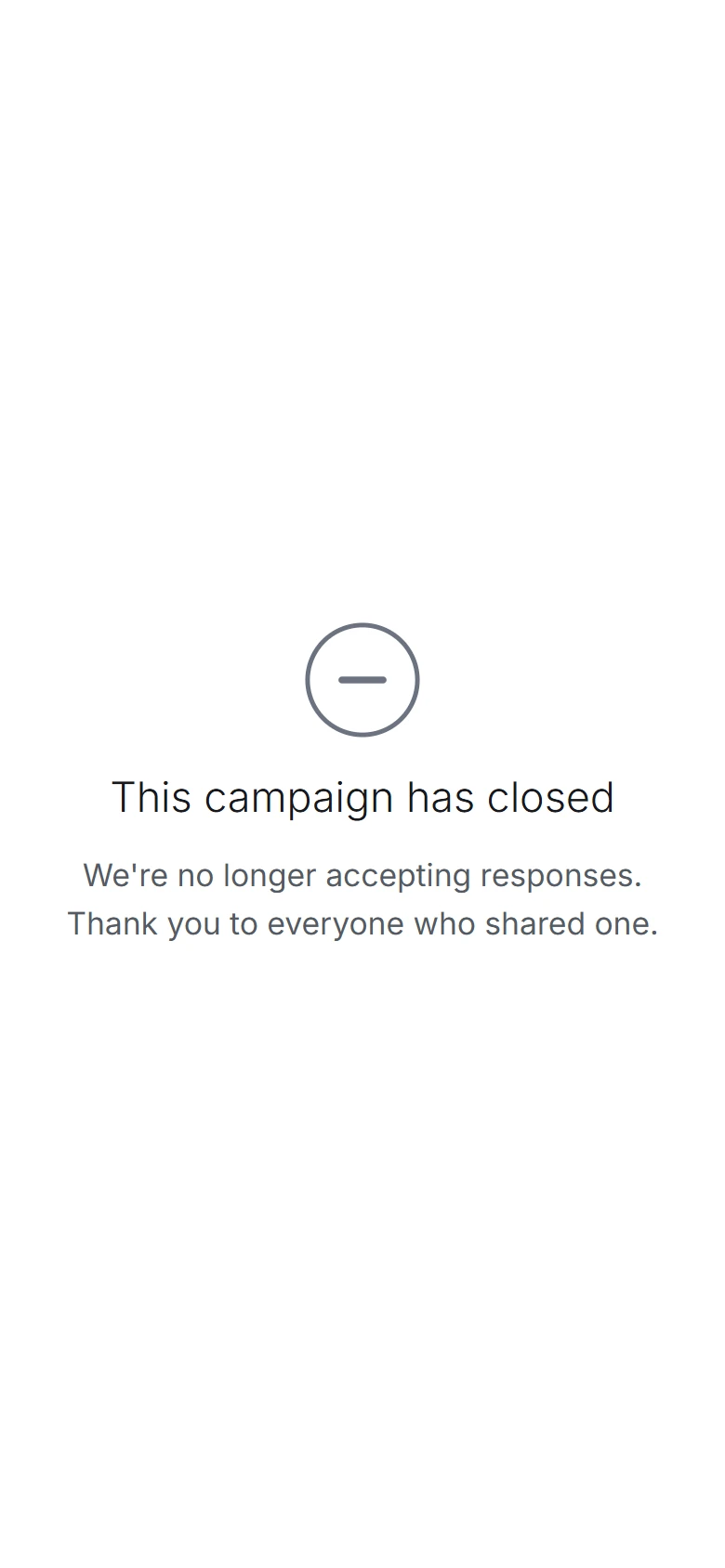
- A campaign that's completed. The page says This campaign has closed.
- A link that's been replaced or mistyped. The page says We couldn't find this campaign and asks them to check with whoever shared it.
- A browser that can't record. The page says what's wrong, such as a microphone the browser blocked, and suggests what to do. Where the campaign allows typing, they can still type.
People can't play an answer back before they send it. A campaign's page is for the people given its link, so we ask search engines not to list it.
Trying it yourself
Try it runs the page people get inside a phone-sized frame in Community Microphone. Use it to hear the prompts and check the wording, the languages, and the time limits.
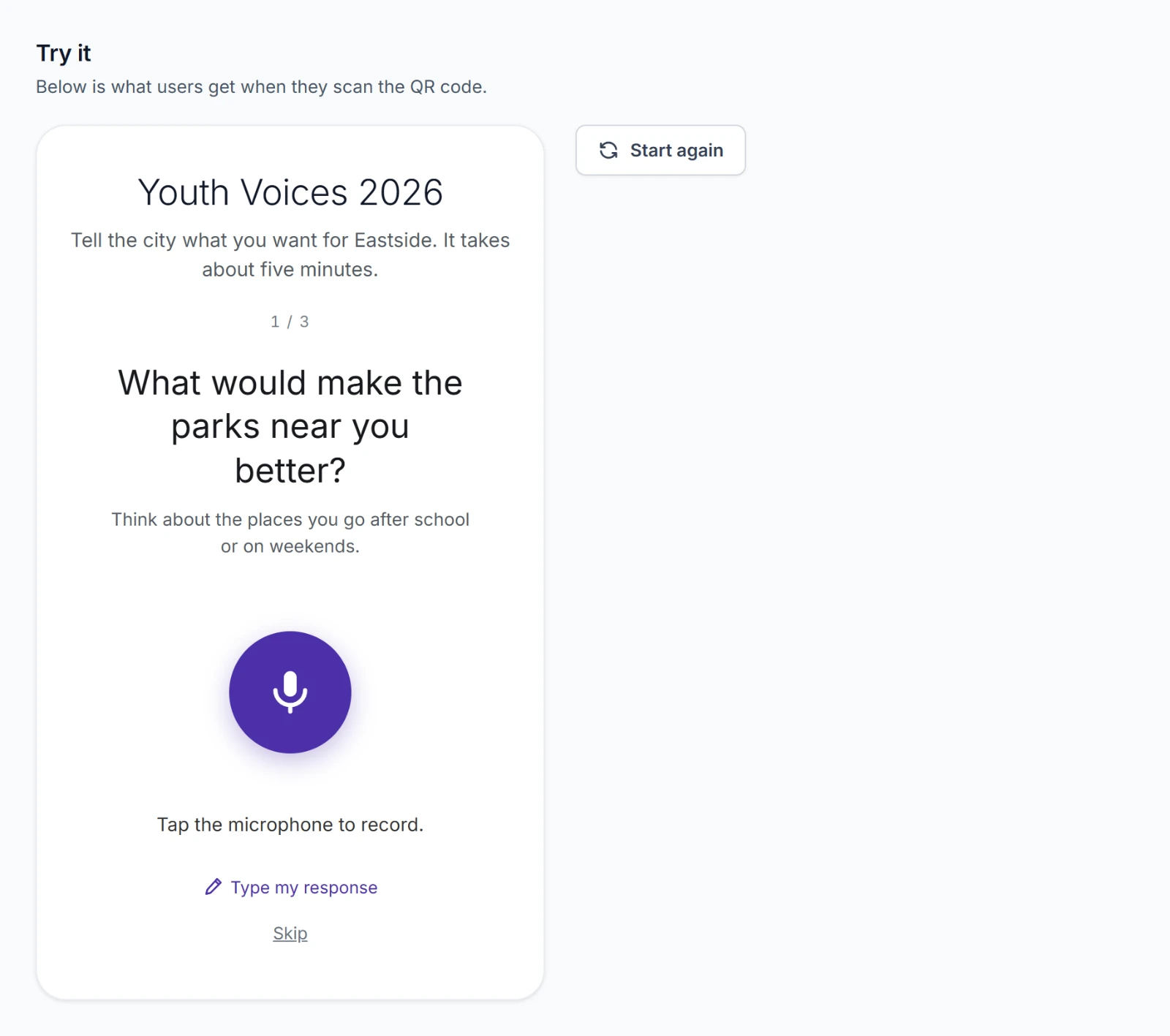
- It runs the campaign as last saved. If you have unsaved changes, it says to save first.
- Start again begins a new visit, back at the first screen.
- It never goes on to the address in Where to go when finished. You stay on the last screen.
What you record or type in Try it is a real answer. We transcribe it, analyze it, and count it like any other. Each one says Given in "Try it" by and your name, so you can find it in Answers and delete it before you report on the campaign. Only editors can use Try it.