Staff and Settings
How to add the people who work in Community Microphone, choose what each of them can do, and change the organization's settings.
Overview
Staff and roles in the sidebar lists everyone with a role in your organization's Community Microphone. Admins add people and give and take roles there. Everyone else with a role can see the list.
Community Microphone's admins are your organization's Owners and Admins in the Flourish Dashboard. See Team & Permissions.
The roles
| Role | What it lets someone do |
|---|---|
| Editor | Makes and runs campaigns, works with their answers, and changes the organization's settings. |
| Viewer | Sees campaigns and their answers and changes nothing. |
| Admin | Adds and removes the organization's staff and makes other admins. |
Someone can hold more than one. An admin who should see the campaigns needs the editor or viewer role, too. Until they hold one, Campaigns and Staff and roles offer Give yourself a role. What each role does, at the bottom of the page, says the same as the table.
Making someone an admin here makes them an Admin of your organization in the Flourish Dashboard, too.
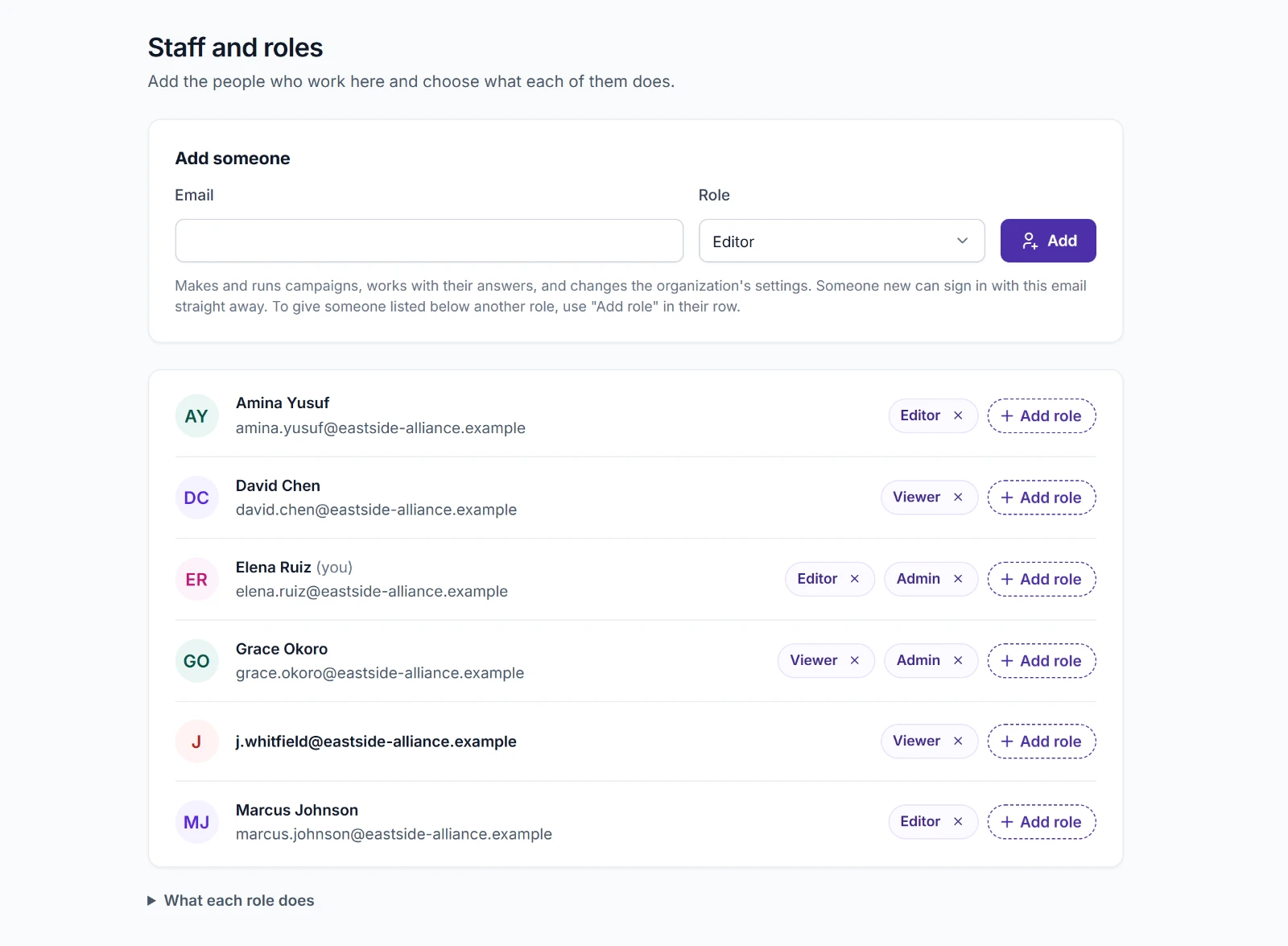
Adding someone
- Under Add someone, enter their Email.
- Choose a Role. The line below says what it lets them do.
- Choose Add.
They can sign in with that email address straight away. Someone new to Flourish signs in on Flourish's sign-in page and sets up a passkey or an authenticator app the first time.
Giving and taking roles
- To give a role, choose Add role on the person's row, then the role. Each choice says what it lets them do.
- To take a role away, choose the × on its chip and confirm. Taking your own role away also warns you that you may lose access to parts of the organization.
Someone with no roles left drops off the list.
If a change is refused, the reason shows in that person's row. An organization always keeps at least one admin, and an Owner's admin role changes only in the Flourish Dashboard.
Settings
Settings in the sidebar holds the organization's name and time zone. Everyone with a role can see them, and editors change them.
| Setting | What it's for |
|---|---|
| Name | Your organization's name in Community Microphone. |
| Time zone | The time zone for dates and for the daily counts in Insights. |
Choose Save changes to keep a change or Discard changes to drop it.