Connections
How to see how people, households, and organizations connect, as a network or on a map.
Overview
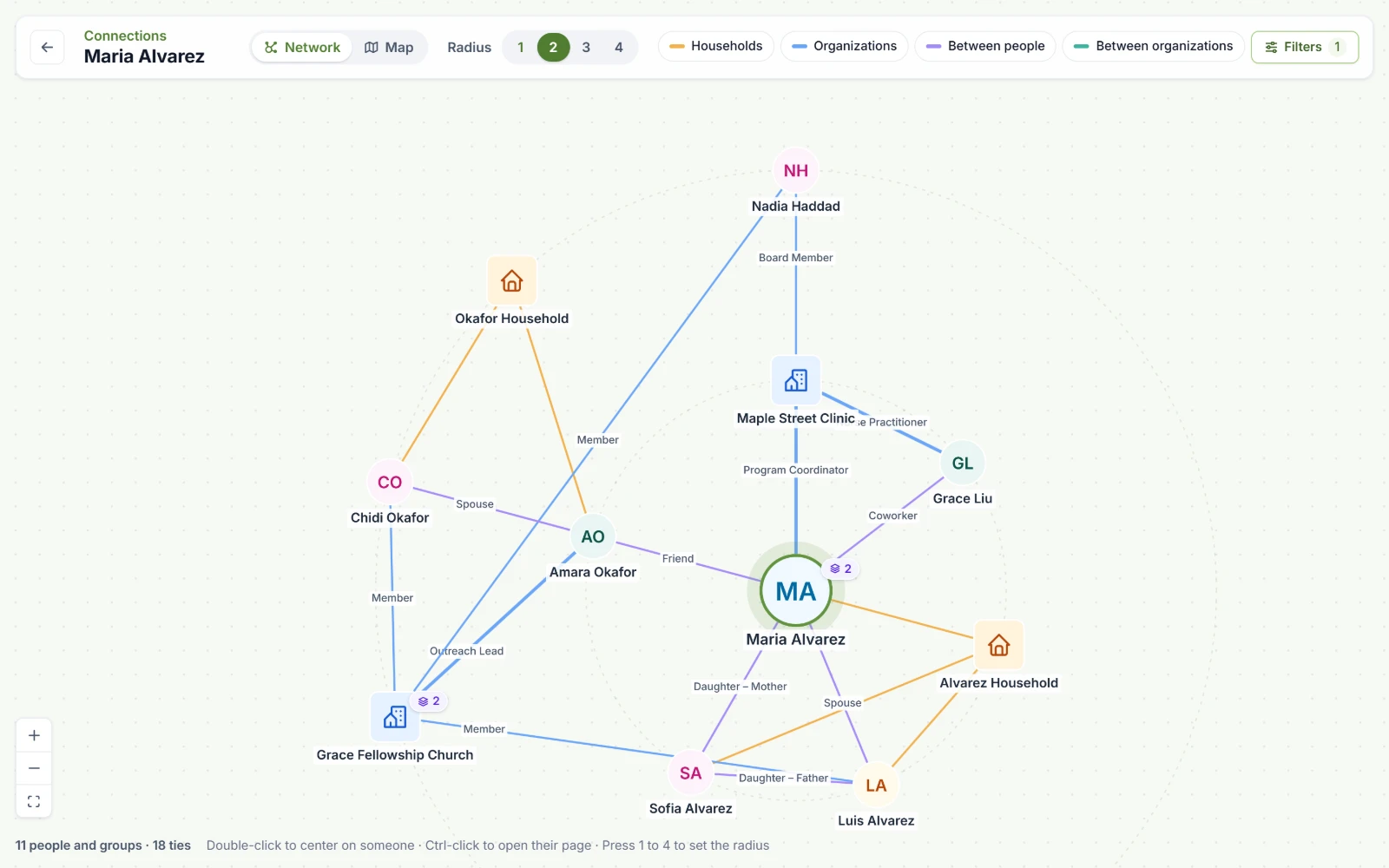
Connections, at the top right of any person's, household's, or organization's page, opens the network around them on the whole window. Each circle or icon is a person, household, or organization as your organization knows them. Each line is a tie between two of them, such as someone's household, someone at an organization with their role, two people, or two organizations. Anyone with the data admin or analyst role can open it.
The ties come from your Salesforce records, such as a contact's account and household and the affiliations and relationships Nonprofit Success Pack keeps. Like the rest of Rapport, the network shows them as they were at last night's copy.
Reading the network
The person, household, or organization you opened from sits in the middle. Each ring around them is one more step out.
Lines are colored by the kind of tie, and the chips in the bar name them:
| Chip | Ties |
|---|---|
| Households | Someone and their household |
| Organizations | Someone and an organization, labeled with their role there, such as Member |
| Between people | Two people, such as Spouse or Coworker |
| Between organizations | Two organizations, such as a funder and the group it funds |
Choose a chip to hide that kind of tie, and choose it again to show it. A tie that runs one way, such as a mother and her daughter, names both ends in the order they sit, left to right, so you can read it without arrows. A tie that has ended is drawn dashed when you show ended ties. See Filters.
A badge with a number beside someone shows more of the network:
- A stack and a number, such as 2, means more than one view of them. Choose it to see each view beside them. See Choosing someone.
- A plus and a number means they have more ties than are drawn. We draw eight and fold the rest. Choose it to draw them all.
The line at the bottom counts the people and groups and the ties shown.
Radius and moving around
Radius sets how many steps out the network goes, from 1, their own ties, to 4. You can press 1 to 4, too. When the network goes on past what's drawn, Rapport says so. Center on someone further out to see more of it.
- Double-click someone to put them in the middle.
- Ctrl-click someone to open their page.
- The buttons at the bottom left zoom in, zoom out, and show the whole network.
The arrow at the top left opens the page of whoever is in the middle. The page's address keeps who is in the middle, the radius, and whether you're on the network or the map.
Choosing someone
Click someone to open a panel about them. They stay highlighted with their ties, and the rest of the network fades.
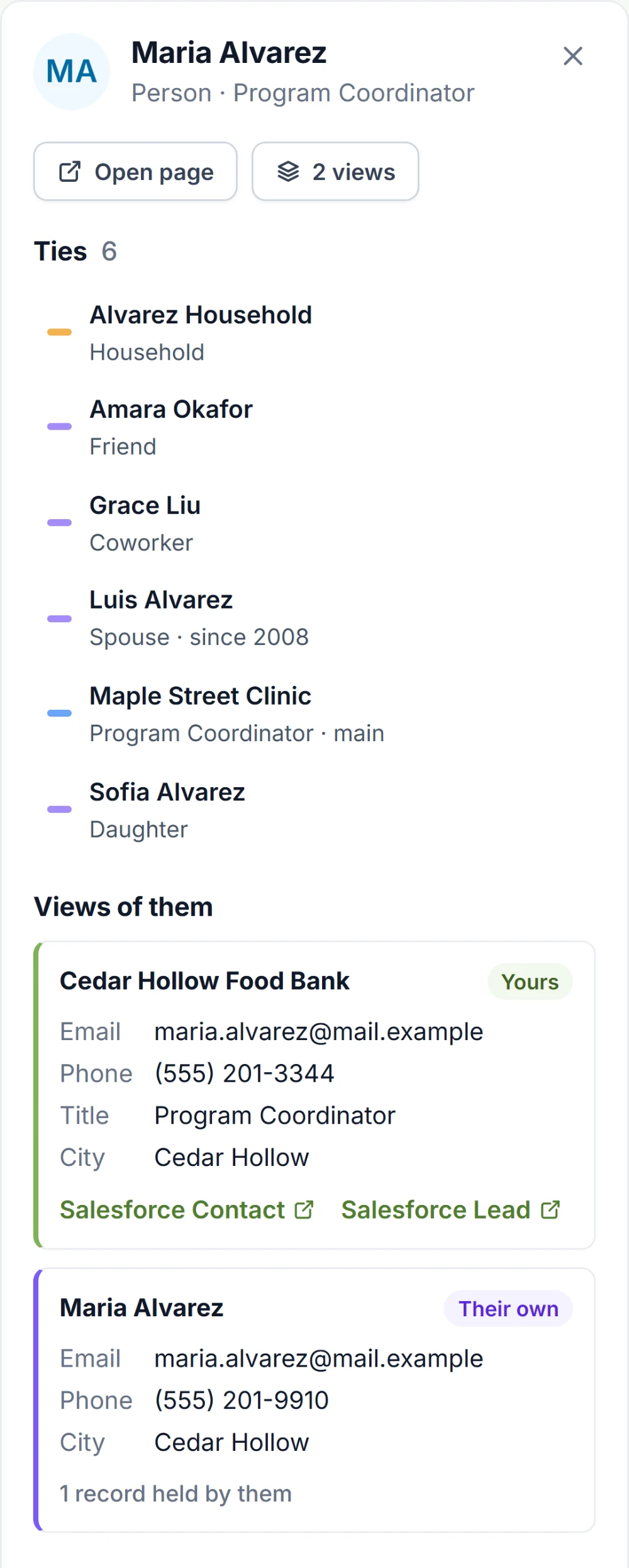
- Open page opens their page in a new tab.
- Center here puts them in the middle.
- Ties lists who they're tied to and how, with main for their main organization and when a tie began or ended. Choose a tie to choose that person or group.
- When they have ties that aren't drawn, the panel says how many and offers Show all or Widen to the next radius.
What your organization knows shows what your records say about them, with links to each Salesforce record. When there's more than one view of them, it's Views of them, and each view says whose it is: Yours, Shared by another organization, or Their own, held by the person themselves.
Filters
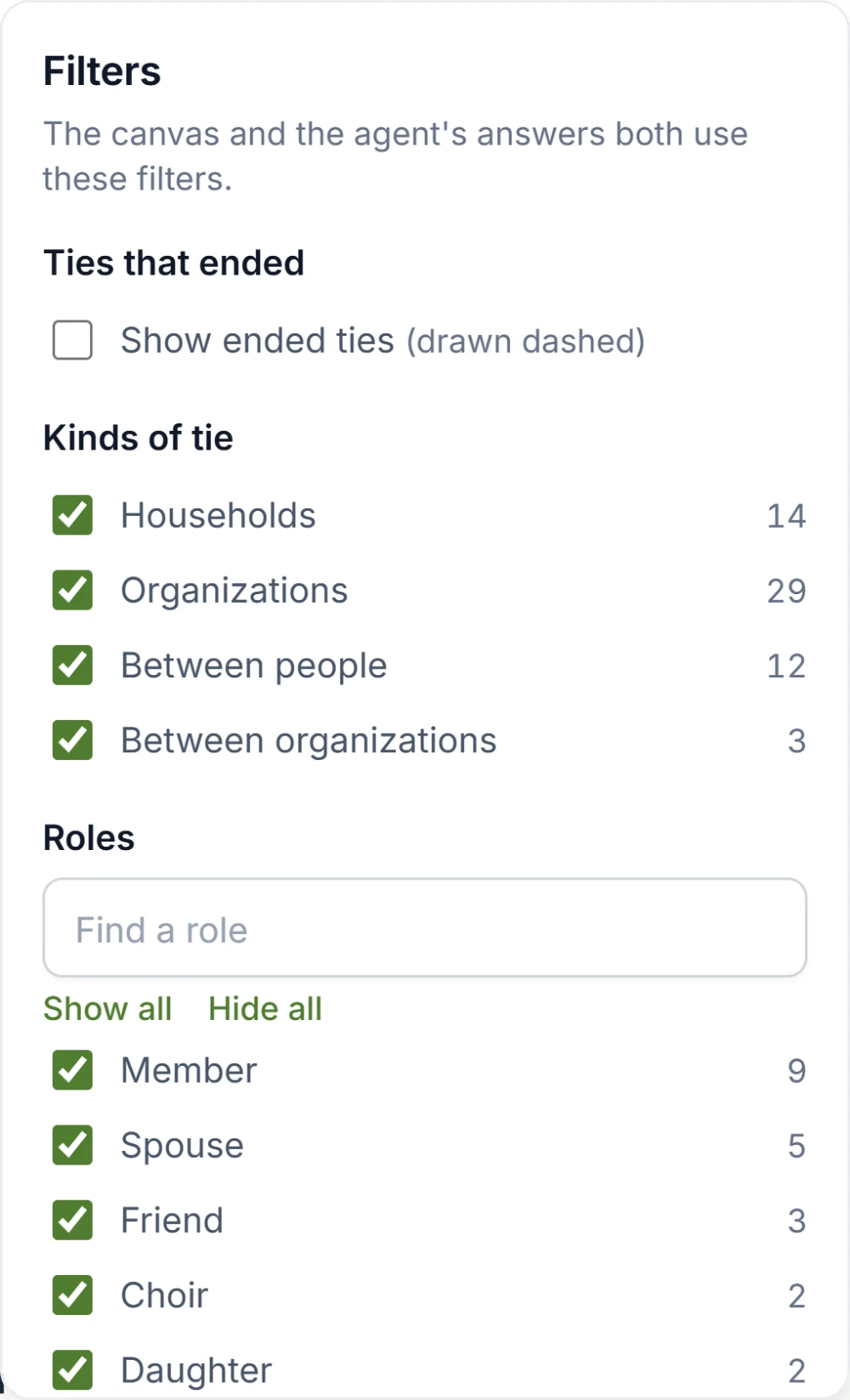
Filters, in the bar, chooses what the network shows. The number on it counts what it hides.
| Section | What it does |
|---|---|
| Ties that ended | Show ended ties draws them dashed. They're left out unless you check it. |
| Kinds of tie | Shows or hides each kind, with how many there are. |
| Roles | Shows or hides ties by role, such as Member or Board Member. Find a role narrows a long list. Show all and Hide all change them all. A role too rare to list always shows. |
| Kinds of row | Shows or hides people, households, or organizations. |
The same filters apply to Rapport's answers. See Asking Rapport. Yours last while your browser tab is open. Your data admins set your organization's default, and Reset to default goes back to it. See Default view.
The map
Map, in the bar, shows the same network on a map. Network goes back.
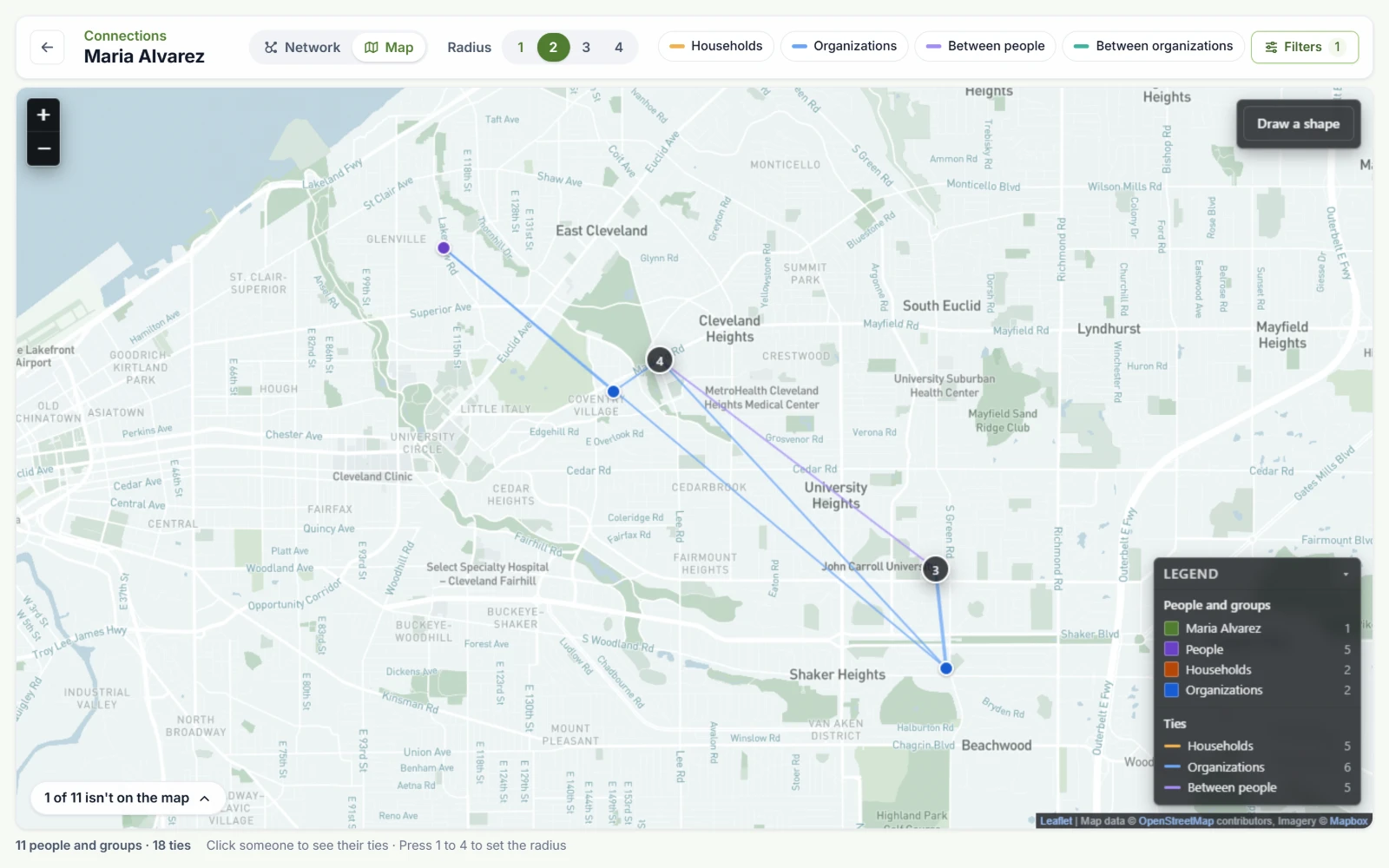
Each person, household, or organization sits at their address: a person's mailing address, or an organization's or household's billing address. The person in the middle is in Rapport's green, and the legend gives the colors for the rest. Ties are drawn as on the network, and the kinds you hide in the bar are left out. Numbered circles gather points that are close together. Zoom in to see them apart.
Click someone to open the same panel as on the network. Choosing someone in the panel shows them on the map.
Who isn't on the map
The line at the bottom left, such as "1 of 11 isn't on the map," counts those who aren't. Choose it to list them by why:
- Not looked up yet
- Being placed now
- Waiting for next month's lookups
- Couldn't be looked up just now
- Address couldn't be found
- No street address
Rapport finds where an address is only once an admin agrees, since each address looked up counts toward your organization's lookups for the month. An admin can look up every address at once in Settings. See People on the map. Or, from the list, an admin can choose a button such as Place these 10 on the map for the ones not looked up yet. They appear on the map as we find them. Anyone else sees that an admin can place them.
Drawing a shape
You can draw a shape on the map and then ask Rapport who is inside it.
- Choose Draw a shape, at the top right of the map.
- Click each corner of the shape.
- Double-click the last corner, or choose Finish. Cancel stops drawing.
Clear shape takes it away. The shape stays while you're on the page. To ask about it, see Places.