Settings
How to set your organization's name and time zone, turn on its Salesforce for Rapport, look up addresses for the map, and look after saved questions and the default view.
Overview
Settings, in the sidebar, opens Organization settings. Admins and data admins see it.
| Section | What it holds | Who changes it |
|---|---|---|
| The organization | The organization's name and time zone | Admins |
| Salesforce | Which Salesforce connection Rapport reads | Admins |
| People on the map | Looking up addresses for the map | Admins |
| Saved questions | The questions saved for your organization | Data admins |
| Default view | The filters the network and Rapport's answers start with | Data admins |
Salesforce and People on the map appear only for admins. Saved questions and Default view appear for those who see the people.
The organization
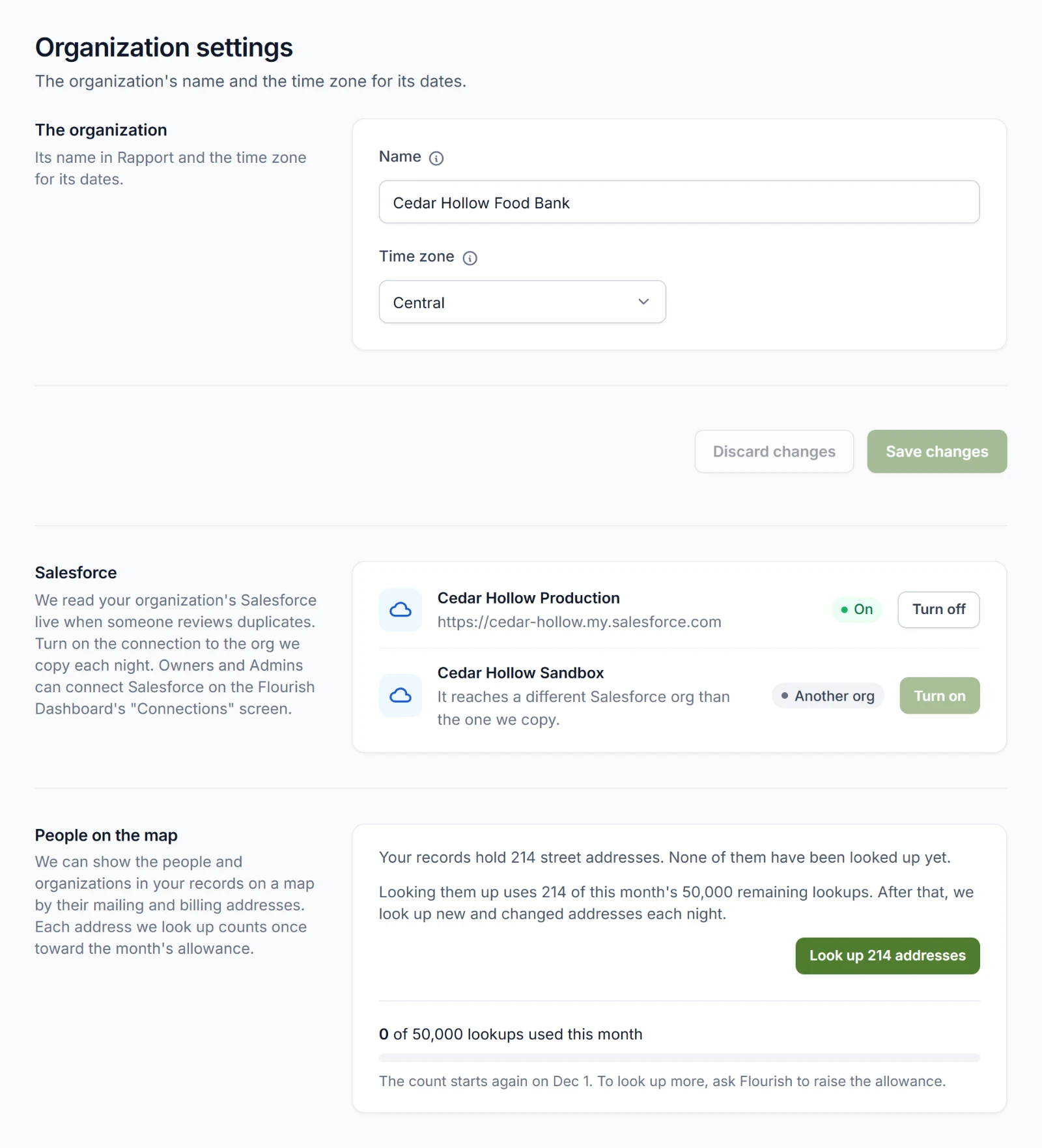
Name is the name people see in Rapport. Time zone sets the time zone for dates in Rapport. Change either one and choose Save changes. Discard changes puts them back.
Salesforce
Rapport reads your organization's Salesforce live when someone reviews duplicates, and it merges through the same connection. So a connection has to be on for Rapport before anyone can review or merge. See Duplicates.
The section lists your organization's Salesforce connections. Your Owners and Admins connect Salesforce on the Flourish Dashboard's Connections screen. See Connections.
Choose Turn on beside the connection to the Salesforce org we copy each night. One connection is on at a time. Each connection shows where it stands:
| Badge | Meaning |
|---|---|
| On | Rapport reads this connection. |
| Off | Rapport doesn't read it. |
| Another org | It reaches a different Salesforce org than the one we copy, so it can't be turned on. |
| Needs connecting again | An Owner or Admin can connect it again on the Flourish Dashboard. |
| Gone | The connection that's on is no longer on the Flourish Dashboard. Turn it off, and turn on another once an Owner or Admin connects Salesforce again. |
Turn off asks you to confirm first. Reviews can't read your Salesforce until a connection is on again.
Before the first night's copy, Rapport can't tell which connection reaches your Salesforce, and it says so. Try again after the copy.
People on the map
Rapport can show the people and organizations in your records on a map by their mailing and billing addresses. See The map. Finding where each address is takes a lookup, and each address counts once toward your organization's allowance for the month. So nothing is looked up until an admin agrees.
The section says how many street addresses your records hold and how many haven't been looked up. A button such as Look up 214 addresses looks them all up. After that, we look up new and changed addresses each night. When there are more than the month has left, the rest wait until the count starts again.
Turn off stops new lookups. Addresses already found stay on the map.
Below, a bar shows how many lookups your organization has used this month and the day the count starts again. To look up more, ask Flourish to raise the allowance.
Saved questions
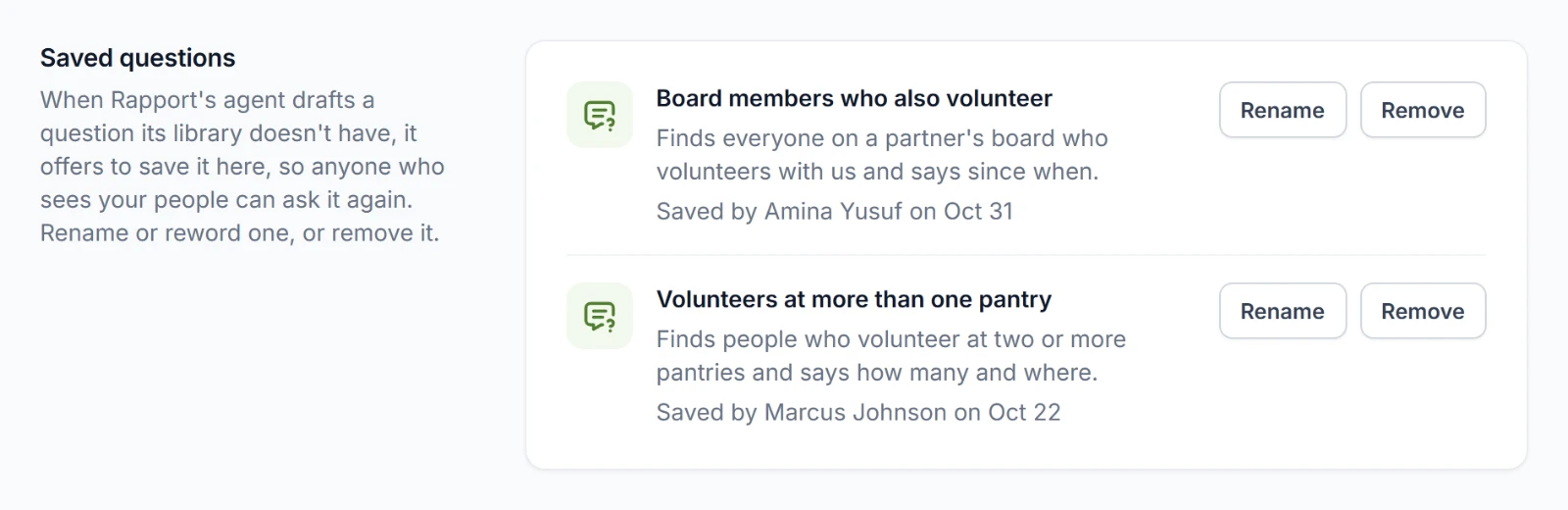
When Rapport's agent writes a question of its own and you save it, it's listed here with what it answers and who saved it when. Anyone who sees your people can ask it again. See Saved questions.
Data admins can change one:
- Rename changes its Name and What it answers. Choose Save.
- Remove takes it away after you confirm. Only a new question from the agent can bring it back.
Default view
The default view is the filters the network and Rapport's answers use until someone sets their own Filters. See Filters. Rapport's own default leaves out ties that have ended.
Data admins set it with the same choices as Filters and choose Save default. Use Rapport's default goes back to Rapport's own. Everyone else sees what the default is.