Getting Started
How to open Rapport, find your way around it, and know what you can do there.
Overview
Rapport, at rapport.toflourish.org, shows everyone your organization knows. Its people, households, and organizations each have a page with what your records say about them. Your data admins find duplicate records there and merge them. You can see how everyone connects on a network or a map and ask Rapport questions about your network.
Rapport reads your organization's Salesforce. We copy its records each night, so Rapport shows them as they were at the last copy.
Capturing your team's email is in Rapport's Salesforce package for now. Rapport on the web doesn't capture email. To capture it in Salesforce, see Setup under In Salesforce.
Your organization switches Rapport on in the Flourish Dashboard. See Solutions. Its admins then turn on its Salesforce for Rapport. See Settings.
Rapport works on a phone as well as a computer. On a phone, the menu button at the top opens the sidebar.
Opening Rapport
There are two ways in:
- In the Flourish Dashboard, open Solutions and choose Open on Rapport's card. Rapport opens in a new tab.
- Go to rapport.toflourish.org.
You sign in on Flourish's sign-in page, the one every Flourish app uses. If you've signed in to a Flourish app in this browser before, you choose your account from its list. How signing in works is on the Flourish Dashboard's Getting Started.
After you sign in, Rapport opens your organization on People. If you belong to more than one, Your organizations lists them, and you choose one. An organization whose Rapport is switched off shows Not active right now and doesn't open.
If Rapport says You aren't part of an organization in Rapport yet, ask your organization's admin to add the email address you signed in with. If you signed in with the wrong account, choose Use another account.
Each organization's address is its own, so you can work in two organizations in two tabs.
Signing out
Choose your name at the bottom of the sidebar, then Sign out. It signs you out of every Flourish app in this browser.
Finding your way around
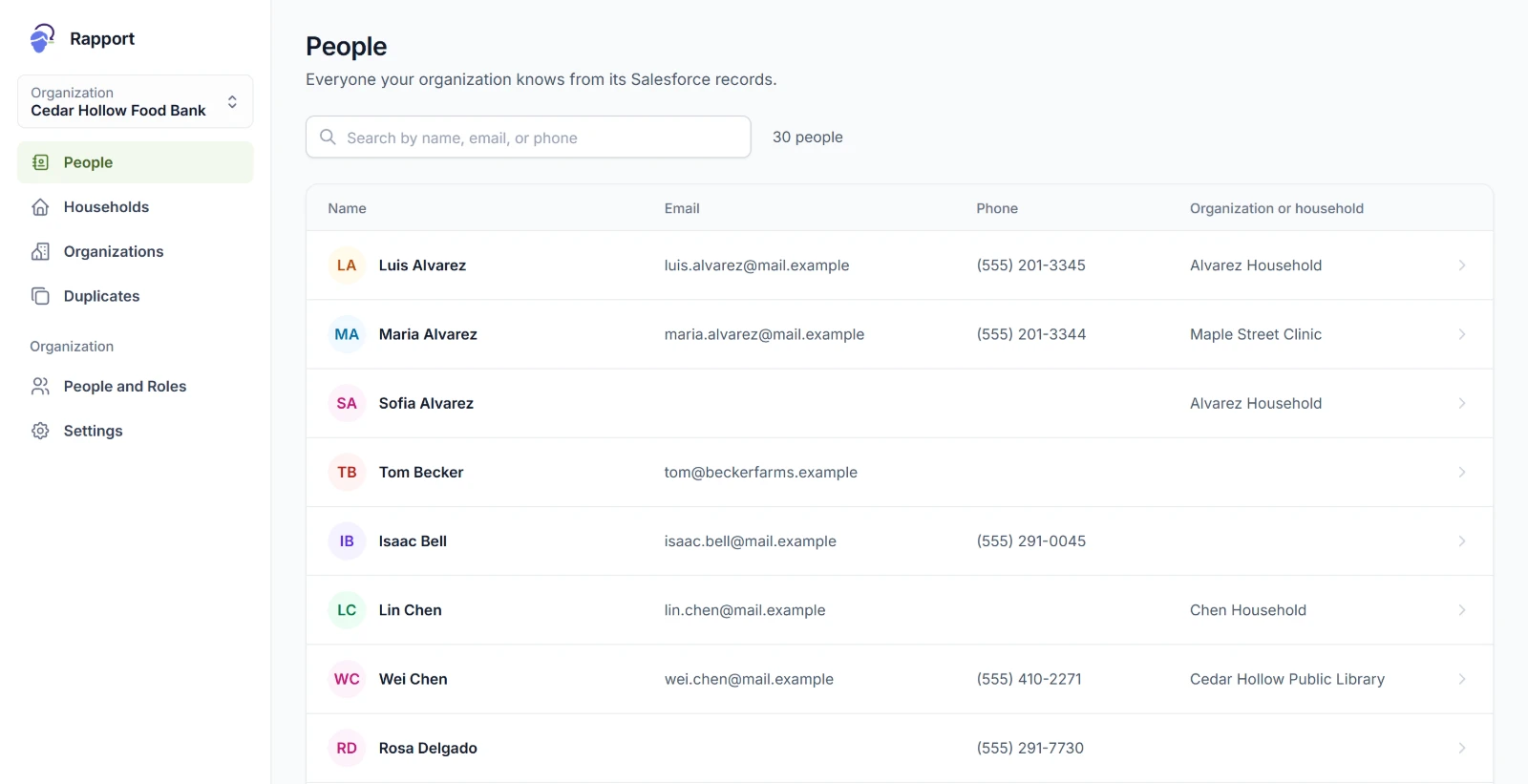
| Item | What it's for |
|---|---|
| Organization, at the top | The organization you're in. Choose it to switch to another one or to go to All organizations. |
| People, Households, and Organizations | Everyone your organization knows, a list for each kind. See Finding People. |
| Duplicates | Records that may be the same person or organization. Data admins see it. See Duplicates. |
| People and Roles | Who uses Rapport and the roles they hold. Admins see it. See People and Roles. |
| Settings | The organization's name, its Salesforce, addresses for the map, and saved questions. Admins and data admins see it. See Settings. |
| Your name, at the bottom | Your email address and Sign out. |
The lists follow how your Salesforce keeps its records. With Nonprofit Success Pack, there are People, Households, and Organizations. Without it, there are People and Organizations.
Ask Rapport, in the bottom right corner of every page, opens Rapport's agent. See Asking Rapport.
What you can do
What you can do in Rapport depends on your role in the organization.
| Role | Can |
|---|---|
| No role | Open Rapport. It shows no one until you have a role. |
| Analyst | See the people your organization knows and their pages, see how they connect, and ask Rapport about them. |
| Data admin | Everything an analyst can, and review and merge duplicates. Data admins also look after the organization's saved questions and its default view. |
| Admin | Add people, choose who holds each role, change the organization's settings, and turn its Salesforce on or off for Rapport. |
Admins don't see the people unless they also hold the data admin or analyst role. An admin without one sees See your organization's people yourself on People and can give themselves a role in one click.
Someone with no role sees You don't have a role in Rapport yet and asks an admin for one. See People and Roles.