Duplicates
How to review records that may be the same person or organization, merge them, and undo a merge.
Overview
Duplicates, in the sidebar, lists records from last night's copy of your organization's Salesforce that may be the same person or organization. We look for them every night. Only data admins see Duplicates. See People and Roles.
A review reads the records live from Salesforce, so you never merge on yesterday's values. Merging changes your Salesforce. It moves everything from the other records to the one that stays and then deletes them. You can undo a merge for 15 days.
Reviewing and merging need your organization's Salesforce turned on for Rapport. Until an admin turns it on, Duplicates says so, and Merge stays off. See Settings.
If your organization also uses Rapport's Salesforce package, its Duplicates and this one share the same groups. A decision made in one shows in the other, and either one can undo the other's merges. See Duplicates in Salesforce.
The tabs
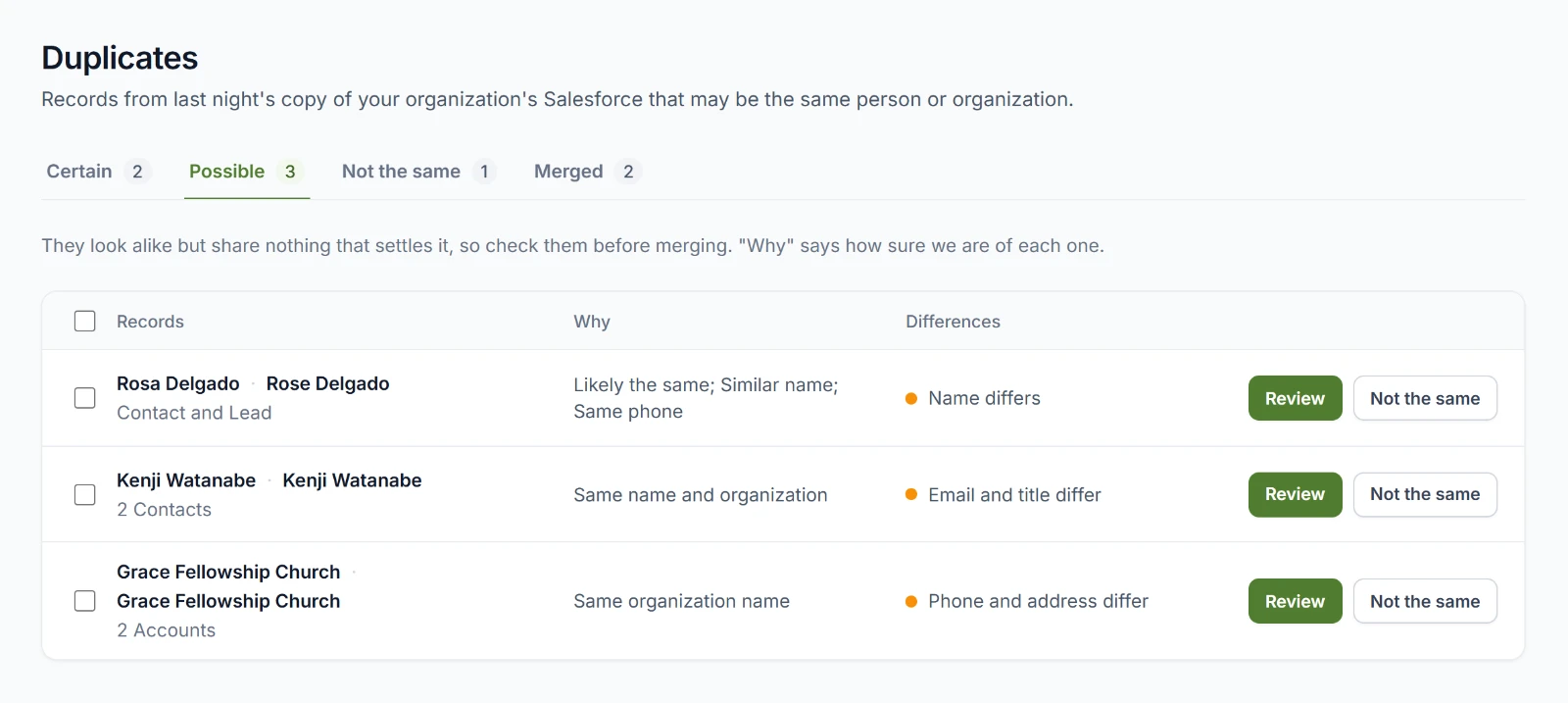
| Tab | What it lists |
|---|---|
| Certain | Records that share something only one person or organization has, such as an email with a name. |
| Possible | Records that look alike but share nothing that settles it. Check them before merging. |
| Not the same | Records a data admin marked as different. We won't suggest them again. |
| Merged | Merges made here or in Salesforce, newest first. See Undoing a merge. |
Each tab shows how many it holds. In Certain and Possible, each row is a group: its records, Why they're grouped, and the fields where they differ. Choose a name to open that person's or organization's page.
Why gives reasons such as Same email and name, Same phone, or Similar name. On Possible, it starts with how sure we are: Very likely the same, Likely the same, or Might be the same.
Reviewing a group
Review, on a group's row or on a person's page, opens the group's records as Salesforce has them now.
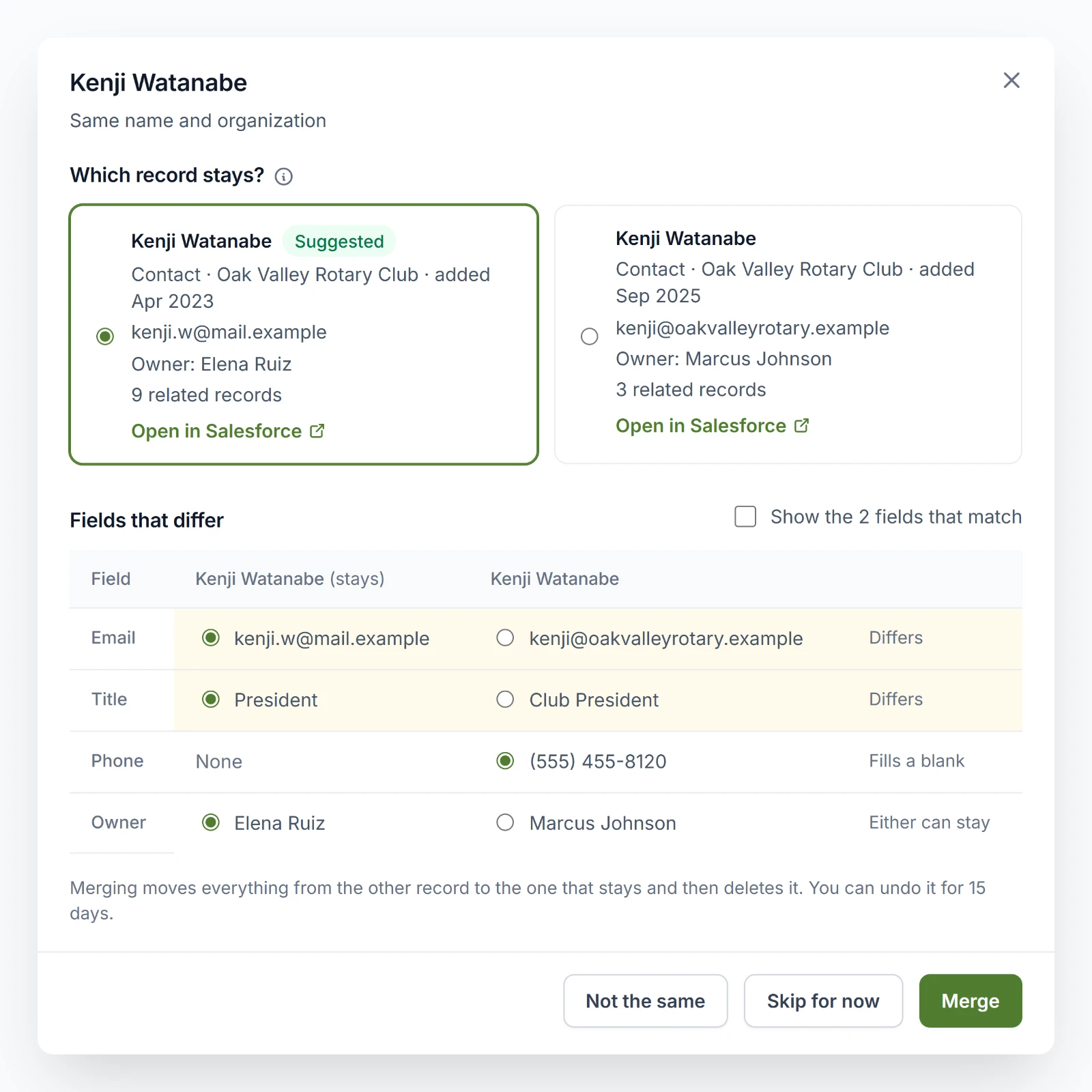
- Under Which record stays?, choose the record to keep. We suggest the one with the most related records and then the oldest, marked Suggested.
- Under Fields that differ, choose the value to keep in each field. Differs means the records disagree. Fills a blank means one of them is empty there. Either can stay means you can keep either one. The box above the table, such as Show the 2 fields that match, shows the fields where they agree.
- Choose Merge. The review closes, and the merge runs in the background.
Not the same marks the group as different, and we won't suggest it again. Skip for now closes the review and decides nothing.
A Lead in a group with a Contact can't stay. It's marked Converts, and merging converts it into the contact that stays and fills that contact's blank fields. Salesforce can't undo a lead's conversion, so the review warns you first.
If either record says not to contact the person, such as an email opt-out, the record that stays says so, too.
If the records have changed in Salesforce since last night's copy and fewer than two are left to compare, the review says so, and there's nothing to merge. We catch up after the next copy.
Merging several at once
Select groups with the boxes at the start of their rows, or with the box at the top for every group shown. Then choose:
- Merge to merge every group you selected. Each merges into the record we'd suggest. That record keeps its own values and fills only its blanks from the others. A lead converts into its contact. Confirm with Merge.
- Not the same to mark them all as different.
- Clear selection to start again.
We leave out a group whose records changed since last night's copy, or that shares a record with another group you selected, and we say how many we left out. While the merges run, how far they've got shows above the list. When they're done, the lists are read again.
Taking a decision back
Not the same lists each decision, who made it under Decided by, and When. Take back undoes a decision, on one row or on every row you select. We may suggest those records as duplicates again after tonight's copy.
A decision made in Rapport's Salesforce package names Someone in Salesforce.
Undoing a merge
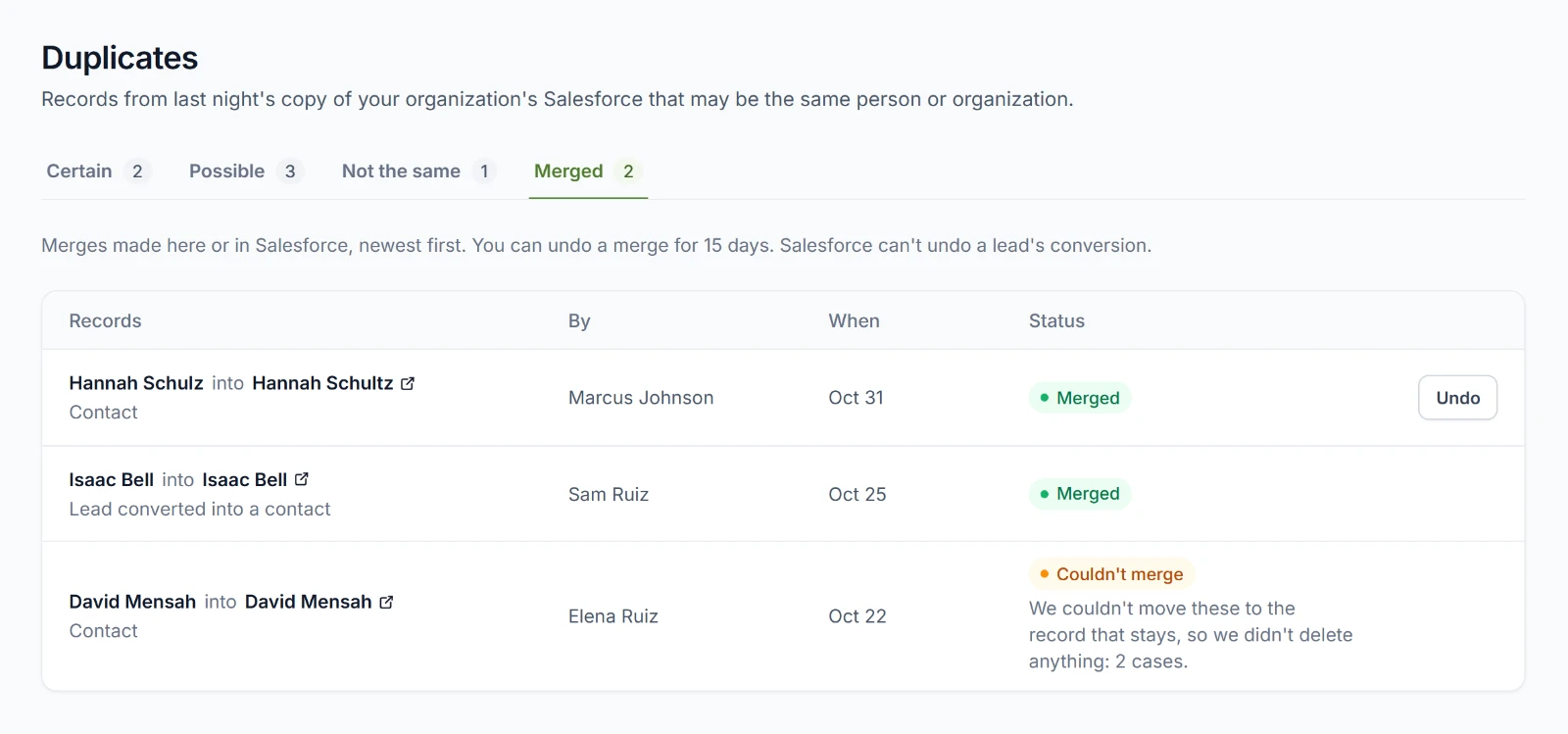
Merged lists each merge as the record that went into the record that stayed, which opens in Salesforce. By names who merged it, and When says when. Status is one of these:
| Status | Meaning |
|---|---|
| Merging | The merge is running. |
| Merged | It's done. |
| Couldn't merge | It stopped, and the line under it says why. |
| Undoing | The undo is running. |
| Undone | The merge was undone. By names who undid it. |
Undo is on a merge for 15 days. It brings the merged record back from Salesforce's Recycle Bin with everything that moved off it, and the record that stayed gets back the values it had before. A value someone has changed since the merge stays as it is. Confirm with Undo.
A merge that stopped partway can be undone, too. What moved before it stopped goes back.
A lead's conversion has no Undo because Salesforce can't undo it.
Who Salesforce says made a merge
Rapport changes your Salesforce through your organization's Salesforce connection, so Salesforce shows that connection's user as making each change. Rapport keeps which data admin made each merge, and Merged names them under By.
So connect Salesforce as a user who can see and edit everything a merge touches, such as a Salesforce administrator. See Connections in the Flourish Dashboard.