Collections and Sharing
How to keep maps together in collections, share them with people, teams, your whole organization, or anyone by a link, and move, rename, or delete them.
Overview
Every map and collection has one owner, the person who made it. It starts private to them. Then it can be shared with people, teams, or everyone in the organization, to view it or to edit it.
A collection holds maps and other collections, as a folder does. Sharing a collection shares everything in it, so a collection is the easy way to give a group the same set of maps.
A map can also be shared with anyone who has its link, outside your organization and without signing in. With its link on, a map can go on any website, too. See Maps on Websites.
Collections
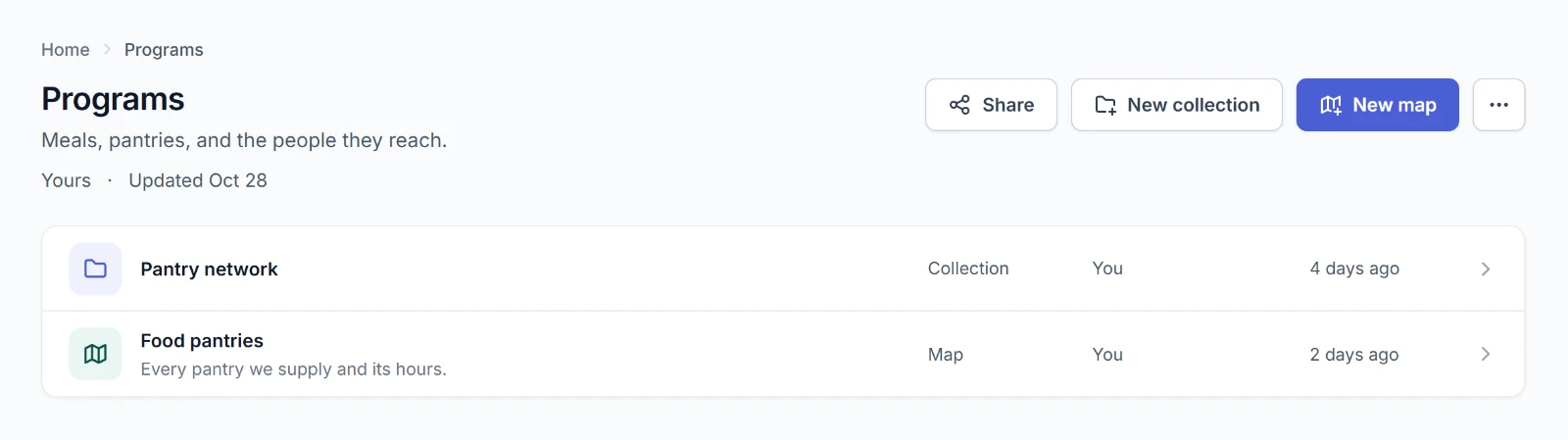
A collection lists what it holds, collections first. The breadcrumb above its name shows where it sits, and each part opens that collection.
Making a collection
- On Home, choose New collection. Inside a collection, New collection makes one inside it.
- Give it a Name and, if you like, a Description.
- Choose Make collection.
You need the creator role to make collections on Home. Inside a collection, you need to be able to edit the collection.
Adding to a collection
- Make it there. New map inside a collection makes the map in that collection.
- Move it there. See Moving.
An item sits in one collection at most. Anyone who can open the collection opens everything in it, including maps added later. Anyone who can edit the collection can edit everything in it.
Sharing
Choose Share on a map or a collection. Someone who can't share it sees Who has it instead, which lists the same people and teams.
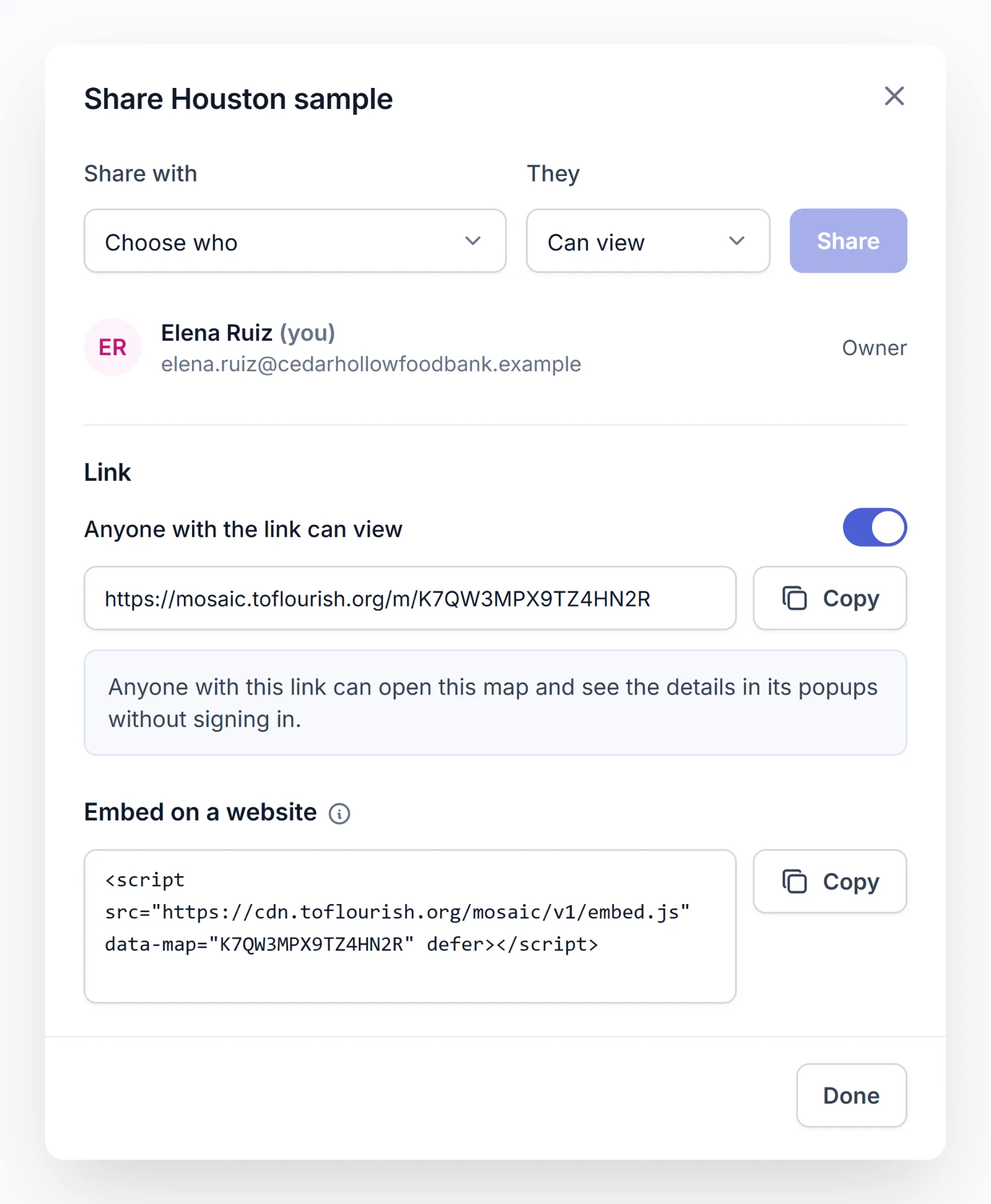
- Under Share with, choose Everyone in your organization, a person, or a team.
- Under They, choose Can view or Can edit.
- Choose Share.
| Lets them | |
|---|---|
| Can view | Open it and change nothing. |
| Can edit | Change it and share it. Only people who make maps can edit. |
To change what someone can do, use the picker on their row. To stop sharing with them, choose the × on their row.
Edit is only for people who make maps. For anyone else, Can edit can't be chosen, and the dialog says you can share it with them to view. A team or the whole organization can be given edit, and the people in it who don't make maps only view.
The dialog says when an item is in a collection. Everyone who can open the collection can open the item, too, whether or not they're on its own list.
The owner and the people who can edit it share it. Everyone else who opens it reads the list.
Sharing with everyone, or a whole team
Everyone in your organization is offered first until it's shared with them. Its row then reads Everyone in this organization. It reaches everyone who joins later, too.
Your organization's teams are listed on People. Mosaic doesn't make teams. They come from the Flourish Dashboard. See Teams. Sharing with a team shares with everyone on it, including people who join it later.
The link
Anyone who can share a map finds its Link section in Share. A collection has no link.
Switch on Anyone with the link can view, then choose Copy beside the link. Anyone you give it to can open the map without signing in, and they can only look. The dialog says so: Anyone with this link can open this map and see the details in its popups without signing in.
A live map's link reads your organization's data on every visit. For a map with a live layer of records, the dialog adds Each visit reads your organization's data at most once a minute. However many people visit, the records are read once a minute at most. See Live or a copy.
What someone with the link sees
The link opens a page with the map's name and description, Shared by and your organization's name, and the map. They get the panels to look with: showing and hiding layers, filters, search of the map's own points and regions, saved bookmark sets and time series, and the details in a point's popup. They don't get place search, and anything they change is theirs alone and isn't kept.
They see nothing else of your organization's. Search engines don't list the page.
Turning the link off
Switch the link off to stop it. Mosaic asks first: Turn off the link? It stops working for everyone who has it. Turning it on again makes a new link. The old link then says This map isn't available, and the map comes off every website it was on.
Renaming, moving, and deleting
These are in the … menu at the top right of a map or a collection. The menu offers only what you can do.
| Who can | |
|---|---|
| Rename | Anyone who can edit it. The same dialog changes its description. |
| Data updates | Anyone who can edit a map that has a layer of records. See Live or a copy. |
| Move | Its owner and the organization's admins. |
| Delete | Its owner and the organization's admins. |
Moving
- Choose Move from the … menu.
- Choose the collection it goes in, or No collection. Collections you can only view are marked View only and can't be chosen. A collection can't go inside itself or anything in it.
- Choose Move.
No collection puts it back in its owner's My maps. Moving changes who can open it. People who opened it only through the collection it leaves lose it. People who can open the collection it joins gain it.
Deleting
Mosaic asks before it deletes anything, and a deleted item can't be brought back. Deleting a map deletes its layers and data, and its link stops working.
A collection has to be empty. Move or delete what's in it first.